
Webinar Planning
How to Moderate a Webinar: A Practical Script for a Calm Live Session
Learn how to moderate a webinar with a clear role, a simple run of show, audience prompts, question triage, and a practical closing script.
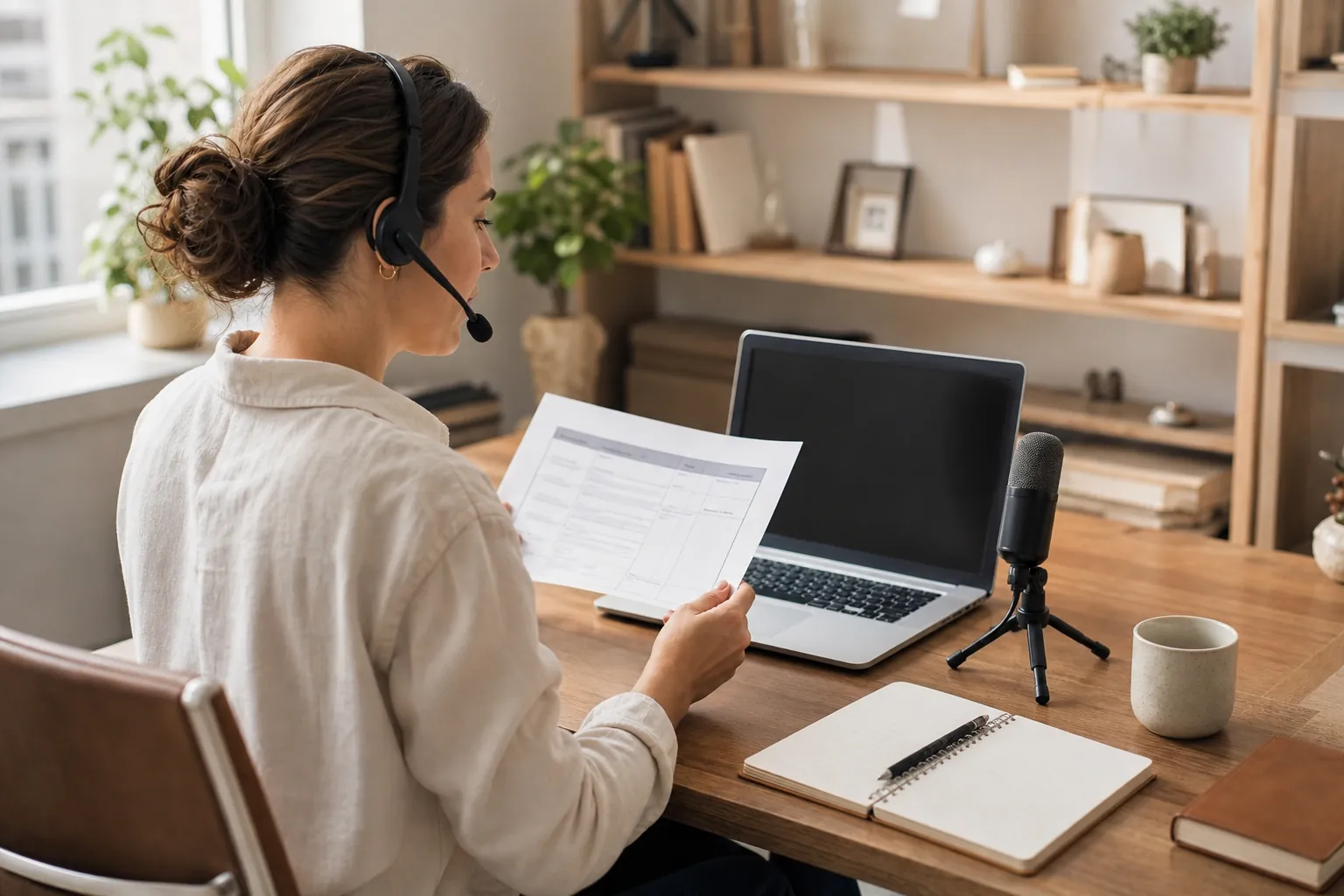
A webinar moderator is the person who makes a useful session feel easy to attend. They welcome people in, set expectations, keep the agenda moving, notice what the audience needs, and give the presenter room to focus on the message.
That work is more than a friendly introduction. A well-prepared moderator turns a collection of slides, chat messages, questions, and handoffs into one coherent experience. Use this guide to prepare for a customer education session, training, product demonstration, panel, or internal update. It includes a practical webinar moderator script you can adapt to your own voice.
What does a webinar moderator do?
The moderator owns the flow of the room, not the entire presentation. Their job is to make it clear what is happening, what attendees can do, and what comes next. The presenter owns the subject matter. The moderator protects the experience around it.
For a typical live webinar, that means the moderator:
- welcomes attendees and explains how to participate;
- introduces the topic and presenter without using up the opening minutes;
- keeps an eye on time, transitions, chat, questions, and any planned poll;
- groups similar questions so the presenter can answer what matters most;
- acknowledges a small technical problem calmly and keeps the audience informed;
- closes with a useful recap, promised resources, and one clear next step.
When one person tries to present, manage chat, launch a poll, watch the clock, and solve access problems at once, the audience can feel the strain. Separating the moderator role lets the speaker teach or demonstrate without losing the thread. It also gives attendees a clear person to trust when they need practical help.
Prepare the moderator pack before anyone joins
Do not rely on memory when the webinar is live. Build a one-page moderator pack and keep it open beside the event. It should be short enough to scan, but complete enough to answer the decisions that otherwise create last-minute confusion.
Start with the audience outcome. Ask what attendees should understand, decide, or do by the end of the session. That outcome should shape the introduction, the questions you choose, and the final next step. The webinar planning checklist can help the team settle that foundation before the run of show is written.
Your pack should include the event link, start and end time, speaker names, a simple agenda, each person's role, planned interaction moments, key links, likely questions, and a backup contact path. It is also worth adding a short note on what to do if the presenter loses audio, screen sharing stops, or the room is running behind.

Rehearse the handoffs, not just the slides
A short rehearsal protects the audience from the most common avoidable hiccups. Join from the same devices and connections you expect to use on the day. Test audio, camera framing, screen sharing, presenter permissions, chat, questions, polls, recording, and the way an attendee joins.
Then rehearse the moments between the slides. Practice the opening, the handoff to the presenter, the first audience prompt, the transition into questions, and the close. The webinar run of show template gives the team a clear way to assign those cues and timing.
Agree on how the moderator will give the presenter a time signal. A private chat message, a simple cue in the run of show, or a pre-agreed hand gesture can work. The important part is that the speaker knows a two-minute warning is a cue to finish the current point, rather than begin a new one.
Give the moderator permission to protect the attendee experience, not just the timetable. Microsoft's virtual event playbook also treats the producer and moderator role as practical preparation work, from the pre-event check to supporting the presenter during delivery. A calm team decision about who owns each moment is far more useful than asking one person to improvise their way through every interruption.
A simple 45-minute moderator run of show
Adjust this outline to fit your event, but keep every line specific enough that the moderator can act on it in the moment.
- 15 minutes before: Hosts join, test sound and sharing, confirm the recording choice, open the links and resources, and review roles.
- 5 minutes before: Open the room, welcome early arrivals, and use a light opening prompt only if it fits the audience.
- 0:00 to 0:03: Welcome attendees, explain the outcome, say how questions will work, and introduce the presenter.
- 0:03 to 0:18: Presenter teaches or demonstrates. Moderator watches for repeated questions and pace.
- 0:18 to 0:20: Run a purposeful poll or chat prompt that informs the next example or discussion.
- 0:20 to 0:35: Continue the main content. Moderator groups questions by theme and notes anything requiring follow-up.
- 0:35 to 0:42: Curated questions. Start with the question that unlocks the most value for the most people.
- 0:42 to 0:45: Recap the practical takeaway, state what attendees will receive, and give one relevant next action.
A detailed agenda makes it easier to be flexible. If a discussion is particularly useful, the moderator can shorten a later section deliberately. If the presenter runs long, they can protect the question period instead of discovering too late that the close has disappeared. That structure also makes it easier to offer attendees a respectful, on-time finish. For a fuller session structure, use the 45-minute webinar agenda template.
Use an opening script that makes participation easy
The first minute tells people whether this will feel organized. Keep it warm and concise. Attendees need to know why they are here, how long the session will run, how to ask a question, and what to expect after the event.
Example opening script: “Welcome, and thank you for joining us. Today we are going to cover [outcome]. We will be together for about [length]. Please add questions in [chat or Q&A] as they come up. We will collect them and make time for the most useful themes near the end. We are also [recording or not recording] this session, and we will send [recording or resource] afterwards. Let us get started.”
Do not begin with a long company history or every detail of the speaker's biography. A one- or two-sentence introduction is enough to establish relevance. The audience came for a useful answer, so get them to that answer quickly.
Moderate chat, polls, and questions with a purpose
Engagement is useful when it helps the audience understand, decide, or apply something. It becomes noise when it interrupts the session every few minutes without changing what happens next. Choose one or two moments that support the topic, then explain exactly how attendees should respond.
For example, a moderator can ask, “Which part of this process creates the most friction for your team?” before a practical example. A poll can help the presenter choose the next scenario. A chat prompt can reveal what needs more explanation. The webinar engagement guide has additional ways to plan those moments without treating the audience like an audience participation exercise.
For questions, do not read the chat from top to bottom. Group similar questions, remove duplicates, and choose the one that is most likely to help the room. Keep a short parking list for important questions you cannot cover live. Those questions can shape the follow-up or a future resource.

Keep a small set of calm recovery lines ready
Minor technical issues do not have to derail trust. The moderator's job is to acknowledge what people can see or hear, tell them what is happening next, and keep the message proportionate. Avoid filling the silence with a long explanation or blaming a person or connection in public.
If audio breaks up: “It sounds like the audio is unstable for a moment. Please give us a few seconds while we reset it. Add your question in the Q&A while we do.”
If screen sharing stops: “We lost the shared screen briefly. We are bringing it back now. While it reloads, here is the main point we just covered: [one-sentence recap].”
If the presenter disconnects: “It looks like [name] has dropped for a moment and is rejoining now. I will quickly recap the last point, then we will pick up where we left off.”
If chat becomes distracting: “We are going to keep the chat focused so this stays useful for everyone. Please put topic questions in the Q&A and we will work through the main themes.”
Those lines give the audience certainty without pretending nothing happened. A calm, specific update is usually all that is needed to preserve the room.
Make the webinar accessible for more people
Good moderation gives people more than one way to follow the session. Say aloud what matters on a slide, describe a poll result rather than pointing at a chart, and repeat practical instructions such as where to ask a question or find a resource. Build enough pause into the agenda for attendees to respond without needing to rush.
Plan captions and a usable recording where appropriate. The W3C guidance for accessible audio and video explains how captions provide a text version of speech and other important audio information. In a live webinar, the moderator can also make a real difference by restating a question before the presenter answers it and by summarizing what the room has decided.

Close with clarity, then use the questions in follow-up
The close should feel as intentional as the opening. Recap the main takeaway, explain what attendees will receive, and offer one next step that matches the reason they joined. Do not turn the final minute into a catalogue of every possible link.
Example closing script: “Thank you for joining us. The main takeaway is [one sentence]. We will send [recording, slides, or resource] to everyone who registered, along with answers to the questions we could not reach today. If you are ready for the next step, [specific action]. Thank you again, and have a great day.”
Review chat, questions, poll answers, and attendance notes while the session is still fresh. The themes will tell you what to clarify in the recording email, what to cover in the next webinar, and where the audience wants more help. The webinar follow-up email guide offers a practical sequence for sending the recording, answering questions, and making the next action useful.
How AONMeetings helps
AONMeetings gives webinar teams one browser-based place to manage the event. Hosts can set up registration, welcome attendees, use chat, questions, and polls, share screens or documents, record the session, and keep practical controls close to the live conversation.
That makes it easier for a moderator to protect the audience experience while the presenter focuses on the content. Explore the AONMeetings webinar platform, review the available meeting and webinar features, compare plans and webinar capacity, or talk with the AONMeetings team about an upcoming event.
Frequently asked questions
What does a moderator do in a webinar?
A webinar moderator guides the audience experience around the presentation. They welcome attendees, explain participation, keep time, manage chat and questions, support speaker handoffs, handle small disruptions calmly, and close with clear next steps.
Should a webinar have a moderator and a presenter?
For most professional webinars, separating the roles creates a better experience. The presenter can focus on teaching or demonstrating while the moderator watches the agenda, audience questions, participation, and practical issues in the room.
What should a webinar moderator say at the beginning?
A moderator should welcome attendees, name the session outcome, state the length, explain how questions work, mention whether the event is recorded, and introduce the presenter briefly. The opening should be warm but concise so the audience reaches the useful content quickly.
How do you handle questions during a webinar?
Collect questions as they arrive, group duplicates and similar themes, then select the questions that will help the most attendees. Keep a short list of questions that deserve a follow-up answer if the live session runs out of time.
Related posts
Webinar Planning Checklist: A Practical Guide From Idea to Follow-Up
Use this webinar planning checklist to define the goal, prepare presenters, run the event smoothly, and follow up while the conversation is still fresh.
Read guide →
Webinar Run of Show Template for a Smooth Live Event
Use this webinar run of show template to assign roles, time every cue, handle handoffs, and keep the live session useful for attendees.
Read guide →
Webinar Follow-Up Email: 5 Emails to Send
Use this webinar follow-up email sequence to share the recording, answer questions, and give attendees one clear next step.
Read guide →
Webinar Registration Page: What to Include to Earn Sign-Ups
Build a webinar registration page that makes the value, details, speakers, and next step clear before a visitor has to decide.
Read guide →