
Webinar Planning
Webinar Planning Checklist: A Practical Guide From Idea to Follow-Up
Use this webinar planning checklist to define the goal, prepare presenters, run the event smoothly, and follow up while the conversation is still fresh.
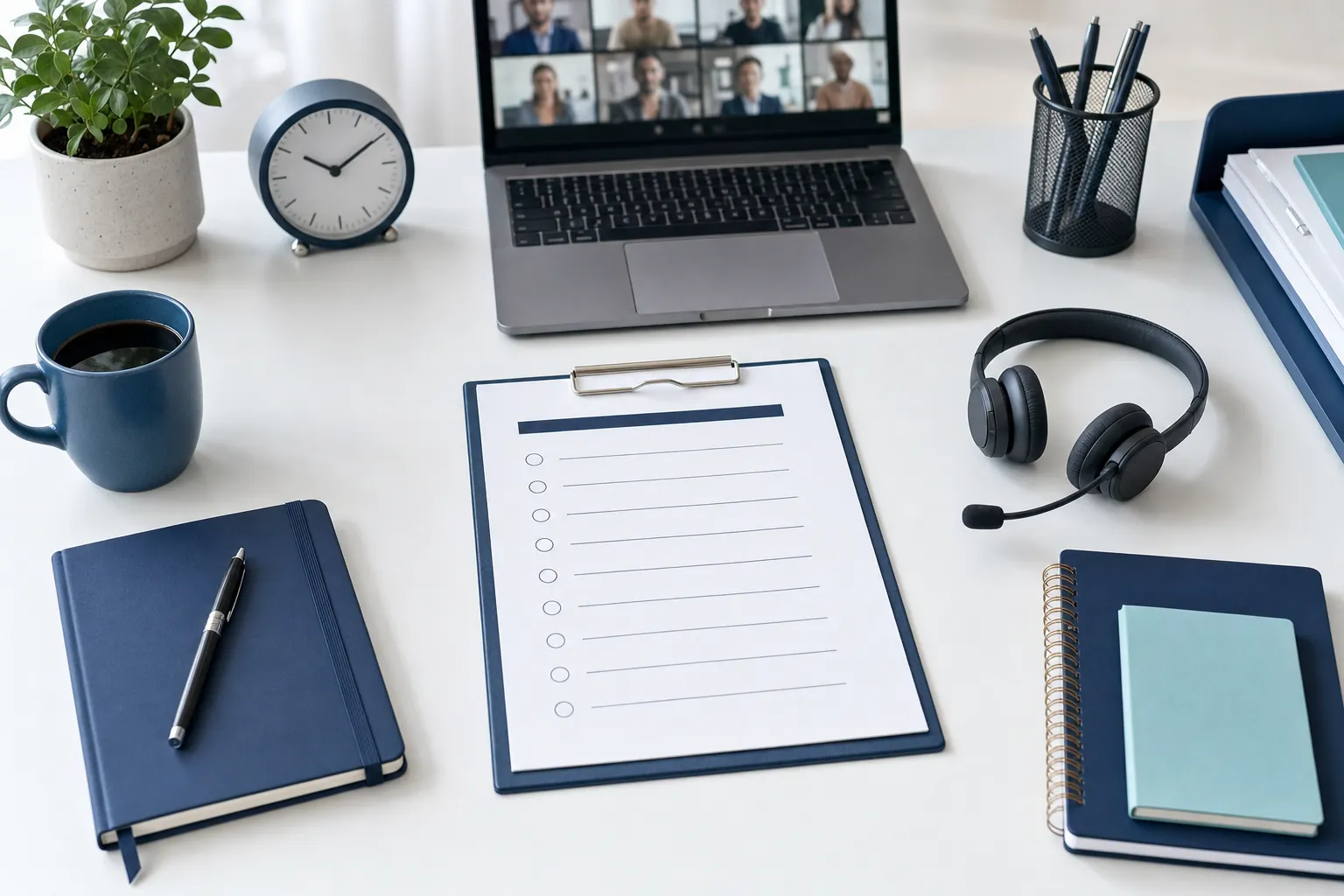
A strong webinar starts long before the audience sees a joining link. It starts with a clear decision about what the session is for, who needs to be there, and what they should be able to do when it ends.
This checklist gives a practical way to plan a webinar without turning the preparation into a second full-time job. Use it for customer education, product demonstrations, training, internal updates, or thought-leadership events.
1. Define one useful outcome
Write one sentence that describes the result you want for attendees. For example: “After this webinar, new managers will know how to run a productive weekly team meeting.” That sentence should shape the title, invitation, agenda, and follow-up.
Choose one primary audience. A webinar designed for prospects, existing customers, and internal staff at the same time usually becomes too broad for all three. If several groups need the information, keep the core session focused and use the follow-up to give each group its next step.
2. Choose a format that fits the job
A webinar is usually the right format when a small group needs to present to a larger audience. A meeting is better when most attendees need to speak, collaborate, or make a decision together. AONMeetings supports both formats in one platform, so a team can use a webinar for the main presentation and schedule smaller follow-up conversations when discussion matters.
Decide early whether you need registration, polls, questions, chat, a recording, or a downloadable resource. Those choices affect the invitation, host roles, and rehearsal. They are much easier to settle before promotion begins.
3. Build a simple run of show
A run of show is a timed plan for the people producing the session. It is not a script for every word. Keep it on one page and include the start time, host, presenter, activity, and the next cue.
- 15 minutes before: hosts join, test microphones, confirm slides, and review roles.
- 5 minutes before: open the room, welcome early arrivals, and share any joining guidance.
- Start: explain what attendees will get, how to ask questions, and whether the session is recorded.
- Middle: use a poll, question, or example when attention is likely to dip.
- Close: recap the key idea, explain the next step, and state when the recording or resource will arrive.
Leave room for a handoff between speakers. A clean transition sounds deliberate. A rushed “can you hear me?” moment makes the whole event feel less prepared than it is.
For a 30-minute session, do not plan 30 minutes of material. Reserve time for the welcome, speaker changes, a question break, and the close. A useful rule is to plan the main presentation for about two-thirds of the total time, then use the remaining time for interaction and a clear ending. If the discussion is lively, you can extend questions. If it is quiet, attendees still leave on time.
4. Write an invitation people can act on
A webinar invitation has one job: help the right person decide whether the session is worth an hour of their calendar. Lead with the specific problem or outcome, not a broad description of the company. “How to prepare first-time managers for productive one-on-ones” is clearer than “An important discussion about leadership.”
Include the date, time zone, length, presenter names, and joining or registration link. Tell people whether there will be a recording. A short agenda can help someone decide to register, especially when the topic is practical or the audience is busy.
Send one reminder the day before and another shortly before the session. Keep both messages short. The final reminder should put the join link near the top and name a contact path for anyone who has trouble getting in. Teams that want to reduce last-minute friction can point attendees to the browser joining guide before the event.
5. Give each person one clear role
Even a short webinar runs better with defined ownership. One person should host the room and watch the clock. One should present. One should monitor chat and questions. A larger event may also need someone to manage slides, polls, or the recording.
Do not ask the presenter to do everything. A presenter who is trying to speak, advance slides, watch chat, and solve an attendee problem will lose the thread. A separate host can handle the room while the presenter focuses on the audience.
Make the roles visible in the run of show. The host should know when to open the room and when to introduce the presenter. The moderator should know when to surface a question. The presenter should know who will take over if their connection fails. This is especially important when several people are sharing control of one session.
6. Rehearse the experience, not just the slides
Run a short rehearsal on the same devices and network people will use on the day. Check audio first, then camera framing, slides, screen sharing, and the way attendees enter the room. Test what happens if a presenter disconnects or needs to hand over.
Ask each presenter to practice the first minute and the final call to action out loud. Those are the moments most likely to feel rushed. A rehearsal also reveals whether the agenda is realistic. It is better to cut one slide before the event than to rush a useful explanation live.
For accessible viewing, plan to use captions when they are available and make spoken information understandable without relying only on a visual. The W3C guidance on captions explains why captions help people who are deaf or hard of hearing and also support viewers in noisy or quiet settings.
7. Make joining and participation obvious
Every invitation should answer the same practical questions: what the session covers, who it is for, when it starts and ends, how to join, and where to get help. Use a direct browser link whenever possible. A joining path that requires an unexpected download or a new account creates avoidable drop-off.
At the opening, tell people exactly how to participate. For example, explain where to send questions, whether chat is monitored, and when questions will be answered. This small piece of orientation makes a large audience more comfortable taking part.
8. Protect the attendee experience
Small setup choices protect the usefulness of the room. Decide whether attendees should enter muted, whether chat is available to everyone, and who can share a screen. Use a waiting room, meeting lock, or access code when the topic or audience calls for it. Review the settings before the event instead of trying to change them while people are arriving.
Be clear about recording. Let attendees know at the beginning whether the session is being recorded and what will be shared afterward. For sessions involving confidential topics, patient information, or client matters, confirm the organization's own privacy requirements and host controls before inviting anyone. The AONMeetings FAQ covers common questions about browser-based joining, recording, and support.
Keep an attendee support plan nearby. One person should have a way to respond when someone cannot hear the audio, cannot find the join link, or arrives late. Most issues are simple, but they feel urgent to the attendee who is missing the opening. A quick, calm response protects the experience for the whole group.
For larger sessions, ask the host to watch the attendee list and chat during the first few minutes. This is the best time to solve a joining issue, remind people where to ask questions, and make sure the event is reaching the people who registered. Once the presentation is underway, the host can focus on timing and transitions.
9. Plan questions before they arrive
Start with three likely questions and decide who will answer each one. Have the moderator group similar questions rather than reading every message aloud. If a question needs a detailed or sensitive answer, acknowledge it and offer a clear written follow-up instead of improvising.
Questions are useful research. Save the themes that come up repeatedly. They can improve the next webinar, shape a help article, or reveal a gap in the sales conversation.
10. Follow up while the session is still useful
Send the recording, slides, and promised resource within one working day. Lead with the most useful takeaway, then make the next action specific. A prospect may want to compare plans. A customer may need a help guide. Someone who missed the event may only need the recording.
Review registration and attendance after the event. Look for the point where people left, the questions that generated the most interest, and the invitation message that brought the right audience. Those observations make the next event more useful than simply running the same format again.
Keep the follow-up message focused on the session rather than turning it into a long newsletter. Start with the recording or key resource, then offer one sensible next action. For an educational event, that may be a related guide. For a product demonstration, it may be a conversation with the team or a closer look at the AONMeetings experience.
11. Use the results to improve the next event
After each webinar, take 15 minutes with the host and presenter to record what happened. Which promotion message earned the most registrations? What did people ask? Where did the energy drop? Did any presenter handoff or feature create confusion?
Turn the answers into three decisions for next time. You might change the title, shorten the presentation, move a poll earlier, or send the reminder sooner. This small review makes the webinar program stronger over time and prevents the same avoidable problems from returning.
Keep a small library of what worked. Save the run of show, reminder copy, presenter notes, and useful answers to recurring questions. The next event will still need a fresh topic and audience angle, but the operational work becomes easier when the team is not rebuilding every detail from scratch. That consistency also makes it easier for new hosts to step in confidently.
A simple webinar planning checklist
- Set one attendee outcome and one primary audience.
- Choose webinar features that support the session, including registration, questions, polls, and recording.
- Create a one-page run of show with owners and time cues.
- Assign a host, presenter, and question moderator.
- Rehearse the joining path, audio, screen sharing, and handoffs.
- Explain participation and captions at the opening.
- Prepare likely questions and a plan for follow-up.
- Send the recording and next steps within one working day.
- Record three improvements before planning the next event.
How AONMeetings helps
AONMeetings keeps the webinar workflow in one browser-based place: registration, screen and document sharing, chat, questions, polls, recording, and follow-up. Teams can choose a plan that fits their regular audience, then add capacity for a larger event when they need it. See the meeting and webinar features or compare plans and webinar capacity before your next event.
Frequently asked questions
How far in advance should you plan a webinar?
For a straightforward session, begin planning at least two to four weeks ahead so there is time to confirm the audience, rehearse presenters, promote the event, and prepare follow-up. Larger events with multiple speakers or paid registration need more lead time.
What should be included in a webinar run of show?
A webinar run of show should list the event timing, each activity, the person responsible, presenter handoffs, polls or questions, and the close. It should also include a short pre-event check so hosts know when to test audio, slides, and the attendee joining path.
How long should a webinar be?
A useful webinar is long enough to answer the audience's main question and short enough to keep the promise made in the invitation. Many educational sessions work well in 30 to 45 minutes, including questions, but the right length depends on the topic and audience.
Who should run a webinar?
The strongest setup separates presenting from producing. The presenter delivers the material, while a host manages timing and the room. A moderator can watch chat and group audience questions, allowing the presenter to stay focused on the explanation.
Related posts
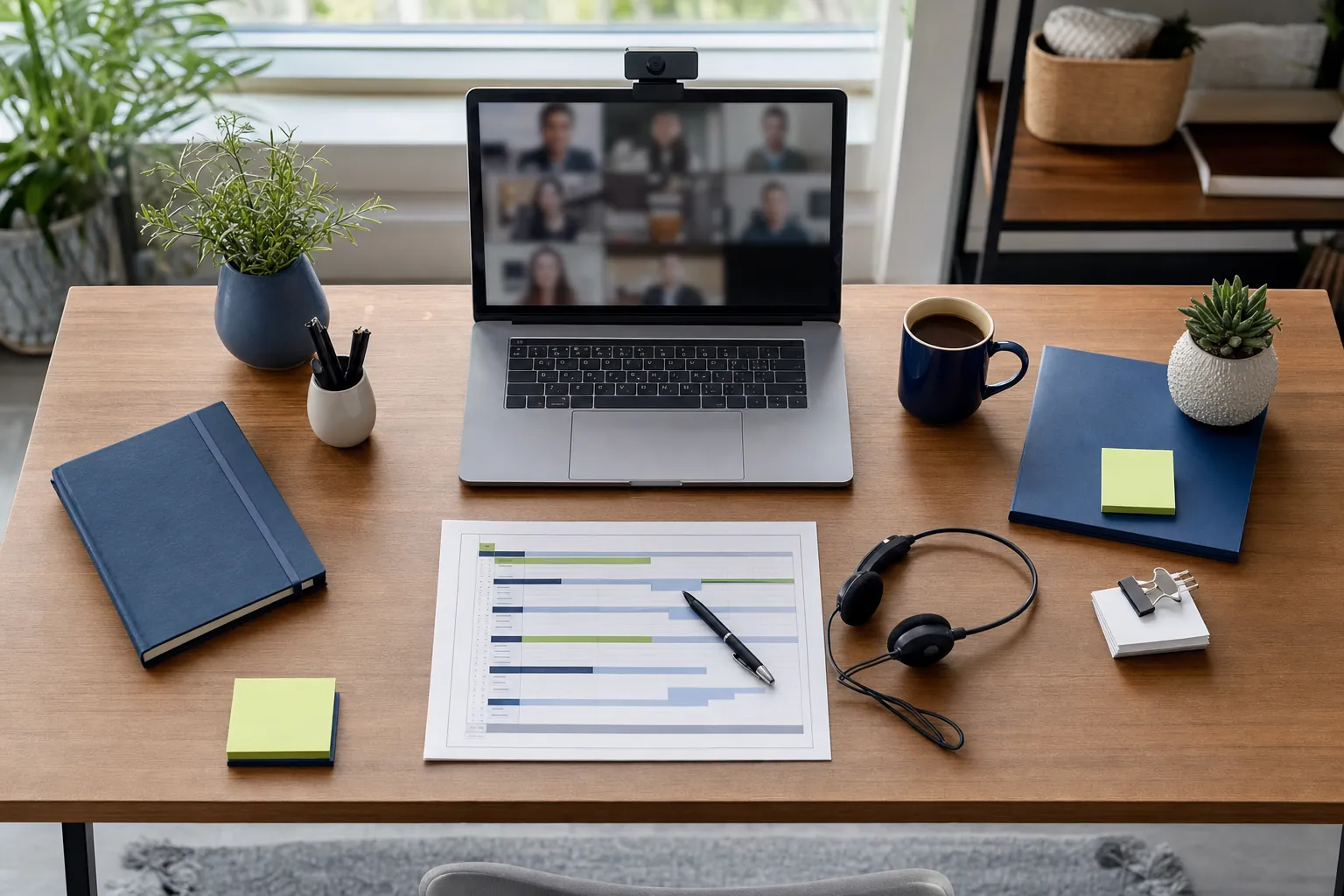
Webinar Run of Show Template for a Smooth Live Event
Use this webinar run of show template to assign roles, time every cue, handle handoffs, and keep the live session useful for attendees.
Read guide →
Webinar Follow-Up Email: 5 Emails to Send
Use this webinar follow-up email sequence to share the recording, answer questions, and give attendees one clear next step.
Read guide →
Webinar Registration Page: What to Include to Earn Sign-Ups
Build a webinar registration page that makes the value, details, speakers, and next step clear before a visitor has to decide.
Read guide →
Webinar Promotion Plan: A Practical Timeline That Works
Use this webinar promotion plan to choose the right audience, build a realistic timeline, and keep registrations moving before the event.
Read guide →