
Webinar Planning
Webinar Run of Show Template for a Smooth Live Event
Use this webinar run of show template to assign roles, time every cue, handle handoffs, and keep the live session useful for attendees.
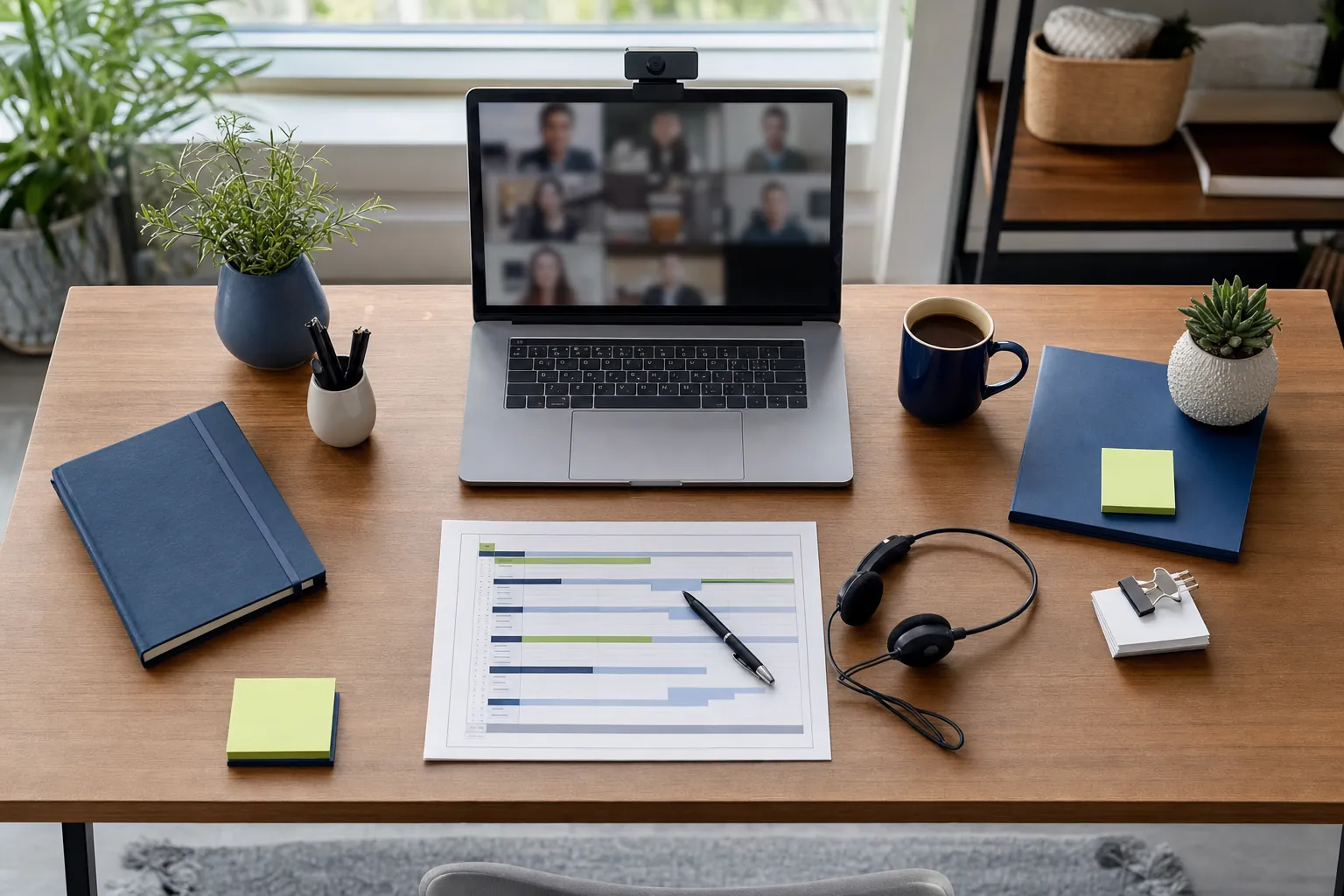
A webinar run of show is the working plan behind a calm live event. It gives the host, presenter, moderator, and any behind-the-scenes support person one shared view of what happens next, who owns it, and how much time is available.
The best version is not a word-for-word script. It is a practical cue sheet that protects the audience experience. When presenters know when they are coming in, moderators know when to surface questions, and hosts know what to do if something changes, the session feels organized without feeling stiff.
Use this webinar run of show template for a customer education session, product demonstration, panel, training event, or large internal update. Adapt the timing to your format, then make the final version available to everyone producing the event.
What belongs in a webinar run of show
At minimum, include the event time, each segment, its owner, the key cue, and a note for anything that could affect the attendee experience. This is different from the presentation deck. The deck helps the audience follow the message. The run of show helps the team run the room.
- Time: Use the real clock time or a countdown from the start. Everyone should be able to tell whether the event is on pace.
- Segment: Name the moment, such as room open, welcome, product demonstration, poll, questions, or close.
- Owner: Assign one person who is responsible for making that moment happen.
- Cue: Write the trigger for the transition, such as “host introduces speaker” or “moderator posts poll.”
- Attendee view: Note what attendees should see, hear, or be asked to do.
- Fallback: Include a short backup plan for the pieces that could cause a delay, especially speakers, screen sharing, and questions.
A one-page format is usually enough for a short webinar. Larger events may need a detailed producer copy, but the presenter should still have a simpler version that makes their handoffs obvious.
Webinar run of show template
Copy this outline into a shared document, then replace the times and cues with the details of your event. Keep each row short enough to scan during a live session.
- T-30 minutes, host and presenters join: Host confirms sound, camera framing, screen sharing, recording, and the attendee joining link. Presenter practices the opening and close. Moderator reviews likely questions.
- T-15 minutes, final production check: Confirm who is hosting, presenting, managing questions, and covering the event if a speaker drops. Open any slides, documents, polls, or links needed during the session.
- T-5 minutes, room opens: Host welcomes early arrivals, checks that people can hear, and shares the starting time. Keep the presenter off camera until the planned opening if that fits the event.
- 0:00, welcome and orientation: Host introduces the topic, explains the session length, tells attendees how to ask questions, and says whether the session is being recorded.
- 0:03, presenter introduction: Host gives a concise introduction, then hands to the presenter. The presenter begins with the problem or outcome the audience came for.
- 0:05 to 0:25, main content: Presenter delivers the core explanation, demonstration, or panel discussion. Moderator watches chat and groups related questions.
- 0:25, engagement moment: Host or moderator runs one poll, prompt, or planned question. Keep the instruction clear and let attendees know what will happen with their responses.
- 0:28, questions: Moderator introduces the first grouped question and directs it to the right speaker. Hold detailed or sensitive questions for written follow-up when needed.
- 0:38, close: Presenter summarizes the key takeaway. Host explains the next step, when attendees will receive the recording or resource, and where they can get help.
- 0:40, room closes: Host ends the session on time, confirms the recording saved, and notes any follow-up commitments before the team signs off.

Give every producer one clear role
Live webinars feel easier when the presenter is not also expected to manage every production task. The exact team size can change, but the responsibilities should stay separate enough that the audience is never waiting while someone decides who is in charge.
The host opens the room, keeps time, welcomes attendees, manages access, and handles the start and end. The presenter delivers the material and makes the promised outcome clear. The moderator watches chat, combines duplicate questions, and keeps the interaction useful. For more complex events, a producer can run slides, polls, recordings, or speaker handoffs.
Assign a backup for every role that could interrupt the event. If the presenter loses their connection, the host should know whether to move to questions, show a holding slide, or introduce the next speaker. If the moderator is unavailable, someone else needs access to the question queue. Small decisions made before the event prevent awkward silence during it.
Teams using a browser-based platform can reduce one common source of last-minute friction by rehearsing the join path as an attendee would. The browser requirements guide covers the basic device, browser, and permission checks to make before the room opens.
Build the timing around the attendee, not the slide count
A run of show makes it easier to protect the event length promised in the invitation. A 40-minute webinar should not contain 40 minutes of presentation slides. It needs a welcome, speaker transitions, time to explain participation, a useful close, and enough room for the unexpected.
Plan the main content for roughly two-thirds of the total session. In a 40-minute webinar, that could mean 25 minutes of core content, five minutes for interaction, seven minutes for questions, and three minutes for the introduction and close. The exact split changes with the format, but reserving time is what keeps the ending from becoming rushed.
For a panel, build in a transition between each topic rather than treating every answer as a separate segment. For a demonstration, identify the one workflow attendees need to see and cut the rest. For training, reserve a check-in point so the host can see whether the audience needs the concept repeated before moving on.
When registration, questions, polls, and recording are part of the event, decide that before promotion begins. AONMeetings includes those webinar tools across its plans, and the webinar platform overview shows how they fit into a browser-based event workflow.
Run a rehearsal that tests the experience
A rehearsal should test more than the slides. Have each person join on the same device, browser, and network they expect to use live. Check microphone and camera permissions first. Then test screen sharing, slide control, presenter handoffs, polls, chat, questions, recording, and the closing link or call to action.
Start with the first minute. It is where attendees decide whether they are in the right place and whether they understand how to participate. Practice the final minute too. The close should tell people what they can do next, not end abruptly because the session ran long.
Use the rehearsal to find pressure points. If it takes too long to move from one speaker to the next, shorten the introduction. If the presenter has to switch between multiple windows, have a producer control the visual sequence. If the room opens late, set an earlier internal start time. The webinar planning checklist can help the team prepare invitations, roles, and follow-up alongside the live production plan.

Prepare useful fallbacks before they are needed
The purpose of a fallback is not to expect disaster. It is to give the host a calm next move when something ordinary goes wrong. Most live-event problems are manageable when the team does not need to invent the response in front of the audience.
- Presenter connection problem: Host acknowledges a short delay, moves to a planned question or key point, and brings in the backup speaker if needed.
- Screen sharing issue: Producer shares the deck or document, or the presenter continues with the key explanation while the host resolves the setup.
- Low question volume: Moderator opens with one of the prepared questions, then invites attendees to add their own.
- More questions than time: Moderator groups the most useful themes and tells attendees which questions will receive a written answer later.
- Late start: Protect the close and shorten the least essential segment. Do not try to recover time by rushing the instructions that help attendees participate.
Some events also need a plan for access and privacy. Decide who can join, who can share, and whether the room should be locked once everyone has arrived. The AONMeetings feature overview explains the host controls available for meetings and webinars, while the FAQ answers common questions about browser-based joining and recording.
Use the run of show to make questions worth answering
Questions are not an interruption when they are planned into the timing. Before the event, ask the presenter for three likely questions, then give the moderator a simple rule for deciding which ones to bring into the room. Good questions clarify the topic, surface a real objection, or help a larger part of the audience.
Ask the moderator to group repeated questions and read a short version aloud. That gives the presenter a clear prompt and stops the question period from turning into a list of individual support requests. When an answer depends on someone’s account, confidential situation, or a detailed technical setup, acknowledge it and follow up directly after the event.
For recurring webinars, save the questions that appear often. They can improve the next event, guide a customer resource, or help shape a more useful product demonstration. A run of show is not just a document for a single day. It becomes a better operating template with each event the team runs.
Close with a real next step and a clean handoff
The final two minutes should be written into the run of show, not improvised. State the promised takeaway, tell attendees when they will receive the recording or materials, and give them one appropriate next action. A customer training session might point to a help guide. A product demonstration might invite a closer look at the platform. A larger event might offer a relevant recording or resource.
After the room closes, the host should confirm the recording, collect unanswered questions, and set the follow-up owner before the team moves on. Send the promised material while the topic is still fresh. The recordings guide explains the practical steps for finding and reviewing a session after it ends.

How AONMeetings helps
AONMeetings gives webinar teams one browser-based place to prepare, host, engage the audience, and follow up. Hosts can use registration, screen and document sharing, chat, polls, questions, recording, and practical access controls without asking attendees to install a separate app.
For regular webinars, choose a plan that fits the normal audience. When a bigger event needs more room, AONMeetings also offers monthly and one-time capacity options for up to 5,000 attendees. Compare the plans and webinar capacity or explore the AONMeetings experience before your next live event.
Frequently asked questions
What is a webinar run of show?
A webinar run of show is a timed production plan for the people running a live event. It lists each segment, who owns it, the handoff or cue that starts it, and any backup action needed to keep the attendee experience moving.
How detailed should a webinar run of show be?
It should be detailed enough that every producer knows what happens next without needing to ask. For a short webinar, one page with timing, owner, cue, and fallback notes is usually enough. Larger events may need a more detailed producer version.
Who should have the webinar run of show?
The host, presenter, moderator, and anyone managing slides, polls, recording, or speaker handoffs should have the final version. Give presenters a simplified copy when a detailed production document would distract from delivering the session.
When should you create a webinar run of show?
Create the first version once the topic, speakers, and event length are settled. Finalize it during the rehearsal, when the team can test handoffs, confirm timing, and add practical fallback steps.
Related posts

Webinar Planning Checklist: A Practical Guide From Idea to Follow-Up
Use this webinar planning checklist to define the goal, prepare presenters, run the event smoothly, and follow up while the conversation is still fresh.
Read guide →
Webinar Follow-Up Email: 5 Emails to Send
Use this webinar follow-up email sequence to share the recording, answer questions, and give attendees one clear next step.
Read guide →
Webinar Registration Page: What to Include to Earn Sign-Ups
Build a webinar registration page that makes the value, details, speakers, and next step clear before a visitor has to decide.
Read guide →
Webinar Promotion Plan: A Practical Timeline That Works
Use this webinar promotion plan to choose the right audience, build a realistic timeline, and keep registrations moving before the event.
Read guide →