
Webinar Planning
Webinar Agenda: A Simple 45-Minute Template
Use this webinar agenda template to give attendees a clear reason to stay, keep presenters on time, and leave room for useful questions.
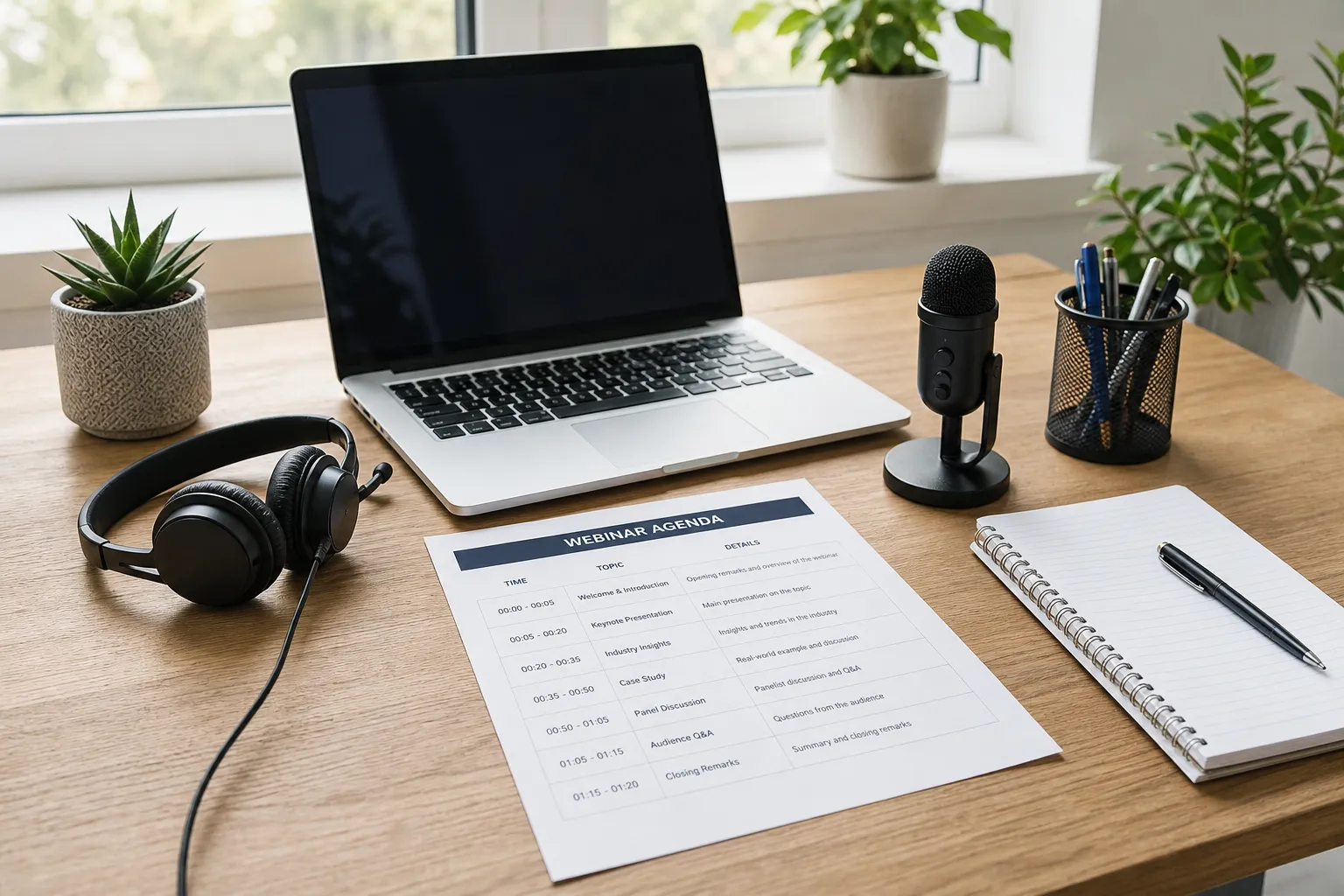
A webinar agenda gives people a reason to make time for your event. It shows what the session will cover, how long it will take, and where attendees can take part. For the host team, it is also a useful guardrail. A clear sequence keeps the webinar focused when a presentation runs long, a question opens an important discussion, or a speaker needs a little more time to make a point.
The strongest agenda is not a list of everything you know about a subject. It is a short path from the audience's problem to a useful next step. This guide includes a 45-minute webinar agenda template that works for customer education, product demonstrations, training, panels, and internal updates. Adapt the timing to your topic, then make sure the registration page, presenter notes, and live production plan all support the same promise.
1. Start with the outcome attendees came for
Before assigning minutes to each part of the webinar, write one sentence that says what a person should understand, decide, or be ready to do when the session ends. A useful outcome might be "Choose the right format for a customer webinar" or "Leave with a repeatable process for onboarding new managers."
That sentence prevents an agenda from becoming a catalog of company talking points. It also gives people a clearer reason to register. On the event page, use the outcome to explain the session's value. In the live opening, repeat it in plain language. In the close, point back to it so attendees can see what they can do next.
The outcome should fit one primary audience. If the event is for existing customers, keep the agenda centered on helping them use a process or capability well. If it is for prospective buyers, make the time useful before inviting them to take a closer look. The webinar registration page guide can help you turn the outcome into an invitation people can act on.
2. Give each agenda item one job
Every part of a webinar agenda should move the audience forward. The opening creates orientation. The main content explains the promised idea. An example makes it concrete. A participation moment helps the host understand the room. Questions let people apply the material. The close tells attendees what to do with what they learned.
Avoid broad labels such as "discussion" or "presentation" when a more useful description is available. "Choose a webinar outcome," "See a registration path," and "Plan the follow-up" tell an attendee what they will get. They also help the presenter decide what belongs in the deck and what can be left for a future session.
- Welcome: Set expectations about the topic, length, participation, and recording.
- Problem: Name the decision or obstacle the audience recognizes.
- Approach: Teach the steps, framework, or demonstration that answers the problem.
- Example: Show how the approach works in a realistic situation.
- Participation: Use a prompt, poll, or question break to keep the room involved.
- Questions and close: Answer the most useful questions and give one clear next action.
This structure gives a webinar enough shape without making it rigid. A product demonstration may spend more time on the example. A panel may give more time to questions. A training session may include a longer practice prompt. The point is to decide that tradeoff before people are in the room.

3. Use this 45-minute webinar agenda template
Forty-five minutes is long enough to teach something useful and short enough to respect a busy calendar. The template below reserves time for the moments teams often overlook: a clear opening, a pause for participation, questions, and a calm close. If your session is 30 minutes, shorten the main content first, not the orientation or final next step.
- 0:00 to 0:05, welcome and orientation: Welcome attendees, state the outcome, introduce the speakers, explain how to ask questions, and say whether the session is being recorded.
- 0:05 to 0:10, frame the problem: Describe the situation that makes this topic important. Use one concrete example so people can recognize the issue in their own work.
- 0:10 to 0:25, teach the main approach: Walk through the three to five decisions, steps, or capabilities that solve the problem. Keep each point connected to the outcome promised in the invitation.
- 0:25 to 0:32, show an example: Demonstrate the process, share a realistic scenario, or invite a speaker to explain how they would apply the approach.
- 0:32 to 0:35, invite participation: Run one poll, ask a focused question in chat, or pause to surface a theme the host has noticed.
- 0:35 to 0:42, answer questions: Group similar questions and answer the ones that help the largest share of the audience. Save personal or account-specific questions for follow-up.
- 0:42 to 0:45, recap and close: Restate the key idea, explain where the recording or resource will appear, and offer one relevant next step.
Share the attendee-facing version of this agenda on the registration page or in the confirmation email. Keep the producer's version more detailed, with speaker names, transitions, links, slide numbers, and backup notes. The webinar run of show template is designed for that second document.
4. Plan the opening before the main presentation
The first few minutes tell attendees whether the event will respect their time. Start on schedule. Say what people will leave with. Tell them how to participate. Then move into the first useful point without a long company introduction.
A simple opening can sound like this: "Today you will leave with a 45-minute agenda you can adapt for your next webinar. We will cover the structure, the timing, and where to make room for questions. Send questions through chat as they come up, and we will answer as many as time allows." That gives the room a clear set of expectations.
If the event is recorded, say so near the start and explain what will be shared afterward. The recordings guide helps AONMeetings hosts think through review and access after a session ends. For a webinar that needs captions, the W3C captions guidance explains how captions make spoken content available to people who are deaf or hard of hearing and can also help viewers in a noisy or quiet environment.
5. Build in one participation moment
A webinar does not need constant activity to be engaging. One well-timed interaction can give the audience a reason to stay present and give the host a better read on what people need. Put it after a useful teaching point, not before attendees understand why the prompt matters.
For a training webinar, ask a poll that checks whether the group understands the decision you just explained. For a product demonstration, ask which workflow the audience wants to see next. For a customer update, ask people to add one question in chat before the question period. Make the response method clear, allow a short pause, then tell attendees what you learned from their input.
Do not add a poll simply because the platform offers one. A weak prompt creates a detour. A strong one advances the agenda, reveals a real audience concern, or helps the presenter choose what to emphasize. The AONMeetings webinar platform includes chat, polls, questions, screen sharing, and moderator controls that help the host use those moments without interrupting the presenter.

6. Protect time for questions and a real close
Question time is not spare time. It is one of the few moments when attendees can connect the presentation to their own situation. Reserve it in the agenda and ask a moderator to group similar questions while the presenter is speaking. That way, the host can start with the questions that help the room rather than reading every message in the order it arrived.
When a question needs a detailed answer, acknowledge it and explain how the attendee can get help afterward. Do not let one complex issue take the final ten minutes away from everyone else. A short note in the agenda can help the host make that call: "Answer shared questions live. Collect account-specific questions for follow-up."
Save the final three minutes for a recap and one next action. The best close is specific: download a template, watch the recording, read a related guide, compare plans, or book a conversation. A list of five different links makes people work too hard. The webinar follow-up email guide shows how to carry that same clarity into the messages attendees receive after the event.
7. Match the agenda to the format
The template is a starting point, not a rule. Different formats need different timing. A customer education webinar often needs more teaching time. A panel needs more room for discussion. A product demonstration needs a focused use case and a questions section that can handle specific workflow concerns. An internal update may need a shorter presentation and a longer window for questions.
- Customer education: Spend most of the time teaching one process, then offer a template or guide that helps attendees use it.
- Product demonstration: Frame one business problem, demonstrate the workflow that solves it, and keep questions close to the use case.
- Panel: Introduce one central question, give every speaker an early point of view, and leave time for the moderator to connect their answers.
- Training: Break the main teaching into smaller sections and use a prompt or poll to check understanding before moving on.
- Internal update: Put decisions, dates, and practical implications first. Use the question period to surface what needs follow-up.
Choose the format before promotion begins. The agenda should match the wording people see in the invitation, the page where they register, and the way the room will actually run. The webinar promotion plan can help your team coordinate those touchpoints before the event is announced.
8. Rehearse the transitions, not just the slides
A slide deck can be finished and still leave an agenda untested. In a short rehearsal, practice the welcome, the handoff between speakers, the participation cue, the question transition, and the final call to action. These are the moments that can feel improvised when they have not been said out loud.
Use the same browser, microphone, camera, and network you expect to use on the day. Check that the host can open the room, the presenter can share a screen or document, the moderator can see chat and questions, and attendees can join through the event link. The browser requirements guide is useful for sharing straightforward joining guidance before the event.
Keep a small buffer inside the live agenda. A presenter may need to repeat a key point. A poll may take longer than expected. A guest may arrive late. A five-minute cushion is more useful than trying to fit every idea into the final minute.
9. Review the agenda after the webinar
After the session, give the host team 15 minutes to review what happened. Did the opening make the purpose clear? Did the main section fit the time available? Which question came up more than once? Did the participation prompt reveal anything useful? Was the next step relevant to why people registered?
Write down a few practical changes for the next event. You may move the interaction earlier, shorten an example, assign a different moderator cue, or send the recording sooner. Small improvements add up because the next agenda starts with what you learned instead of a blank page.

A simple webinar agenda checklist
- State one useful attendee outcome.
- Give each agenda item a clear job.
- Show the attendee-facing agenda in the registration journey.
- Reserve time for the welcome, participation, questions, and close.
- Assign a host, presenter, and question moderator.
- Practice transitions and the joining path before the event.
- Share the recording and next action when you promised.
- Record a few improvements before planning the next session.
How AONMeetings helps
AONMeetings gives webinar teams one browser-based place to keep the agenda moving. Hosts can use registration, screen and document sharing, chat, polls, questions, recording, and practical room controls while presenters stay focused on the audience.
That makes the event promise easier to keep. Attendees can join from a direct browser link, take part without switching tools, and receive a useful follow-up after the room closes. Explore the AONMeetings features, compare plans and webinar capacity, or talk with the AONMeetings team about the right setup for your next event.
Frequently asked questions
What should a webinar agenda include?
A webinar agenda should show the session outcome, welcome, main teaching or demonstration, an example or application, a participation moment, questions, and a clear close. It should also tell attendees how long the webinar will take and how they can take part.
How long should a webinar agenda be?
Many practical webinars work well in 30 to 45 minutes, including time for questions. The right length depends on the promise you made to attendees. Plan the main presentation for less than the full session so the host has room for introductions, participation, questions, and a clear ending.
Should I share the webinar agenda before the event?
Yes. A short attendee-facing agenda on the registration page or in the confirmation email helps people decide whether the event is relevant and gives them a clearer expectation of how their time will be used.
What is the difference between a webinar agenda and a run of show?
A webinar agenda is the attendee-facing outline of what the session covers. A run of show is the working production plan for the host team. It includes timing, owners, speaker handoffs, links, technical checks, and backup notes that do not need to be shown to attendees.
Related posts

Webinar Planning Checklist: A Practical Guide From Idea to Follow-Up
Use this webinar planning checklist to define the goal, prepare presenters, run the event smoothly, and follow up while the conversation is still fresh.
Read guide →
Webinar Run of Show Template for a Smooth Live Event
Use this webinar run of show template to assign roles, time every cue, handle handoffs, and keep the live session useful for attendees.
Read guide →
Webinar Follow-Up Email: 5 Emails to Send
Use this webinar follow-up email sequence to share the recording, answer questions, and give attendees one clear next step.
Read guide →
Webinar Registration Page: What to Include to Earn Sign-Ups
Build a webinar registration page that makes the value, details, speakers, and next step clear before a visitor has to decide.
Read guide →