
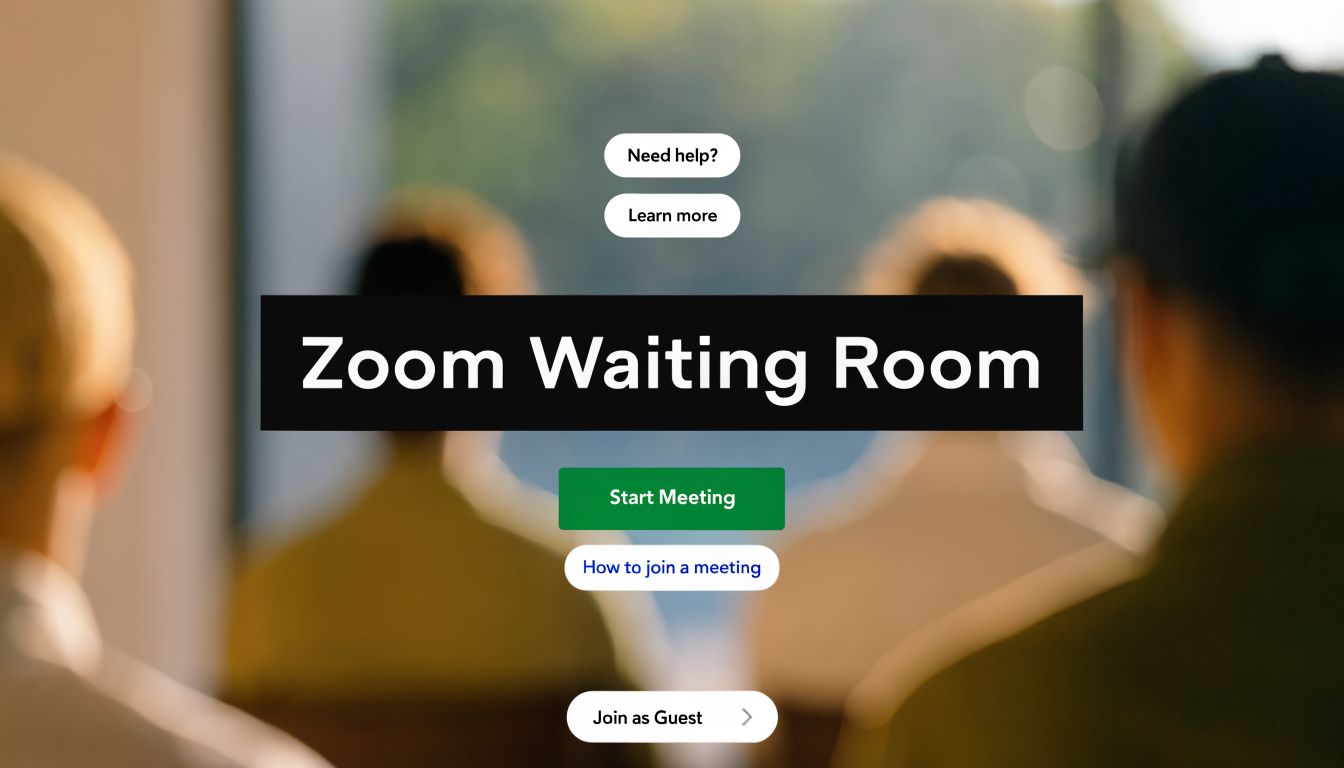
You’re about to start a meeting. A few people arrive early. One participant joins with a vague display name. Someone messages you asking whether they’re in the right session. Another attendee sits idly in the room while you’re still getting your slides ready. If you work in healthcare, legal, education, or any business setting where privacy matters, that moment feels less like convenience and more like risk.
That’s where the zoom waiting room changes the shape of the meeting.
Most articles treat it like a simple on/off setting. That misses the point. A waiting room is really an entry control system. It gives the host time to verify who’s arriving, set expectations, and start the meeting on purpose instead of by accident. It also helps create a cleaner first impression, which matters more than people think. The meeting experience starts before anyone is admitted.
Your First Line of Defense for Better Meetings
A chaotic meeting rarely fails all at once. It usually starts with small cracks.
A client joins while your team is still talking internally. A student enters before the instructor is ready. A patient clicks a reused link and lands in the wrong place. None of those moments sound dramatic on paper, but they damage trust fast. People notice when access feels loose.
The waiting room solves that by creating a pause between clicking a link and entering the live conversation. That pause gives the host control. It also gives the organization a chance to act professionally before the meeting begins.
Zoom’s growth made that kind of control far more important. After 2020, Zoom’s daily active users surged from 10 million in December 2019 to 300 million in April 2020, and as of 2024 it holds 55% global market share in video conferencing according to Zoom meeting statistics. When a platform becomes this common, its default security habits become part of everyday work.
Why hosts feel exposed without it
Without a waiting room, the meeting link acts more like an open front door. If the wrong person gets the link, they may enter before you notice. Even when nothing malicious happens, the host loses control over timing.
That matters in several common situations:
- Client meetings: You may need a minute to review notes before admitting the next person.
- Healthcare appointments: Staff may need to confirm the right patient has arrived before discussing sensitive information.
- School sessions: Teachers may want students to enter after instructions or materials are ready.
- Hiring interviews: Recruiters often need to separate candidates and prevent accidental overlap.
Practical rule: If the order of entry matters, the waiting room should be part of your meeting design.
Why this is about professionalism too
Security is the obvious reason to use the feature. Professionalism is the overlooked one.
A controlled entrance tells attendees that someone is managing the space. That’s reassuring. It says the host is paying attention. It also reduces those awkward starts where half the group is present, half is missing, and nobody knows whether the meeting has begun.
If your team is also reviewing broader meeting controls, this guide on preventing Zoombombing and securing your virtual meetings is a useful companion. The waiting room works best when it’s part of a full meeting security routine, not the only safeguard.
What a Zoom Waiting Room Is and How It Works
A zoom waiting room is a virtual lobby. People who click your meeting link don’t enter the live session immediately. They first land in a holding area where the host decides what happens next.
That simple shift changes the meeting’s logic. Instead of access happening automatically, access becomes an active decision.

Think of it as a front desk
The easiest way to understand the feature is to compare it to a building lobby.
A person walks in. They aren’t in the private office yet. They wait at reception until someone confirms they belong there. Zoom does the same thing digitally. The host can admit one person, admit a group, or leave someone waiting while checking identity.
Joining a meeting isn’t merely a technical event. It’s an access event.
What the participant sees
From the attendee’s perspective, the process is simple. They click the link, connect, and see a waiting screen instead of the live room. Depending on the host’s settings, that screen may be plain or branded with a title, description, logo, or video.
From the host’s side, Zoom presents the waiting participant as someone pending admission. The host reviews the name and then chooses whether to let them in.
That sounds basic, but it changes the host’s advantage in real time.
- Admit individually: Useful when you need to verify names carefully.
- Admit all at once: Better for internal team meetings where attendees are expected.
- Leave someone waiting: Helpful when the meeting hasn’t started or you need to confirm identity.
- Remove someone: Important when a participant shouldn’t enter at all.
The trade-off many people miss
There’s a technical consequence that catches many teams off guard. When the waiting room is enabled, “join before host” is completely disabled. Zoom documents this behavior in its waiting room support guidance.
That means you’re choosing between two different meeting models.
| Meeting model | What happens | Best fit |
|---|---|---|
| Join before host | Participants can enter without the host present | Low-risk internal sessions |
| Waiting room enabled | Participants must pass through a private staging area | Client, patient, legal, and high-stakes meetings |
Zoom’s own architecture treats this as a deliberate trade-off. You gain stronger admission control, but you lose the convenience of early unsupervised entry.
A waiting room doesn’t just delay entry. It changes who has authority over the meeting timeline.
Why that trade-off matters in regulated work
For healthcare and legal teams, the answer is usually clear. Host-controlled admission is safer than letting participants drift into a live room before supervision begins.
For internal operations, the answer may be less obvious. A recurring staff standup may not need the same gatekeeping as a patient consultation or attorney-client discussion. That’s why smart teams don’t ask, “Should we use waiting rooms everywhere?” They ask, “Which meetings justify strict entry control?”
That question leads to much better policy decisions than a blanket yes or no.
How to Configure and Customize Your Waiting Room
Enabling the waiting room is easy. Configuring it well takes more thought.
The feature can be managed at the account level in the Zoom web portal under Account Settings > Meeting > Security. Admins can turn it on broadly, apply settings across users, and control how consistently the organization handles entry. Zoom also supports more detailed customization, including host controls such as sort order and branding choices in the waiting room experience.

Start with the policy, not the toggle
Before changing anything, decide what kind of meetings your organization runs.
A small business may want a simple default where external guests always wait. A school may prefer stronger controls for office hours than for regular class sessions. A clinic may require host approval for every patient-facing call.
That decision drives the setup more than the menu path does.
Here’s a practical way to choose:
Map your meeting types
List the sessions you run regularly, such as internal standups, client reviews, patient appointments, interviews, classes, and webinars.Label each one by risk
Ask whether identity verification, timing control, or confidentiality matters at entry.Assign a default rule
Some meetings should always use the waiting room. Others may not need it if participants are already authenticated and known.
Where customization makes a real difference
Many users stop at “enabled.” That’s a mistake.
The waiting room is the first screen people see after committing time to meet with you. If that screen is generic, confusing, or empty, the experience feels uncertain. If it’s clear and branded, the experience feels intentional.
Zoom supports multiple waiting room display modes. The branded mode allows a custom logo up to 400 x 400 pixels and 1MB in GIF, JPG, or PNG, plus a short description. The video mode supports MP4, MOV, or M4V files up to 30MB according to Zoom’s waiting room customization details.
That opens up useful options:
- A law firm can add a calm title and a short note telling clients they’ll be admitted shortly.
- A medical office can display arrival instructions or privacy reminders.
- A university department can use a department logo and simple orientation text.
- A sales team can use a short branded video to make the wait feel purposeful.
A practical customization checklist
Not every meeting needs all available branding elements. Use only what improves clarity.
- Title: Make it specific. “Consultation with Smith Legal” is clearer than “Welcome.”
- Description: Tell people what to expect while they wait. Keep the wording short and concrete.
- Logo: Use a clean square image that still looks sharp at smaller sizes.
- Video: Choose content that sets context, not noise. Instructions, calm motion graphics, or brief orientation content work better than anything distracting.
If attendees wonder whether they joined the right session, the waiting room has already failed its first job.
Settings that commonly confuse teams
Two areas tend to trip people up.
The first is the difference between organization-wide waiting room options and per-meeting customization. Broad settings shape behavior across meetings. Visual customization can be more specific.
The second is audience targeting. Some organizations want everyone sent to the waiting room. Others want internal users or trusted domains to bypass it. That can improve convenience, but only if your identity and account boundaries are well managed.
For regulated or client-facing work, simpler rules are usually safer. If there’s doubt about who should skip the waiting room, don’t create exceptions.
Managing Participants During a Live Meeting
Once the meeting starts, the waiting room becomes an active control panel. Good hosts don’t treat it like a passive queue. They use it to shape the flow of the session.
The first decision is whether to admit people one by one or all at once. Individual admission works well when names need checking or when participants are arriving from outside the organization. Group admission is faster when the attendees are expected and the risk is low.
The core host actions
During a live meeting, Zoom gives the host a few important options that matter more than they may seem.
- Admit one participant: Best when identity matters and names need a quick review.
- Admit everyone waiting: Useful for staff meetings, classes, or scheduled events with a known audience.
- Send a participant back or remove them: Necessary when someone joined too early or shouldn’t enter.
- Monitor arrival order: Helpful when a meeting includes multiple external guests who must be handled in sequence.
Hosts can also use sorting and naming controls to reduce confusion in busy sessions. That’s especially useful when participants join with incomplete display names.
Communication is part of access control
A waiting room feels much different when people know what’s happening.
If attendees sit on a blank screen with no explanation, they may assume the host is late or that the link is broken. If they receive a short message, the delay feels managed. Zoom allows hosts to message people in the waiting room, whether that means a note to all or a brief update to an individual.
A few useful examples:
- “We’ll begin in a few minutes.”
- “Please have your case number ready before entry.”
- “Class starts on the hour. You’ll be admitted soon.”
- “You’re in the right place. We’re finishing the prior appointment.”
Silence in the waiting room creates confusion. A short message creates confidence.
When to slow the queue down
Not every meeting should move people through as fast as possible.
If you’re running interviews, client consultations, disciplinary meetings, or office hours, a slower admission pattern is often better. It prevents overlap, gives the host time to prepare, and lowers the chance of someone hearing or seeing the wrong conversation.
The waiting room works best when the host treats admission as a decision, not a reflex.
Waiting Rooms vs Breakout Rooms and Platform Lobbies
People often mix up three different concepts: the waiting room, the breakout room, and the platform lobby. They sound similar because all involve people being placed somewhere other than the main meeting. Their purposes are very different.
A waiting room controls entry before or during admission. A breakout room separates people after they’re already part of the meeting. A lobby on another platform may resemble Zoom’s waiting room, but the controls and customization can differ.
Waiting room and breakout room are not interchangeable
The waiting room is about access control. The breakout room is about in-meeting group work.
If you run a training session, for example, you might hold late arrivals in the waiting room until a natural pause. Once everyone is admitted, you could send participants into breakout rooms for discussion. Those are two separate stages of meeting management.
If you need a practical guide to the second feature, this walkthrough on using breakout rooms for more productive online meetings is worth keeping nearby.
Feature comparison
| Feature | Primary Purpose | Host Controls | Best Use Case |
|---|---|---|---|
| Zoom Waiting Room | Control who enters the meeting and when | Admit individually, admit all, message waiting participants, remove or delay entry | Client calls, patient visits, interviews, classes, confidential meetings |
| Zoom Breakout Room | Split admitted participants into smaller groups | Assign participants to sub-rooms, move people between rooms, close rooms | Workshops, classrooms, team exercises, small-group discussion |
| Platform Lobbies | Hold participants before entry on other video tools | Varies by platform and admin settings | General pre-meeting access control across Teams, Meet, and similar tools |
Where Zoom stands out
Zoom’s waiting room has a stronger branding layer than many people expect. The ability to add a title, description, logo, or waiting room video makes it more than a queue. It becomes a communication surface.
That said, platform lobbies across the market solve the same core problem. They all aim to stop uncontrolled entry and give the host final say over admission. The difference is usually in how much the host can customize the waiting experience and how granular the entry rules are.
A simple decision rule
Use this shortcut when choosing the feature:
- If the person hasn’t been admitted yet, use the waiting room.
- If the person is already in the meeting but needs a subgroup, use breakout rooms.
- If you’re comparing tools across vendors, look at how each platform handles pre-entry screening, host approval, and attendee messaging.
That distinction clears up most confusion fast.
Strategic Waiting Room Best Practices for Your Industry
The right waiting room policy depends on the consequences of getting admission wrong.
In a casual team sync, the cost of a mistaken entry may be low. In healthcare, legal, education, or executive settings, it can be much higher. That’s why a strategic use of the zoom waiting room starts with the industry context, not the feature menu.

Healthcare needs caution, not blind trust
In healthcare, the waiting room helps staff control entry and avoid accidental exposure between patients. It can also create a cleaner handoff if a provider is finishing one appointment before beginning the next.
But many guides become overly optimistic at this point. Waiting rooms help, yet they aren’t the same as strong identity verification. According to the verified data, 23% of Zoom breaches involved unauthorized waiting room entries, and 68% of healthcare professionals report virtual meeting security as a major concern in 2025 reports referenced by Zoom.
That means healthcare teams should treat the waiting room as one layer, not the whole defense.
Useful practices include:
- Verify identity before discussing care: Don’t assume the display name is enough.
- Use clear arrival instructions: Tell patients what name to use and what to expect.
- Avoid broad exceptions: Convenience settings for bypass can create avoidable ambiguity.
- Pause before admission: A few seconds of review is often worth it.
A waiting room reduces exposure. It does not prove that the person waiting is the right person.
Legal professionals need sequence and separation
Legal work often involves confidential consultations, privileged discussion, and situations where the order of admission matters. A waiting room helps keep clients separate, prevents early overlap, and gives staff time to verify who should enter.
For depositions, consultations, and mediation-style sessions, it also helps maintain cleaner boundaries between parties. If someone arrives early, they can wait instead of entering active conversation by mistake.
Law firms should focus on process discipline:
- Keep host and co-host roles clear.
- Admit only the people needed for the current stage of the meeting.
- Use the waiting room message to set expectations if prior matters are running long.
- Remove unknown or unclear participants rather than guessing.
Education requires balance
In education, the waiting room can support classroom management, especially during office hours, tutoring, parent conferences, and small-group instruction.
It can also create friction. If a student arrives late and sits in a waiting room while instruction begins, they may miss context. That’s why educators should use the feature selectively. It works well when one-on-one control matters. It’s less helpful when rapid open entry supports the learning experience.
A practical approach:
- Use it for office hours: Students can be admitted one at a time.
- Use it for parent meetings: It prevents overlap between families.
- Be careful in live class sessions: If late joiners need immediate access to instruction, a waiting room may create avoidable barriers.
- Add clear text to the waiting screen: Students need to know whether they’re early, late, or just waiting for the teacher to admit them.
Corporate teams should match it to meeting sensitivity
Businesses often underuse the waiting room for interviews and overuse it for low-risk internal calls.
That’s backwards.
For hiring, board meetings, finance reviews, customer escalations, and any confidential external session, the waiting room creates a stronger opening and better access control. For routine recurring meetings with the same internal group, the administrative friction may not be worth it.
A simple corporate framework works well:
| Meeting type | Suggested waiting room approach |
|---|---|
| Interview | Enable it and admit candidates individually |
| Board or executive meeting | Enable it and review names carefully |
| Sales call with external attendees | Use it to control timing and prevent awkward early entry |
| Daily internal standup | Use only if timing or confidentiality justifies it |
The best strategy isn’t maximum restriction. It’s intentional restriction.
Troubleshooting Common Waiting Room Problems
Most waiting room problems fall into one of three categories: people can’t get in, the branding doesn’t look right, or the waiting experience creates confusion.
A host who understands those patterns can usually fix the issue quickly.
People are stuck in the waiting room
This is often a process problem, not a Zoom problem.
Sometimes the host hasn’t noticed the waiting list. In other cases, co-host roles aren’t clear, so everyone assumes someone else is admitting people. If the meeting is busy, the host may also be presenting and miss the arrival cue.
Try this:
- Assign admission duty: One person should own entry during high-stakes meetings.
- Use waiting room messages: Tell participants the host is aware they’re there.
- Set a naming convention ahead of time: Full names make review faster.
- Avoid multitasking during intake-heavy sessions: Interviews and appointments need active host attention.
Branding or customization isn’t appearing
If your waiting room looks generic when you expected branded content, the cause is usually one of two things. Either the wrong customization layer was changed, or the uploaded asset doesn’t meet Zoom’s format rules.
Check the basics first:
- Logo size and type: The branded mode accepts GIF, JPG, or PNG and the file must stay within the supported limit.
- Video format: The video must use a supported file type and stay within Zoom’s allowed size.
- Portal location: Organization-wide options and per-meeting visual settings aren’t always the same thing.
- Account permissions: Some teams can view settings they can’t fully control.
Accessibility issues need active planning
The waiting room can create real barriers for some attendees. Verified accessibility audits found that the static waiting room screen creates issues for 20% of users with disabilities, and the September 2025 accessibility-link update is only a partial fix because it’s limited to paid plans, as noted in the verified data tied to Wikipedia’s Zoom software overview).
That matters because the waiting room is visually static. People may wait without captions, live context, or clear cues about what is happening.
Workarounds help:
- Send instructions in the invite: Don’t rely on the waiting room alone for context.
- Use clear waiting text: Tell attendees how long the wait may be and what to do if they need support.
- Admit vulnerable users quickly when possible: Reduce the time spent in a low-context holding state.
- Provide alternate contact methods: Email or phone support helps if someone gets stuck.
If your team runs complex events, this broader guide to troubleshooting smooth virtual conferences can help you build a more reliable support checklist.
Accessibility planning for the waiting room starts before the meeting invite goes out.
Someone removed the wrong participant
This happens more often than teams admit, especially when several external attendees join with similar names.
The best fix is prevention. Ask invitees to join with a recognizable full name. For client, patient, or student sessions, mention that requirement in the invitation itself. If a mistake still happens, contact the participant directly and resend or confirm the correct path back into the meeting.
A careful intake process is slower, but it prevents much bigger problems.
Mastering Security and First Impressions in Your Meetings
The zoom waiting room is more than a barrier against unwanted guests. It’s a decision point. It lets hosts control timing, shape first impressions, and keep the meeting aligned with the level of trust the situation requires.
That’s why the best use of the feature is strategic, not automatic. In some meetings, speed matters more than strict gatekeeping. In others, supervised entry is essential. Good hosts know the difference and configure accordingly.
It also helps to think beyond the meeting itself. If your organization is reviewing broader communication workflows, including voice and meetings together, this guide on when to upgrade to Zoom phone systems offers helpful context for how teams are consolidating communication tools while keeping security in view.
The long-term trend is clear. Secure, intentional entry is no longer a premium add-on. It’s baseline meeting hygiene.
If you want a browser-based meeting platform built for secure access, branded experiences, and regulated environments, take a look at AONMeetings. It gives healthcare, legal, education, and business teams a no-install video conferencing option with HIPAA-compliant security, end-to-end encryption, granular controls, webinars, transcripts, and accessibility features designed for real operational use.