
You notice it when the meeting matters most. Your camera looks fine in the preview, then the live call starts and everything slips. Video turns jerky. Screen sharing drags. The browser tab feels heavy. People start talking over each other because the audio and visuals no longer feel in sync.
A lot of users blame Wi-Fi first, and sometimes that's fair. But if you've already ruled out the obvious network issues, the next fix is usually inside the browser. Knowing how to turn on hardware accelerator settings can clean up choppy rendering, reduce strain on the CPU, and make browser-based work feel stable again.
The End of Choppy Video Calls
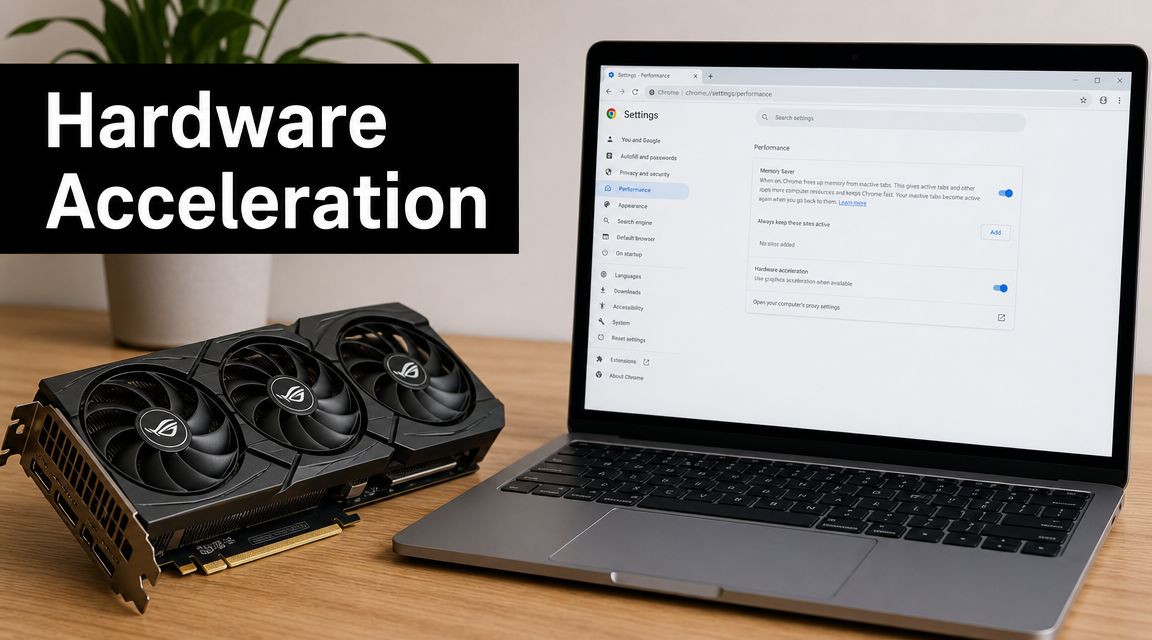
When a browser handles video, animation, screen sharing, and interface effects all at once, it has to decide which part of the computer does the work. Hardware acceleration tells the system to hand visual processing to specialized hardware instead of forcing the main processor to do everything.

That matters during browser meetings because the workload isn't simple. A single session can involve live camera input, screen sharing, background effects, tab switching, and multiple participant video feeds. If the browser isn't using graphics hardware properly, the CPU often becomes the bottleneck.
End users now see hardware acceleration as a normal setting in browsers such as Chrome, Firefox, and Edge, where it's exposed as a toggle. At the same time, some professional software keeps it off by default when hardware support is uncertain, which shows the trade-off: this setting is about balancing performance and compatibility, not blindly turning on every available feature, as noted in BigMarker's browser guidance on hardware acceleration.
When the problem isn't your router
A slow meeting doesn't always point to a bad internet connection. If your call drops packets, freezes, or downgrades quality, check the network. But if pages render poorly, scrolling stutters, and the machine heats up during ordinary browser use, the issue may be local graphics handling instead. If you still need to separate network issues from device issues, this guide on whether routers affect internet speed is a useful first check.
Practical rule: If the browser itself feels heavy, not just the meeting stream, check hardware acceleration before you replace hardware or blame your ISP.
In support work, this is one of the first settings worth checking because it's fast to test and easy to reverse. If performance improves immediately after a restart, you've likely found a browser rendering issue, not an internet problem.
How to Enable Hardware Acceleration in Google Chrome
Google Chrome makes this straightforward, but one detail trips people up all the time. Flipping the toggle isn't enough. Chrome must relaunch before the change applies.

The exact path in Chrome
Use this sequence:
- Open Chrome.
- Click the three-dot menu in the upper-right corner.
- Select Settings.
- In the left menu, open System.
- Find Use hardware acceleration when available.
- Turn the toggle on.
- Click Relaunch.
Chrome-based guidance is consistent on this point. The setting lives under System, and the relaunch is mandatory because the change doesn't take effect until the browser fully restarts, as shown in this Chrome hardware acceleration walkthrough.
What to look for if your menu looks different
Some interfaces label this as graphics acceleration instead of hardware acceleration. That's not a different feature in practical use. You're still looking for the setting that lets Chrome use the GPU for supported rendering tasks.
A few quick tips help avoid false starts:
- Use Settings search: Type hardware acceleration into Chrome's settings search bar if you don't want to browse menus.
- Close active work first: Relaunching may restore tabs, but I still recommend saving anything important before you click it.
- Test the same workload after restart: Open the same meeting platform, same shared content, and same camera setup so you're comparing apples to apples.
What users usually miss
The toggle by itself doesn't prove anything. If you turn it on and keep working without restarting Chrome, you're still testing the old state.
Restarting the browser isn't housekeeping. It's the step that activates the setting.
That's why support teams often hear, "I already enabled it and nothing changed." Then you ask one question: did you relaunch the browser? A surprising number of times, the answer is no.
If Chrome is managed by your company, the setting may be controlled by policy. In that case, you may see the option but not be able to change it, or the browser may revert it after restart. When that happens, ask IT whether browser graphics settings are locked down.
Why This Setting Is a Game-Changer for AONMeetings
A browser meeting platform asks a lot from a machine. It isn't just showing a video feed. It has to process camera input, render multiple participant tiles, animate interface changes, handle screen share transitions, and keep audio responsive while everything else is happening. That's where offloading work matters.
NIST describes hardware accelerators as specialized processors designed to offload demanding tasks from general-purpose CPUs, and notes that application-specific accelerators can improve both speed and energy efficiency. Its survey also reported that Google's TPUs improved energy efficiency by at least an order of magnitude compared with GPUs for machine-learning workloads, which is a strong example of what happens when systems use purpose-built hardware for the right jobs, as summarized in NIST's overview of hardware accelerators.
What that means in a meeting
The browser version of that idea is simpler but still important. When hardware acceleration works properly, the browser pushes supported graphics and video tasks toward the GPU. That leaves the CPU with more room for everything else the meeting depends on.
The practical results usually show up as:
- Smoother video rendering: Participant tiles update more consistently.
- Better screen share responsiveness: Fast movements and page transitions look cleaner.
- Less system strain: The machine is less likely to feel bogged down while other business apps remain open.
- More reliable visual features: Background effects and layout changes tend to behave better when graphics processing isn't overloaded.
Why business users feel the difference fast
In a business setting, poor browser rendering doesn't stay isolated. If one presenter's system struggles, the whole meeting gets dragged down. Delayed screen updates make demos look broken. Choppy camera output undermines confidence. Lag during a webinar Q&A makes the host seem unprepared even when the problem is purely technical.
For browser-based platforms such as AONMeetings, where improving video quality depends on both connection health and local device performance, hardware acceleration is one of the most useful settings because it changes how the browser uses available hardware during live communication.
If your browser meeting tool feels worse when you start sharing your screen, the CPU is often doing work the GPU should be handling.
That doesn't mean every machine benefits equally. A modern laptop with a healthy graphics stack usually improves. An older machine with buggy drivers may need more tuning. But for active meeting workflows, this setting is worth checking early because it addresses the actual rendering path, not just the symptoms.
Fine-Tuning Your Windows and macOS GPU Settings
Turning on the browser toggle is the first half of the job. The second half is making sure the operating system gives Chrome access to the right graphics processor.

Many business laptops use two graphics paths. One is integrated and tuned for battery life. The other is higher performance and built for heavier visual workloads. If the OS keeps handing Chrome to the lower-power option, hardware acceleration may be enabled but underpowered.
On Windows
Windows gives you app-level graphics preferences. The wording varies a bit by version, but the logic is the same.
Use this workflow:
- Open Settings.
- Go to System and then Display.
- Open Graphics or Graphics settings.
- Add Google Chrome if it isn't already listed.
- Open its Options.
- Choose High performance.
- Save, then restart Chrome.
This is especially helpful on laptops that switch automatically between integrated and dedicated graphics. For conferencing, webinar hosting, and screen sharing, forcing Chrome to use the stronger GPU can reduce rendering hesitation.
On macOS
macOS handles graphics switching more automatically, so you have fewer direct controls. On systems with dual-graphics behavior, the relevant setting is usually tied to Automatic Graphics Switching in battery or power-related preferences.
A practical approach is:
- Check power mode first: If the Mac is on battery-saving settings, graphics behavior may favor efficiency over performance.
- Test plugged in: Many Macs behave more consistently under sustained browser workloads when connected to power.
- Review automatic switching settings: If your Mac model exposes them, use performance-oriented behavior when presenting or hosting long sessions.
Support note: If a Mac behaves well on power but poorly on battery, the issue may be graphics policy rather than the browser itself.
Hardware limits still matter
If you're running intensive workloads all day, hardware capability does become part of the conversation. Teams that edit media, stream events, or host graphics-heavy sessions should understand what a well-matched system looks like. This overview of expert PC components for video editing is useful because it explains how CPU, GPU, memory, and storage choices affect sustained visual workloads.
Operating system tuning doesn't replace decent hardware. It makes sure the hardware you already own is being used well.
How to Verify and Troubleshoot Your Setup
After you turn on hardware acceleration, don't stop at "it seems better." Verify it. Then keep a fallback plan ready in case your system reacts badly.

Verify that Chrome is using the GPU
Chrome includes a built-in diagnostics page. Type chrome://gpu into the address bar and press Enter. That page shows which graphics features are hardware accelerated, disabled, or falling back to software rendering.
You don't need to decode every technical line. Focus on whether Chrome reports active GPU support for the features tied to rendering and compositing. Then test the actual workload that gave you trouble before.
A simple verification checklist works well:
- Open chrome://gpu: Look for signs that Chrome is using hardware-backed graphics features.
- Replay the problem task: Join a meeting, enable your camera, and share a screen or tab.
- Watch for symptom changes: Smoother scrolling, cleaner transitions, and reduced visual hitching usually mean the setting is helping.
When turning it off is the right move
Users receive mixed advice, and the mixed advice is justified. Some vendors recommend enabling graphics acceleration for performance, while others recommend disabling it as a workaround when rendering or playback problems appear. The right choice depends on the device, browser, and symptom set, as explained in this browser support discussion on when hardware acceleration should be on or off.
If you see any of these after enabling it, test with the setting off:
| Symptom | Likely next action |
|---|---|
| Black boxes in video areas | Disable hardware acceleration and restart Chrome |
| Distorted page elements | Test with acceleration off, then compare |
| Browser crashes during graphics-heavy tasks | Check drivers and retry |
| Playback or meeting rendering gets worse | Revert the setting and retest |
A clean troubleshooting sequence
Don't change five things at once. Use a controlled order.
- Turn hardware acceleration on and relaunch Chrome.
- Test the exact app and workflow that had problems.
- Check chrome://gpu.
- If problems appear, update your operating system and graphics drivers.
- Toggle hardware acceleration off, relaunch, and compare.
- If the issue only appears on one network, review your Wi-Fi bandwidth and connection limits.
Some rendering bugs are local GPU issues. Some "video problems" are still network problems. The symptom pattern tells you which path to follow.
That decision process saves time. It keeps you from blaming the browser for a driver issue or blaming the network for a local graphics conflict.
Frequently Asked Questions About Hardware Acceleration
Most follow-up questions come down to battery life, browser differences, and whether this setting should stay on permanently. The short answer is that it depends on your hardware and workload.
Common answers in one place
| Question | Answer |
|---|---|
| Should I leave hardware acceleration on all the time? | Usually yes, if Chrome becomes smoother and stays stable after the restart. If you see glitches, crashes, or strange rendering, test with it off. |
| Does hardware acceleration help video meetings? | Often, yes. It can reduce CPU load during visual tasks and make browser-based meetings feel more responsive. |
| Can it affect battery life? | It can. Hardware acceleration is part of a balance between performance, compatibility, and power use. On some devices it helps efficiency. On others, sustained graphics use may increase power draw during heavy sessions. |
| Is it only for Chrome? | No. Similar toggles appear in Chrome, Firefox, and Edge. The wording is often very close, and restart behavior is common across browsers. |
| Is hardware acceleration the same as GPU acceleration? | In everyday support conversations, they're often used almost interchangeably for browser settings. The practical meaning is that visual work gets handed to graphics hardware instead of staying on the CPU. |
| What if only one app or screen breaks? | On Android, hardware acceleration is enabled by default for apps targeting API level 14 or higher, but Google recommends testing custom-drawn UI on real hardware and disabling acceleration narrowly at the activity or view level when only a specific component breaks, rather than disabling it globally, as described in Android's hardware acceleration guidance. |
The main takeaway
The smart default is simple. Turn it on in Chrome, relaunch, test your actual workload, and keep it on if the browser becomes smoother. If rendering gets worse, don't force it. Back it out and troubleshoot the graphics stack.
For support teams, that mindset works better than any blanket rule. Hardware acceleration isn't automatically right or wrong. It's a setting you validate against the machine in front of you.
If your team depends on browser-based meetings for client calls, training, legal consultations, telehealth, or webinars, AONMeetings is one option to evaluate. It runs in Google Chrome without software installation and supports business features like HD meetings, screen sharing, webinars, recordings, transcripts, virtual backgrounds, and access controls.