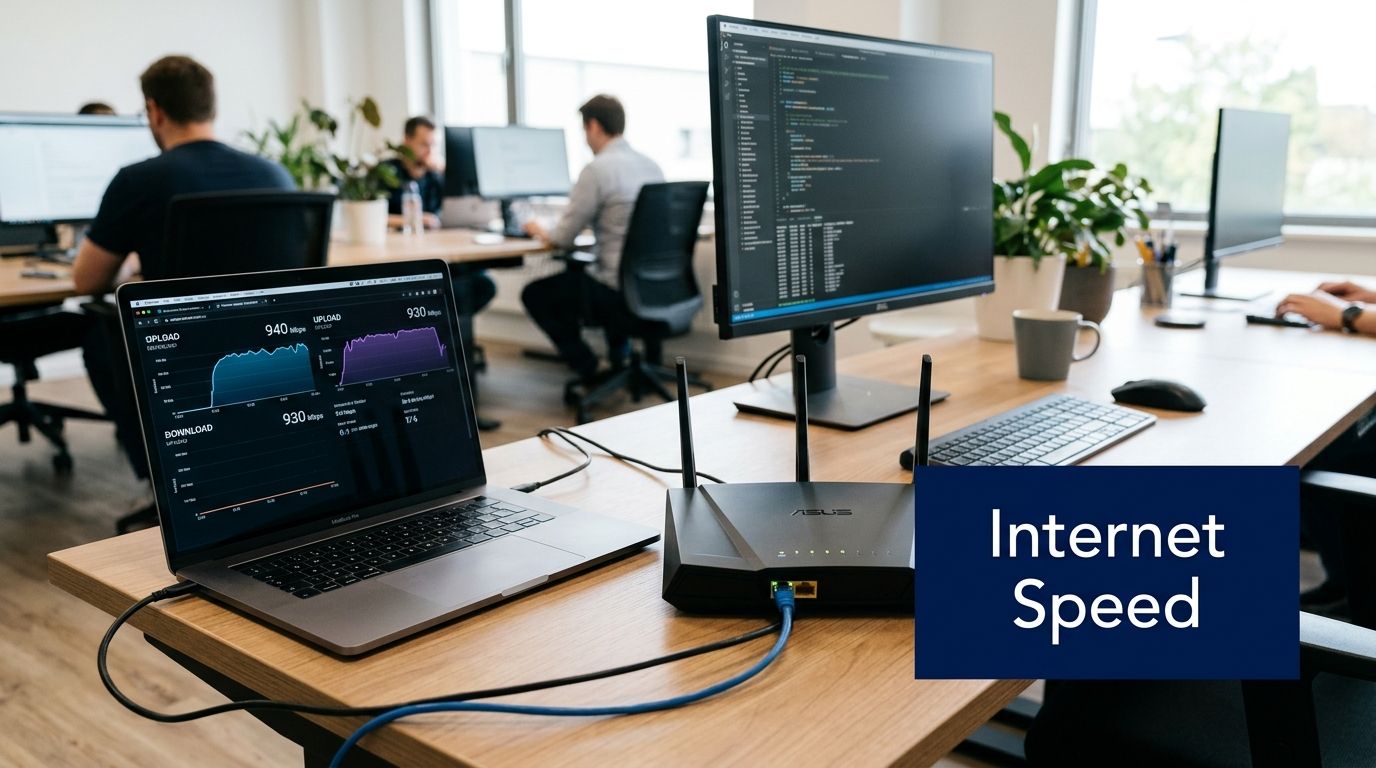
You're probably here because someone on your team keeps saying, “But we have fast internet,” while meetings still freeze, voices clip, and screen sharing turns into a slideshow.
That frustration makes sense. Most businesses buy internet based on the headline number their provider advertises, and that number is usually download speed. For browsing, streaming, and file downloads, that matters. For live meetings, especially browser-based meetings where each participant is constantly sending video, audio, and screen data in real time, that headline number often hides the actual problem.
The practical question isn't whether your connection is fast on paper. It's whether your connection is built for two-way work.
Why Your Fast Internet Can Still Fail During Video Calls
A business can pay for a high-speed plan and still have bad meetings because video calls don't behave like Netflix. Streaming a movie mostly pulls data down to your device. A meeting is different. Your laptop has to send your voice, your camera feed, and often your screen back out at the same time.
That's why so many “internet speed requirements” articles miss the mark. They focus on download speed and barely mention upload. Yet the dominant gap in internet advice is the near-total omission of upload speed, even though 100/20 Mbps is the new federal underserved benchmark and 20 Mbps upload can still be insufficient for multiple HD meetings, where live HD feeds can require 10 Mbps or more solely for upload according to Astound's guide to internet speed for streaming.
If that sounds familiar, it explains a common office scene. One person joins a client call. Another starts screen sharing in a training session. A third uploads files in the background. The download number still looks impressive, but the upstream lane gets crowded fast.
A “fast” connection can still feel broken when the part you need most is the part your plan gives you least.
This matters beyond corporate meetings. Training providers, trade programs, and distributed teaching teams run into the same problem when live instruction depends on stable upstream performance. If your organization is evaluating digital delivery options, this guide to compare online platforms for trade schools is useful because it frames platform decisions around actual delivery needs rather than marketing checklists.
The core lesson is simple. For interactive video, upload capacity and connection quality decide whether a call feels professional or fragile. Download speed still matters, but it usually isn't the first thing that breaks.
The Four Pillars of a Stable Video Connection
“Internet speed” is often used as if it were one number. In real meetings, it's a bundle of conditions. Four of them matter most: bandwidth, latency, jitter, and packet loss.
Here's the quick visual version first.

Bandwidth is the width of the road
Bandwidth is the amount of traffic your connection can carry at once. Think of it as a highway.
- Download bandwidth is the number of lanes coming toward you. It handles what you receive, like other people's video feeds.
- Upload bandwidth is the number of lanes leaving your office. It handles what you send, like your camera, microphone, and screen share.
In business meetings, upload is often the narrow side of the road. That's why a connection that looks strong during a speed test can still struggle when several people are speaking, presenting, or sharing content at once.
A useful rule of thumb has emerged from network performance guidance: high-definition video conferencing needs a minimum upload speed of 10 Mbps for standard quality, because that helps prevent the packet loss and jitter problems that show up when upload throughput is too thin, as noted by HighSpeedInternet's work-from-home internet guidance.
Latency is travel time
Latency tells you how long a packet takes to make the round trip. If bandwidth is highway width, latency is how long it takes a car to drive from one city to another and back.
Low latency makes conversation feel natural. High latency creates those awkward moments where two people start speaking at once, then both stop, then both apologize. In a sales call, legal consult, or telehealth session, that friction changes the tone of the meeting. It makes people seem hesitant when the actual issue is network delay.
Jitter is inconsistency
Jitter is variation in delay. A little delay can be manageable if it's stable. What causes trouble is when one packet arrives quickly, the next arrives late, and the next is delayed even more.
Think of a courier service. If every package arrives in exactly ten minutes, you can plan around it. If one arrives in three minutes, the next in twelve, and the next not at all until much later, your workflow falls apart.
Practical rule: People tolerate slightly soft video better than broken audio. Jitter attacks audio first, which is why calls often feel bad before they look bad.
That's also why meeting platforms often reduce video quality before they let audio collapse. The conversation matters more than the image.
Packet loss is missing information
Packet loss happens when some data never arrives. In a file transfer, your system can often recover quietly. In a live meeting, there isn't time. Missing data turns into frozen faces, robotic voice fragments, or a screen share that jumps and tears.
A simple way to understand this:
| Metric | Plain-English meaning | What you notice in a meeting |
|---|---|---|
| Bandwidth | How much data can move at once | Video quality drops when the line is crowded |
| Latency | How long data takes to travel | People talk over each other |
| Jitter | How uneven that travel time is | Audio becomes inconsistent or garbled |
| Packet loss | Data that never arrives | Freezes, skips, and clipped words |
A manager usually sees these as “meeting quality problems.” A network engineer sees them as different failure modes. That distinction matters because the fix depends on which pillar is weak.
Recommended Internet Speeds for Professional Use Cases
The biggest mistake in planning internet speed requirements is using platform minimums as if they were business-ready targets. Minimums often describe what might connect under ideal conditions, not what feels reliable during real work.
Independent analysis shows that while major platforms may advertise 1.5 Mbps for HD video, users should aim for 10 to 25 Mbps download and at least 5 Mbps upload for consistent quality, and a single 1080p HD group call on Microsoft Teams can use up to 4.0 Mbps of upload bandwidth alone according to this real-world video conferencing bandwidth analysis. That's why a connection that passes a generic speed test can still fail in a normal workday.
A practical planning table
Use the table below as an operating guide, not a promise that every environment will behave the same way.
| Use Case | Minimum Download | Recommended Download | Minimum Upload | Recommended Upload | Recommended Latency |
|---|---|---|---|---|---|
| Audio-only call | Qualitatively low | 10 to 25 Mbps overall stable connection environment | Qualitatively low | At least 5 Mbps | Low and consistent |
| 1-to-1 standard video | Qualitatively modest | 10 to 25 Mbps | Qualitatively modest | At least 5 Mbps | Low and consistent |
| 1-to-1 HD video | 1.5 Mbps platform-advertised minimum in some cases | 10 to 25 Mbps | Qualitatively modest | At least 5 Mbps | Low and consistent |
| Small group HD meeting | Qualitatively higher than 1-to-1 | 10 to 25 Mbps | Up to 4.0 Mbps can be required for a single 1080p group call on Teams | At least 5 Mbps | Low and consistent |
| Large group HD meeting | Qualitatively higher than small group | 10 to 25 Mbps with headroom | Qualitatively high | Higher than 5 Mbps is prudent | Low and consistent |
| Screen sharing during meeting | More demanding than camera alone | 10 to 25 Mbps with headroom | More demanding than camera alone | Higher than 5 Mbps is prudent | Low and consistent |
| Webinar presentation | Depends on format and concurrency | Stable professional-grade connection | Depends heavily on outbound video quality | Strong upload is critical | Low and consistent |
| Advanced multi-camera broadcast | Qualitatively demanding | Business-grade connection with ample headroom | Qualitatively very demanding | Strong upload is the deciding factor | Very low and consistent |
Why the numbers change
A one-to-one call is simpler because your device is handling fewer simultaneous video streams and less layout complexity. A group meeting increases the processing and transport load, especially when everyone is on camera and the platform is dynamically adjusting feeds.
Screen sharing changes the profile again. A talking head is one thing. Rapidly changing spreadsheets, design mockups, or medical imaging create more visual change from frame to frame, which usually makes the outgoing stream harder to compress cleanly.
The plan that works for a quiet one-person office often breaks the moment a team starts presenting, training, or collaborating at the same time.
That's why upload deserves its own budgeting exercise. If one person's HD group meeting can consume a large share of a modest upstream connection, two or three concurrent presenters can saturate it quickly.
A better way to judge your current plan
Don't ask, “What speed do we buy?” Ask these three questions instead:
- How many people are on live video at the same time?
- How often does someone screen share or present?
- Is the upload side of the connection built for peak hours, not quiet hours?
If you're trying to map those answers to Wi-Fi behavior inside your office, this article on understanding bandwidth in WiFi helps connect internet plan capacity with what users experience on actual wireless networks.
The most useful benchmark isn't the bare minimum needed to join a meeting. It's the level where the meeting still sounds clear when someone else starts presenting, another device starts syncing, and the office hits its normal midday load.
The Multiplier Effect Calculating Needs for Your Whole Team
A single-user requirement doesn't tell you much about an office. Business planning starts with concurrency, meaning how many people are likely to be in meetings at the same time.
The math is simple:
Total bandwidth need = concurrent users × per-user requirement, plus headroom for normal business traffic
That last part matters. Real offices aren't quiet laboratories. While people are in meetings, other systems are syncing files, loading browser tabs, pulling cloud documents, and backing up data.
For enterprise-grade HD conferencing, guidance from Etheric Networks on business internet speed puts the critical requirement at 2 to 4 Mbps per participant, notes that upload is the dominant bottleneck, and says a symmetric 100 Mbps fiber connection is the minimum professional baseline for small teams. That's a useful anchor because it reflects how offices work in practice, not just how a single isolated call behaves.

A business example
Take a small professional office. If several staff members can be in HD meetings at once, and each active participant needs a few megabits in both directions, the upload side becomes the first point of failure on many cable plans.
That's why teams get confused by their invoices. They bought plenty of download speed, but their provider gave them a much smaller upload lane. Meetings don't fail because the office lacks internet in general. They fail because simultaneous outbound traffic collides.
A better planning model
Use this sequence:
- Estimate peak concurrent users. Don't count total staff. Count the number who may be in meetings at the same time.
- Assign a realistic per-user meeting load. If your team uses HD video and screen sharing, plan above the bare minimum.
- Add operational headroom. Browsers, cloud storage, and routine background traffic all compete with meetings.
- Prioritize symmetry where possible. If your business depends on sending as much as receiving, symmetrical service is easier to manage.
If you want a simple helper for rough traffic planning beyond video calls alone, the Simsima data calculator can help teams think through how different activities stack up across a working day.
Why symmetry matters
Symmetrical service means your upload and download capacity are the same. For offices that mainly consume content, that might not matter much. For offices that host consultations, demos, classes, webinars, recruiting interviews, or legal meetings, it matters a lot.
A symmetrical connection doesn't just give you higher upload. It gives you predictability. That's often the difference between “the meeting usually works” and “the meeting is dependable.”
How to Accurately Test Your Internet Speed for Video
A speed test is only useful if you run it in a way that reflects reality. If you test from a laptop on weak Wi-Fi while five devices are streaming in the next room, you're measuring the room more than the service.
Start with the cleanest setup you can manage.

How to run a meaningful test
- Use Ethernet if possible. A direct cable removes Wi-Fi interference from the result.
- Close background apps and browser tabs. Cloud sync, backups, and video streaming can skew the test.
- Run multiple tests at different times. Morning, midday, and late afternoon often tell different stories.
- Test where people typically work. After your wired baseline, test on normal office or home Wi-Fi too.
If you want a plain-language walkthrough, this guide will help you understand your internet connection performance without getting buried in jargon.
What to look at in the results
It's common to focus on the download number because it's big and easy to compare. For meetings, that's incomplete.
Check these instead:
Upload speed
This is the first number I inspect for video readiness. If it's weak or unstable, your meeting quality will suffer before download becomes the issue.Latency or ping
Lower and more consistent is better for conversation. If delay swings around, the meeting will feel awkward even when the image looks acceptable.Consistency across tests
A single good result doesn't prove much. Repeated results tell you whether the line is stable.
If your test looks strong at one hour and poor at another, the problem may be congestion, not your laptop or meeting platform.
For teams that want a more focused checklist, this resource on how to measure the bandwidth is useful because it keeps attention on the metrics that affect live collaboration instead of general browsing.
Browser tests versus app tests
Browser-based tests are convenient and usually good enough for an initial read. Dedicated apps can sometimes provide a cleaner measurement because they reduce browser overhead, extension conflicts, and tab-related noise.
Still, the key isn't the tool format. It's whether you test under conditions that resemble your actual work. A clean wired baseline tells you what the service can do. A normal Wi-Fi test tells you what your staff actually experiences. You need both.
Practical Steps to Improve Your Meeting Connection Quality
Most meeting problems don't require a full network redesign. A few changes can remove the biggest sources of instability quickly. Others are strategic upgrades that pay off over time.

Quick fixes you can apply today
- Use wired Ethernet for important meetings. If a call affects revenue, compliance, or client trust, don't leave it to Wi-Fi if you have another option.
- Move closer to the router or access point. Distance and walls add instability long before users notice a full disconnect.
- Close high-bandwidth background activity. Cloud backups, file sync tools, and extra browser tabs compete for upstream capacity.
- Pause VPN use when policy allows. Some VPN paths add delay and variability, which can make live calls feel sluggish.
- Reduce outgoing video load when needed. If a connection is strained, turning off camera for some participants or lowering video quality can protect audio clarity.
Those steps sound basic because they are. They also solve a surprising share of real business complaints.
Strategic upgrades that change reliability
Short-term fixes help. Infrastructure changes are what make quality repeatable.
Consider these when meetings are central to the business:
| Upgrade | Why it helps |
|---|---|
| Modern router or managed network gear | Better traffic handling and fewer wireless bottlenecks |
| Wi-Fi 6 equipment | Improves performance in device-dense environments |
| Mesh Wi-Fi for larger spaces | Extends consistent coverage where one router can't |
| QoS configuration | Prioritizes meeting traffic over less time-sensitive activity |
| Business-grade fiber | Improves upload capacity and consistency |
If your team works mainly over Wi-Fi, this explanation of whether routers affect internet speed is worth reviewing because many “internet speed” complaints turn out to be equipment and signal problems inside the building, not raw service limitations from the provider.
The business case for taking this seriously
A poor meeting connection wastes more than minutes. It undermines sales calls, client trust, legal clarity, medical communication, and training quality. People repeat themselves. Screens don't load. Decisions get delayed because someone missed a sentence that mattered.
Reliable connectivity is part of professional operations now. It sits in the same category as good lighting in a conference room or clear audio in a board meeting. People notice when it's bad, and they remember the experience.
Better meeting quality usually comes from removing instability, not just buying the biggest plan on the rate card.
That's why smart upgrades often start with the upload path, the Wi-Fi environment, and traffic prioritization. Once those are healthy, the advertised speed number finally starts to mean something useful.
If your organization needs browser-based video meetings, webinars, strong security, and predictable performance without adding software complexity, AONMeetings is built for that kind of professional environment. You can explore the platform to see how it supports secure collaboration for healthcare, legal, education, and business teams that need meetings to work reliably every time.