
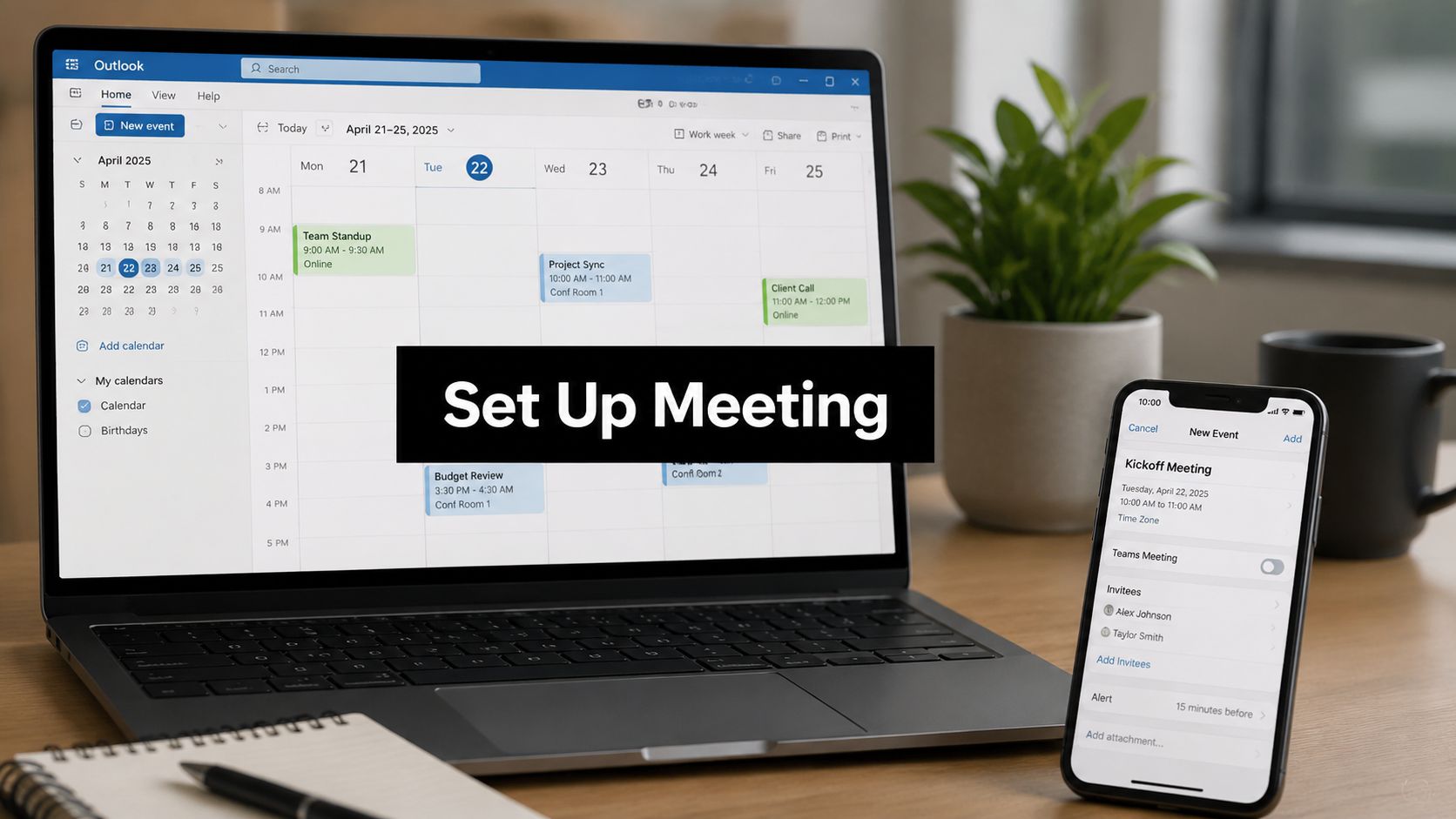
Your inbox starts with a simple question: “Can everyone do Thursday?” Ten replies later, one person can only meet before 2, another needs a Teams link, someone else wants to shift to next week, and the organizer is stuck cleaning up a thread that should never have become manual scheduling work.
That's the core problem Outlook is meant to solve.
Many professionals learn just enough to send a meeting invite. They open New Meeting, add attendees, choose a time, and hit Send. That approach is fine for a one-off internal chat. It starts to fail when calendars are crowded, the meeting needs a clear audit trail, remote and in-person attendees are mixed, or the invite has to include the right online platform from the start.
Outlook does more than place a block on a calendar. Used well, it becomes a scheduling system that helps control attendance, timing, location, recurrence, and meeting context before anyone joins. That matters because efficient scheduling is a productivity skill, not just an admin task.
The practical advantage is flexibility. Outlook lets you build meetings from the calendar, from your inbox, or directly from an email conversation with Reply with Meeting. In classic desktop workflows, keyboard shortcuts such as Ctrl + Shift + Q can speed up invite creation for people who schedule all day. The better choice depends on the situation, and that decision is where experienced users save time.
This guide focuses on that working reality. It covers the core setup process, the differences between desktop, web, and mobile, the time zone and recurrence settings that often cause avoidable mistakes, and the online meeting integrations that keep invites clean and usable.
Stop Scheduling Meetings and Start Managing Them
A lot of teams treat meeting setup like clerical work. That's the mistake.
When scheduling is sloppy, the damage shows up later. People arrive without context. Key decision-makers decline. Someone misses the location change. The online link isn't in the invite. A weekly meeting drifts because nobody built the recurring series correctly. What looked like a two-minute task ends up wasting far more time than the meeting itself.
I've seen the same pattern across small businesses, legal teams, schools, and enterprise departments. The teams that run smoothly don't just send invites faster. They use Outlook to control attendance, timing, format, and expectations before the meeting starts.
Good scheduling reduces friction before anyone joins the room.
That's why knowing how to set up a meeting in Outlook matters beyond button-clicking. Outlook gives you several entry points for the same job, but each serves a different use case. Calendar-first is usually the cleanest method. Email-based scheduling is often faster when a conversation is already underway. A recurring series works well for predictable operating rhythms. Availability tools matter when calendars are crowded and nobody wants another “can you make this instead?” thread.
The other shift is thinking cross-platform. Desktop Outlook, Outlook on the web, and mobile all let you create meetings, but they don't always behave the same way. Small differences matter, especially when users save drafts, convert emails to meetings, or expect online meeting details to appear automatically.
Professional scheduling is part process, part etiquette, and part tool selection. Once you handle those together, Outlook stops being just a calendar window. It becomes the control panel for how your team spends time.
The Foundational Workflow for Outlook Meetings
A manager blocks 30 minutes for a client review, copies a vague subject line from an email, forgets the prep notes, and sends it. Ten minutes before the call, someone asks for the deck, another attendee declines because the time was wrong, and the meeting starts with confusion. Outlook can prevent that, but only if the invite is built as a working document, not a placeholder.
The cleanest starting point is Calendar. It gives you full control over the meeting before anyone sees it, which is why I recommend it for anything that affects more than two people or needs prep, a room, online details, or follow-up accountability.

Start with the cleanest path
Open Outlook, switch to Calendar, and create a new meeting or event from there. Outlook offers several ways to reach the same meeting form, but they are not equally useful.
Use them based on the job:
- Calendar view for planned meetings, recurring sessions, and anything that needs clean setup.
- Reply with Meeting when an email thread has enough context and clearly needs a live discussion.
- Inbox-based meeting creation when you are triaging quickly and want to turn a message into a draft without losing the original thread.
That order saves time because it matches the level of control you need. Calendar-first is slower by a few seconds and better in practice. You see the fields that matter before the invite goes out.
If you sometimes need to share event details outside Outlook, keep a portable option in mind. It helps to know how to create an ICS file for sharing calendar events when external guests use a different calendar system.
Build the meeting correctly the first time
The fastest schedulers I work with all follow the same pattern. They complete the fields in the order people will use them later: what the meeting is, who needs it, when it happens, where it happens, and what attendees should do before they join.
Use this sequence:
- Subject: Write a title that stands up in search. “Weekly sync” gets lost. “Operations Weekly Sync, Vendor Escalations” is easier to find later.
- Attendees: Add participants carefully. If Outlook shows Required and Optional, use those labels. They reduce confusion in larger groups.
- Date and time: Set the slot with the actual duration, not an optimistic one. A rushed 30-minute block for a 45-minute decision meeting creates knock-on delays all day.
- Location or online meeting details: Add the room, building, or virtual context so nobody has to ask where to join.
- Message body: Include the agenda, links to documents, and the expected outcome. If attendees need to review something first, say that in one sentence near the top.
This part is where invite quality rises or falls.
Weak invites create extra messages, side questions, and late arrivals. Clear invites cut that overhead before the meeting starts.
Know the desktop and web differences that matter
Outlook desktop, Outlook on the web, and newer Outlook versions all handle the same basic job, but the workflow feels different enough that teams get tripped up when they switch devices. Desktop is usually better for detailed setup, especially for recurring meetings, categories, room selection, and anything that needs careful review. Outlook on the web is faster for quick edits and lightweight scheduling, but the simpler form can tempt people to send before they finish the details.
A few workflow choices deserve special attention:
| Workflow choice | When it works best | What to watch |
|---|---|---|
| Desktop Calendar | Detailed meetings with attachments, recurrence, and room or attendee management | Best visibility across fields. Good for meetings that need to be right the first time |
| Outlook on the web | Browser-based scheduling and quick updates between tasks | Fast, but easier to miss body text, reminders, or free/busy settings |
| Email drag-and-drop | Turning an email into a draft invite with source context attached | Useful for speed. Review the title, attendees, and timing before sending |
| Reply with Meeting | Converting a live thread into a meeting without retyping context | Keeps the conversation attached, but often needs cleanup so the subject line and notes read clearly |
A simple rule works well here. If the meeting has consequences, slow down long enough to make the invite usable on its own.
Reminders deserve the same treatment. Outlook often applies a default reminder, which is fine for routine internal calls. It is not always the right choice for client meetings, interviews, training sessions, or any meeting that requires prep. Set the reminder based on what attendees need, not what Outlook fills in automatically.
Mastering Advanced Scheduling and Time Zones
A director in New York proposes 2:00 PM. London accepts. Singapore stays silent. An hour later, the reschedule emails start because the invite looked reasonable from one calendar and disruptive from two others.
That is the difference between placing a meeting on the calendar and managing one well.
The Outlook feature that helps most here is Scheduling Assistant. Used properly, it does more than show busy blocks. It helps you choose a time that has a realistic chance of being accepted, especially when the meeting includes decision-makers, cross-functional stakeholders, or people working across regions.

Use availability before you send the invite
Calendars get messy fast when attendance labels are sloppy. Outlook gives you required and optional for a reason. Use them with intent.
A required attendee should be someone whose presence affects the outcome. Optional attendees are useful when they need visibility, may contribute if available, or can review notes later. Teams that ignore this distinction usually create their own scheduling problem by making every invite look equally urgent.
A practical workflow works better than guesswork:
- Add the actual decision-makers first: Scheduling Assistant is only useful when the right calendars are in view.
- Set required and optional correctly: This cleans up suggested times and sets better expectations before anyone opens the invite.
- Scan for workable time, not just open time: An empty slot at noon, end of day, or during a regional handoff can still be a poor choice.
- Use Suggested Times as a starting point: It speeds up selection, but it does not know the political or operational context behind the meeting.
For groups that regularly need input before locking a time, Outlook is not always the fastest method. In that case, a Doodle poll alternative for group scheduling can be a better fit than sending three revised invites and waiting for replies.
Time zones are a management problem, not a calendar problem
Outlook can convert time zones. It cannot judge fairness.
That part still belongs to the organizer. Before you send a cross-region meeting, check the time from the viewpoint of each key attendee. I advise clients to verify the local time for the people who matter most to the decision, not just the people with open calendars. A slot that is technically available at 7:30 AM or 6:30 PM often gets accepted reluctantly and attended poorly.
Recurring meetings need the same discipline. A bad one-time slot is a nuisance. A bad recurring slot becomes a standing productivity tax.
Use a recurring series when the cadence is real and likely to continue. Do not build weekly or monthly meetings by copying separate invites. Series management is cleaner, updates are easier, and attendance tracking stays in one place. But set the first occurrence carefully, because Outlook will repeat whatever pattern you choose, including a bad one across multiple time zones and daylight saving changes.
This is the practical standard I recommend:
| Meeting type | Better setup | Why it helps |
|---|---|---|
| Weekly team check-in | Recurring series | Keeps updates in one thread and reduces admin work |
| Monthly review | Recurring series with a specific title | Makes search, reporting, and preparation easier |
| Cross-time-zone sync | Validate local hours before setting recurrence | Prevents repeating an inconvenient slot |
| Executive meeting | Tight required list, optional used sparingly | Improves acceptance and reduces calendar noise |
Good scheduling is not about clicking faster. It is about reducing reschedules, protecting working hours, and choosing meeting patterns your team can live with.
Integrating Online and Third-Party Meetings
A meeting invite fails fast when the join method is unclear. The usual symptom is familiar. Someone replies two minutes before start time asking for the link, the room changes from focused to reactive, and the first five minutes disappear.
In Outlook, online access should be part of the initial setup, not something added in a hurry later. If your organization uses Microsoft 365, turn on the built-in online meeting option while creating the event so Outlook inserts the join details into the invite automatically. That keeps the location field, body text, and calendar metadata aligned from the start. It also reduces the risk of sending one version of the invite with a link and another without it.

Native online meeting options
For internal meetings, the built-in Teams option is usually the cleanest choice. It is fast, easy to support, and familiar to employees. Presence, chat history, and calendar context stay in one system, which matters when IT needs fewer moving parts and users need less explanation.
Third-party platforms make more sense when the meeting is not a standard internal call. That includes client-facing sessions, webinars, external interviews, training events, and meetings where browser access is safer than asking every attendee to install the same app. In those cases, Outlook is still the scheduling hub, but the meeting platform becomes a workflow decision rather than a checkbox.
I usually recommend this approach:
- Use Outlook's native online meeting tool for routine internal meetings with standard access needs.
- Use a third-party integration when attendees are external, registration is involved, or the session needs webinar-style controls.
- Review the final invite body before sending if an add-in inserts custom text, dial-in details, or a second join button.
Add-ins and integrations that save time
Scheduling gets messy when Outlook is only handling the calendar entry and another tool is handling the meeting experience. Good integrations close that gap. They add the right join details automatically, reduce manual copying, and keep updates consistent when the meeting time changes.
Polling tools are useful here too. If you are coordinating people across departments or outside the company, a scheduling add-in can collect availability without a long email chain. The trade-off is control. These tools save admin time, but only if someone still owns the final decision on timing, platform, and attendee list.
For webinar and external event workflows, it helps to understand how calendar and scheduling tool integrations for webinar platforms affect the invite experience. AONMeetings is one example of a browser-based platform used for video meetings, webinars, and scheduling workflows where organizations want attendees to join through the browser instead of a desktop install.
Choose the tool that fits the meeting format. A 30-minute internal sync, a client presentation, and a registration-based webinar should not all be scheduled the same way.
Scheduling on the Go with Outlook Mobile
You are away from your desk, a client asks for time today, and the meeting needs to go out in under two minutes. That is when Outlook mobile earns its place. It is fast, reliable for simple scheduling, and good enough for real work if you treat it as a triage tool instead of a full scheduling workstation.
The mobile app on iOS and Android handles the core workflow well. Open Calendar, create a New Event, add the title, attendees, date, and time, then send only after a quick review. That last step matters more on a phone because the smaller screen hides mistakes that stand out immediately on desktop, especially missing attendees, vague titles, and incomplete location or join details.

What works well on mobile
Mobile works best for meetings with low complexity and high urgency. Typical examples include a same-day internal check-in, a quick customer follow-up, or a time change for an existing event.
It is particularly useful for:
- Fast response: You can convert an email or chat request into a calendar hold before the thread drifts.
- Directory lookup: Attendee suggestions reduce address errors and speed up internal scheduling.
- Light edits: Changing the time, fixing the title, or adding one more attendee is usually easy from the phone.
- Quick confirmation checks: If someone says they never received the invite, it is smart to verify delivery practices and even review how to check if emails are going to spam if invites routinely go missing outside your organization.
Mobile is less forgiving when the meeting has a complicated recurrence pattern, several optional attendees, multiple time zones, or a long agenda that people need to read before they accept. In those cases, the speed benefit is real, but the cleanup cost is real too.
The common mobile mistake
The biggest problem I see is overconfidence. Someone creates the event quickly, saves it, and assumes the online meeting details are already in place.
On mobile, that assumption causes missed joins and last-minute confusion. If the meeting needs a Teams or other conferencing link, reopen the event after sending and confirm the join information appears in the calendar item. As noted earlier, draft behavior and final sent behavior do not always match cleanly across Outlook experiences, and mobile users are the group most likely to get caught by that.
A practical standard works well here. Use mobile to capture the meeting fast, then do one verification pass later. Check four fields only: title, attendees, time, and join details.
That habit keeps mobile scheduling efficient without turning it into a source of preventable calendar errors.
Best Practices for Professional Meeting Invites
Monday at 8:57 a.m., a manager sends “Quick Sync” to eight people with no agenda, no decision owner, and no prep notes. By 9:10, two people have declined, three are asking what the meeting is for, and one joined the wrong call link from an old thread. Outlook did its job. The invite did not.
Professional scheduling starts before anyone clicks Accept. A strong invite reduces back-and-forth, protects focus time, and gives attendees enough context to show up ready. That matters even more on crowded calendars, where vague meeting requests are often the first thing people decline.
The invite habits that actually help
Use titles that still make sense a week later. “Northwind migration kickoff” works. “Kickoff” does not. Good titles also improve Outlook search, which matters when someone needs to find the original notes, attachments, or meeting history fast.
Put the working agenda in the body of the invite, even if it is brief. I recommend three parts: purpose, topics, and expected outcome. That structure travels well across Outlook desktop, web, and mobile, and it holds up when the event later turns into a Teams meeting, a conference room booking, or a third-party video session.
A few team standards prevent a lot of avoidable friction:
- State the meeting type: Decision, review, planning, status update, or troubleshooting.
- Name the owner: Attendees should know who is driving the discussion and who will make the call if time runs short.
- Keep optional attendees optional: Extra names create noise, and Outlook makes over-inviting too easy.
- Add prep material early: Attach the file or link it in the invite so people do not hunt through separate email threads.
- Update the existing calendar item: The meeting entry should remain the source of truth, especially when join links, room details, or time zones change.
One common mistake is treating the invite like a note instead of a workflow object. In Outlook, the calendar item connects responses, reminders, location data, conferencing details, and updates. Splitting those details across separate emails creates version control problems fast.
Delivery also matters. If attendees regularly miss updates, acceptances, or revised meeting details, check the mail path instead of blaming Outlook first. It helps to review how to check if emails are going to spam so notifications are not being filtered before people ever see them.
The trade-off is simple. A cleaner invite takes an extra minute up front. That minute usually saves ten later in reschedules, clarification messages, and delayed decisions.
If you need Outlook scheduling to connect cleanly with browser-based video meetings, webinars, and calendar workflows, AONMeetings is worth a look. It supports browser-based joining and scheduling-oriented use cases that fit teams managing client calls, internal meetings, and larger virtual sessions without adding unnecessary installation steps.