
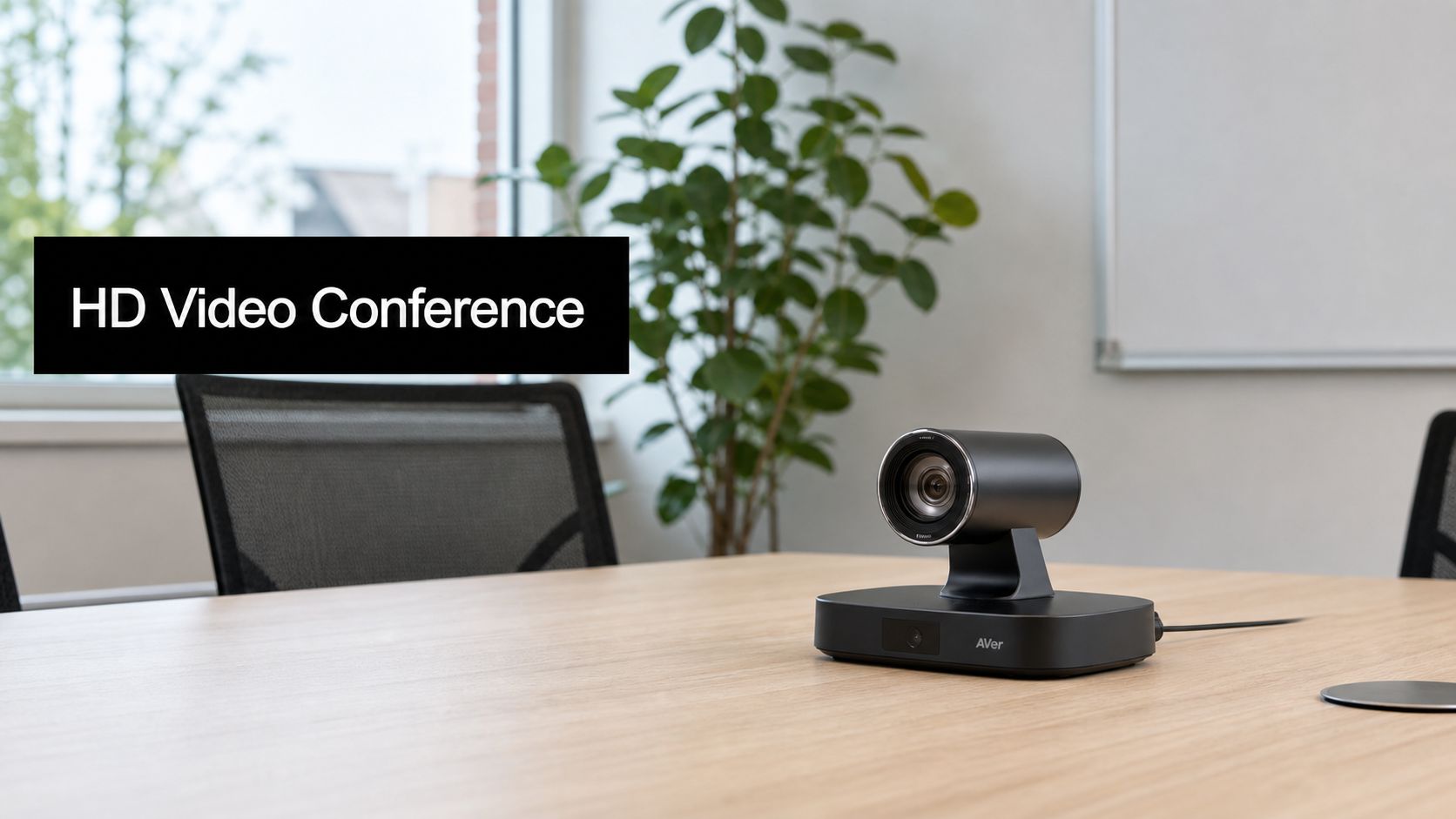
Your operations manager has two quotes on her desk, both labeled HD video conference camera, both close enough in price to feel like a fair comparison, and the decision has to be made before the next meeting. One quote promises sharper video, the other promises easier setup, and neither tells her whether the camera will fit the room, the platform, or the compliance rules the organization lives under.
That's the buying problem. HD sounds specific, but it often hides the details that matter most, like how many people need to be in frame, whether the meeting runs in a browser or a room system, and whether the industry has privacy obligations that make certain features essential. The right choice is rarely the one with the biggest resolution number on the box.
The Meeting Room Problem Most Buyers Miss
The easiest mistake is to compare two products as if HD were the whole decision. In practice, the camera is only one part of a room setup, and the room itself decides a lot of the outcome. A camera that looks great in a demo can still fail a real meeting if the table is wider than expected, the participants sit too close together, or the platform forces everyone to fight with drivers and plugins.
An AV buyer in healthcare usually thinks first about privacy and workflow. A legal team thinks about controlled access and reliable recording. An education buyer often cares about whether the camera captures more than one student without making the room feel cramped or awkward.
Practical rule: start with the room, then the meeting platform, then the compliance requirement. If you start with pixels, you often end up buying the wrong thing.
The rest of the purchase becomes easier when you answer three questions in order. Who needs to appear on camera. Where does the meeting run. What must the organization protect. Once those are clear, resolution becomes one spec among several, not the only spec that matters.
That mindset is useful because HD video conference camera products have become a broad category, not a single type of device. Some are simple USB units for a desk or huddle space. Others are room cameras with wider optics, tracking features, or network streaming support. The model that works for a two-person call can be the wrong shape for a six-person discussion, even if both devices advertise HD.
What an HD Video Conference Camera Actually Is
An HD video conference camera is a purpose-built capture device designed for live meetings, not short clips or casual selfies. The main difference from a laptop webcam is that it's built to sit in place, stay focused on a room, and deliver a more stable image for longer conversations. In everyday buying terms, that usually means cleaner video, better framing, and a setup that's meant to stay in service all day.

Where the category came from
The modern category has a long runway behind it. The first webcam was invented in 1991 at Cambridge University, and the first commercial webcam launched in 1994 with a capture resolution of 320×240 pixels and a transmission rate of 1 frame per second. Commercial HD conferencing arrived much later, with Lifesize demonstrating the first HD video conference in 2004 and Polycom introducing its first HD video conference system in 2006. Those milestones mark the shift from low-resolution business video to endpoints that could show people and shared content with far more usable clarity in enterprise environments. You can trace that progression in the industry history described by JPL Telecom's evolution of video conferencing overview.
The mainstream hardware base expanded again in the 2010s. TechTarget notes that smartphone video conferencing took off in 2010 with the iPhone 4 and FaceTime, first on Wi‑Fi and then on 3G and 4G/LTE, which helped move HD-capable cameras out of the conference room and into everyday use on mobile devices. The same history also shows how webcams evolved from early consumer gear into HD and, later, 4K-capable devices with AI features by 2020. That evolution helps explain why HD is now the baseline expectation in most business settings, not a premium extra. See TechTarget's history and evolution of video conferencing for that timeline.
What makes it different from a regular webcam
The differences aren't just about sharper video. A conference camera usually has a more deliberate field of view, better low-light tuning, and a firmware stack that's built for long sessions instead of short recordings. Many also include microphone arrays or are designed to pair cleanly with room audio, because the room is part of the product experience.
The category now includes compact USB units, all-in-one conference bars, and room cameras that can be mounted or integrated into larger systems. In plain English, the question isn't “what is the best HD camera,” it's “what shape of camera fits this room, this platform, and this kind of meeting.”
Core Specifications That Actually Matter
Most spec sheets look crowded because vendors know buyers use the same camera in very different rooms. The trick is to read each spec as a clue about meeting behavior, not as a brag sheet. A device that looks excellent on paper can still feel wrong if its optics, connectivity, or framing don't match the way people sit and speak.
Resolution is the starting point, not the finish line
Resolution tells you how much detail the camera can preserve. The clearest reference point in the data is a ConferenceCam Connect spec sheet that supports Full HD 1080p at up to 1920×1080, and 720p at up to 1280×720 on supported clients. That matters because higher pixel counts help preserve facial detail and make shared text easier to read on larger displays or split-screen layouts. You can review the product details in the ConferenceCam Connect specification listing.
A lot of buyers stop at “1080p is enough.” Sometimes it is. But if the room is large, the display is far away, or the meeting includes multiple people in one frame, resolution alone won't solve the visibility problem. The camera still has to see the room in a way that matches the meeting.
Field of view changes the whole buying decision
Many teams get stuck here. A wider lens can be more valuable than a sharper image if it's the difference between seeing everyone and cutting half the table out of frame. Guidance from Nearhub points to 90° as a good fit for one or two participants, while 120° works better for small rooms, huddle spaces, and hybrid meetings where several people need to fit in frame. Read that as a room-planning rule, not a hardware slogan.
Practical rule: if you're asking whether to buy a sharper camera or a wider one, ask how many people must appear together. The room usually decides the answer.
The rest of the specs still matter
Autofocus helps when people lean in, stand up, or swap seats. White balance keeps skin tones from looking odd under mixed lighting. Low-light performance matters when the room has conference lighting that's adequate for humans but weak for sensors. Frame rate, usually discussed as motion smoothness, becomes more visible when someone gestures, writes on a board, or turns to a second screen.
The useful buying question is simple. Will this camera preserve the people in the room as a group, or only as individual faces. Once you answer that, the rest of the spec sheet starts to make sense.
Connectivity Options and Browser Compatibility
Connectivity is where a deployment either gets easy or turns into a support ticket. USB cameras are popular because they reduce friction. Many HD conference cameras use USB UVC plug-and-play behavior, which means they can work without special drivers or custom installation steps. Logitech says the BCC950 needs no special software or training and works by plugging it into a PC or Mac, and independent product listings often describe similar cameras as plug-and-play with no driver installation required. That simplicity cuts setup time and reduces the burden on IT teams managing several rooms at once. Logitech's own BCC950 page describes that behavior in the BCC950 conference camera listing.
A browser-based meeting platform removes another layer of complexity. If the platform handles capture through standard web APIs, a UVC-compatible USB camera generally behaves like any other input device in the browser. That's why browser workflows matter so much in real deployments, including setups built around browser compatibility in AONMeetings. The camera does its job, and the browser handles the meeting without a separate driver stack.
| Connection | Typical Use | Browser-Based Meeting Fit | Best Room Size |
|---|---|---|---|
| USB UVC | Huddle rooms, desks, quick installs | Strong, usually simple | Small to medium |
| Ethernet | Managed room systems, networked deployments | Depends on the platform and integration | Medium to large |
| RTSP | Lecture capture, surveillance-style streaming, internal distribution | Limited for live browser meetings | Medium to large |
| RTMP | Live broadcasting, webinars, streaming to platforms or CDNs | Usually for outbound streaming, not direct joining | Large or broadcast setups |
Ethernet-based cameras and network streams matter when the video is part of a larger workflow, such as lecture capture or live distribution. RTSP is common in managed video environments, while RTMP is useful for broadcasting to platforms or custom content delivery networks. Those formats make sense when the camera is part of a production chain, not just a meeting join link.
The practical rule is straightforward. USB fits huddle rooms and individual setups. Network-connected cameras fit larger rooms, managed AV environments, or streaming workflows. If your meetings happen in a browser, the platform should make the camera feel invisible rather than forcing you to think about drivers.
Security and Compliance for Regulated Industries
In regulated environments, the camera is part of a chain, not a standalone purchase. Healthcare, legal, education, and government teams need to know where the video stream goes, who can join, who can record, and how access gets controlled. The camera itself can support that chain with privacy shutters, status LEDs, and secure transport behavior, but it can't carry the whole compliance burden on its own.
That's why platform choice matters before brand choice. A regulated buyer usually starts with the questions that reduce risk, then narrows the hardware list to match. A browser-based platform with end-to-end encryption, meeting lock, waiting rooms, and moderator controls gives the camera a safer environment to operate in.
What to check before the purchase order goes out
- Physical privacy controls: Make sure the camera has a shutter or equivalent visual indication when the device is active.
- Access control: Confirm who can admit participants, lock the meeting, and manage recording.
- Stream termination: Know where the video ends up, especially if the organization handles protected health information, privileged legal discussions, or student data.
- Platform fit: Check whether the meeting platform supports the browser-based workflow your users follow.
For teams dealing with cross-border deployments, there are also local requirements outside the camera spec itself. A useful reference point for broader operational planning is China network security compliance 2026, especially when IT and legal teams need to compare regional obligations before standardizing hardware.

The camera can capture the room, but the platform decides who gets in and what happens next.
That's the part non-technical buyers often miss. A strong camera on an unsafe platform is still an unsafe meeting. A modest camera on a compliant platform can be the right choice if it supports the access rules, recording controls, and privacy expectations the organization needs.
Setup and Optimization Tips That Make Meetings Look Better
Most bad video comes from the room, not the camera. I've seen expensive cameras blamed for problems that were really caused by poor placement, harsh backlight, or a microphone sitting too far from the people who were talking. Once those basics are fixed, even a modest HD video conference camera can look much better.
Start with placement and framing
Mount the camera at eye level if you can. That keeps the perspective natural and avoids the familiar “looking up from the laptop” effect that makes meetings feel awkward. If only one person is speaking, keep the framing tighter. If multiple people will be visible, push the camera back far enough to capture everyone without making faces tiny.
Front-light the faces. Kill backlight from windows or bright monitors behind the group. Those two steps solve a surprising amount of video quality trouble before anyone touches a setting.
Treat audio as part of the camera setup
Many buyers think only about the image, then discover the call still feels poor because the room sounds hollow or distant. Mic placement matters as much as lens quality. If the room has a conference table, put the microphone where speech naturally happens, not where a cable happens to reach.
For testing and quick trial runs, a browser-based platform is useful because you can launch a solo meeting, check framing, and verify audio without installing software. AONMeetings is one browser-based option that supports that kind of workflow, so you can see the impact of camera placement before a real meeting starts.
Use the camera controls that are already there
- Autofocus: keep it on when people move around or shift between speakers.
- Exposure: watch for faces that go dark when the room lighting changes.
- White balance: use it to keep the image from looking too warm or too blue.
- Bandwidth settings: if the network is strained, lower resolution before the call becomes unstable.
For lighting-specific troubleshooting, the most practical reference is AONMeetings' guide to mastering video conference lighting. Good lighting doesn't just improve appearance, it also makes the camera's job easier, which usually makes the whole meeting more reliable.
Choosing the Right Camera by Use Case
The best camera choice changes with the room. A huddle room, a boardroom, and a webinar setup all ask for different trade-offs, even if the sales sheet uses the same language. Think in terms of meeting shape, not product category.

Huddle rooms
For two to four people, a wide-angle USB camera or an all-in-one bar usually makes sense. The room is small, the installation needs to be simple, and the camera needs to capture everyone without forcing people to lean into the frame. A beamforming mic array can help if speech comes from different sides of the table.
Large conference rooms
For bigger rooms, look at PTZ cameras or multi-camera systems with remote control. The important issue here is not only image quality but also how the room gets covered from front to back. If the person at the far end looks like a thumbnail, the meeting experience suffers even when the image is technically HD.
Webinar and broadcast setups
When the goal is presentation rather than discussion, the camera profile changes again. A higher-resolution camera paired with RTMP streaming can fit a webinar workflow much better than a basic room unit. The operator may need tighter control over framing, overlays, and where the feed goes next.
If your use case includes journalist-style recorded interviews, a useful practical reference is recording authentic interviews for journalists. That kind of workflow often rewards a stable camera position, clean audio, and predictable lighting more than flashy specs.
Decision filter: count people first, then ask who controls the camera, then ask whether the session needs recording or live streaming.
That order keeps the purchase grounded. A room with five people and frequent hybrid calls usually needs a different camera shape than a single presenter doing a webinar from a quiet office.
Putting It Together for a Complete Meeting Setup
The cleanest buying process is short. Define the room and the people in it. Pick the camera profile that matches the room shape. Confirm the camera works with the platform your users already run. Check the industry's privacy and compliance requirements. Then run a test meeting before you standardize the choice.
A browser-based platform makes that last step easier because it removes a lot of driver friction from the process. If the camera is UVC-compatible, it usually drops into the browser workflow without special setup, which is why the platform choice matters just as much as the hardware. For buyers planning multi-room rollouts, the equipment for video conferencing discussion becomes a practical checklist instead of a shopping spree.
The final lesson is simple. HD is not the decision. The room is. The platform is. The compliance requirement is. When those three line up, the camera spec sheet gets a lot shorter, and the rollout gets a lot smoother.
If you're standardizing cameras across huddle rooms, larger rooms, or browser-based meetings, AONMeetings gives you a platform that works cleanly with UVC-compatible cameras and keeps the setup simple for users who don't want to install extra software. Visit AONMeetings to see how a browser-based meeting platform can fit the camera choices you're already comparing.