
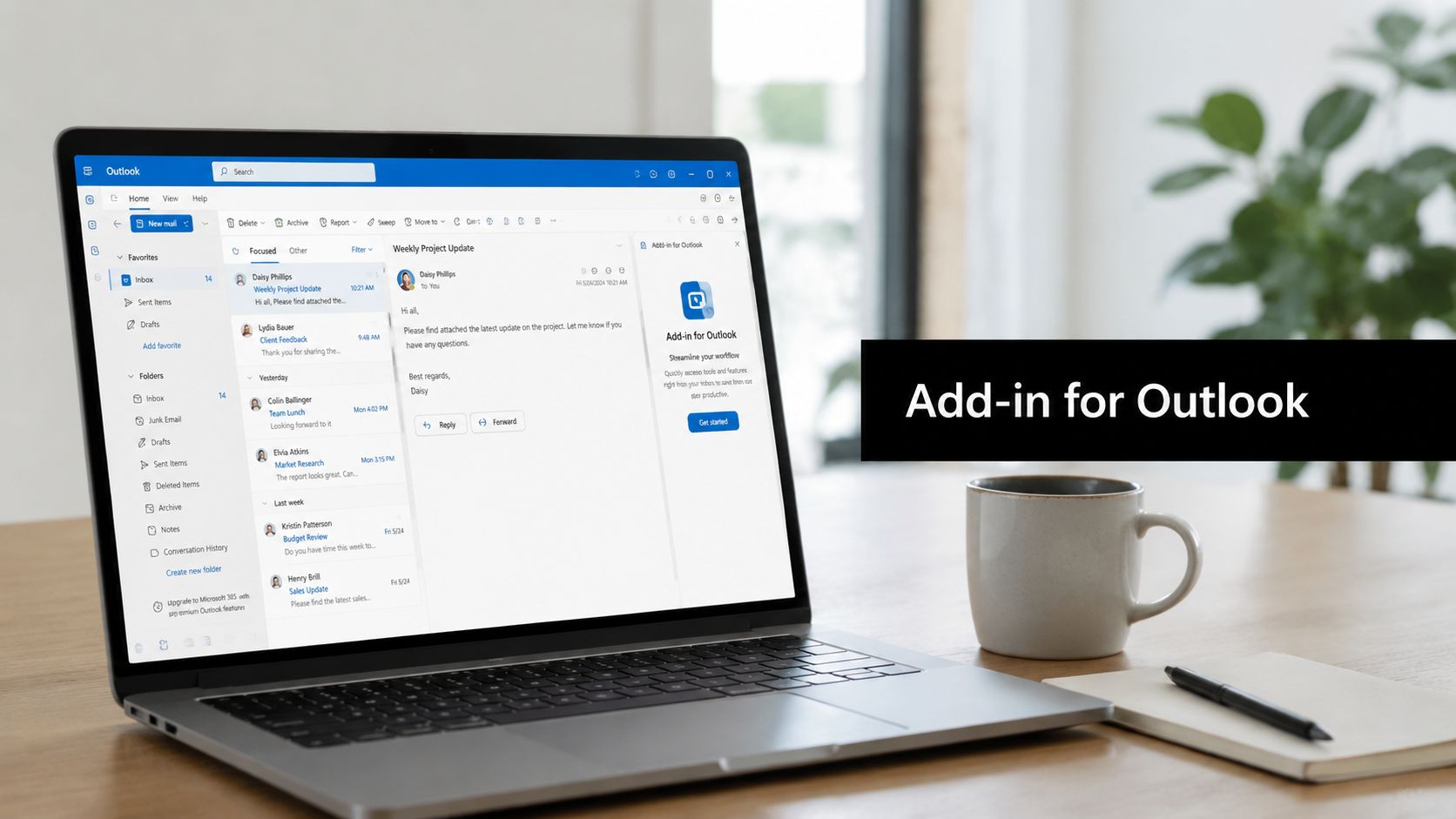
You're probably in the middle of a common Outlook routine. An email comes in, then you jump to a meeting app, then a task tool, then a document service, then back to Outlook to reply. After a few hours, the work itself isn't the problem. The tab switching is.
That's where an add in for Outlook starts to make sense. Instead of treating Outlook like a mailbox that sits beside your real tools, add-ins turn it into a working hub for mail, calendars, meetings, and follow-up tasks. If you use Outlook on desktop, the web, or mobile, that matters because your workflow usually doesn't stay on one screen all day.
For individual users, add-ins can save clicks and reduce friction. For Microsoft 365 admins, they can standardize how teams schedule meetings, connect internal systems, and control who can use what. The useful part isn't just installation. It's knowing where add-ins appear, how they behave across Outlook versions, and when they introduce privacy or support issues.
Why You Need an Outlook Add In
The quickest way to understand the value of an Outlook add-in is to look at what happens without one.
You get a message asking for a meeting. You open your calendar. Then you leave Outlook to create a video link somewhere else. Then you copy it back into the invite. Later, someone asks you to sign a document, update a CRM record, or turn an email into a task. You leave Outlook again. Repeat that ten times in a day and the small interruptions become the workflow.
An add-in moves those actions closer to the email or calendar event where the work starts. That's why they're useful. They reduce context switching, and they keep routine actions inside the same place your team already uses.
A practical example of what add-ins can do
A good historical example is Microsoft's MyAnalytics/Insights Outlook add-in. It was designed to show users quantified email behavior directly inside Outlook. For messages you send, it can show how many people read, forwarded, or replied, along with a lifespan chart of read activity. For messages you receive, it can show the number of emails exchanged, average response times, and the percentage of the sender's email you read. Microsoft also built in a privacy threshold so sender-side statistics appear only for messages sent to at least five people, and the data is visible only to the individual user, as described in this MyAnalytics Outlook add-in overview.
That example matters because it shows what an add-in really is. It's not just a button bolted onto Outlook. It can turn normal inbox activity into something measurable and actionable.
Practical rule: If you keep leaving Outlook to do the same task, that task is a candidate for an add-in.
Why this matters for both users and admins
Casual users usually think about convenience. Can I schedule faster? Can I save an email into another tool? Can I avoid copying the same details into multiple apps?
Admins think differently. They care about consistency, permissions, support load, and whether the same setup works for desktop, browser, and phones.
Both views are valid, and they meet in the same place. The add-in has to be easy enough for a user to adopt and controlled enough for the business to trust.
If you've used add-ons in other ecosystems, the idea will feel familiar. A calendar tool that extends the main app is a good comparison, such as these Google Calendar add-ons examples. Outlook add-ins serve a similar purpose, but they're tied more closely to Microsoft 365 mail and meeting workflows.
Finding and Installing Your First Add In
You are in the middle of a normal workday. An email needs a signature request, a meeting needs a scheduling link, or a customer note belongs in your CRM. If Outlook can handle that task where you already read mail and book meetings, an add-in saves clicks and keeps the process in one place.
The first install usually feels harder than it is because Outlook looks a little different on desktop, web, and mobile. The good news is that the workflow is basically the same on all three. Open the apps area, find the tool, approve access, and test it where you plan to use it. For a small business admin, that consistency matters because the same add-in may later need to work across Windows, Mac, browsers, and phones, not just one employee's laptop.
Microsoft's documentation explains that add-ins can appear in the ribbon, navigation bar, or inside message, appointment, and meeting screens. It also explains that Outlook on the web no longer supports the older Add from URL method for custom add-ins. File-based installation is used instead for those custom packages, as described in Microsoft's guide on using add-ins in Outlook.

On Outlook desktop
Desktop Outlook is often where people first notice add-ins because the controls are easier to spot.
- Open Outlook.
- Go to the Home tab, or open an email or calendar item.
- Select Get Add-ins, Apps, or the equivalent apps button in your version of Outlook.
- Search for the kind of tool you need, such as scheduling, e-signature, CRM, or document storage.
- Choose the add-in and select Add or Install.
- Review any sign-in window or permission request.
- Open a new message or meeting and confirm where the add-in appears.
That last check matters. Installing an add-in is like adding a new tool to a toolbox. You still need to know which drawer it went into. Some add-ins show up while reading email, some while composing, and some only inside calendar items.
On Outlook on the web
Outlook on the web is often the easiest place to start because the app store flow is usually cleaner and easier to trace.
Use this sequence:
- Open Outlook on the web
- Create or open an email or calendar event
- Select Apps or Get Add-ins
- Search for the add-in
- Choose Add
- Accept any permission or sign-in prompts
- Reopen the message or event to test it
Custom add-ins are where people get confused. Older tutorials may still mention Add from URL, but that option is no longer supported in Outlook on the web. If your company has a custom add-in, ask for the installation file and the publisher details before you install it. That is not just a setup detail. It is also a security check.
On Outlook mobile
Mobile works a bit differently because screen space is tighter and not every add-in offers the same features on a phone.
Try this:
- Open the Outlook mobile app
- Tap a message or event
- Open the more actions menu
- Look for your installed app integrations
If you do not see the add-in right away, the install may still be fine. Some add-ins only appear on certain item types, and some offer fewer controls on mobile than they do on desktop or web. A leave management tool is a good example. If your team uses the LeaveWizard Outlook calendar integration, you may care most about how calendar visibility works across devices rather than whether every setting appears in the phone app.
Install one add-in for one real task, then test it in mail, calendar, web, and mobile before adding another.
A real-world example
Say your team wants a meeting scheduler. The practical test is simple. Search for the scheduler in the apps area, install it, sign in if required, then create a new calendar event and see what changed. If the add-in adds a meeting option, inserts joining details, or opens a scheduling panel inside Outlook, it is doing the job you installed it for.
AONMeetings is one example of that kind of tool. If you are evaluating it, check the same basics you would check for any add-in. Where does it appear in Outlook, what permissions does it request, does it behave the same way on desktop and web, and does mobile support the parts your team will use. That habit helps individual users choose useful tools and helps admins avoid support problems later.
Managing Your Personal Outlook Add Ins
Installing an add-in is the easy part. Keeping Outlook tidy is where a little guidance is often helpful.
After a few months, it's common to forget what you added, which ones are active, and which one is causing clutter in the ribbon. The fix is usually in My Add-ins or the apps management area tied to your account.

Find your add-in list
In most Outlook setups, you can get back to your installed add-ins through the same place you used to install them. Open Get Add-ins or Apps, then look for a section labeled My Add-ins, Installed, or something similar.
That view is your personal dashboard. If an add-in was installed successfully, it should appear there even if you don't currently see it on every Outlook screen.
Know the difference between disable and remove
These two actions sound similar, but they solve different problems.
| Action | What it does | When to use it |
|---|---|---|
| Disable | Turns off the add-in without fully removing it | Testing conflicts, reducing clutter, temporary pause |
| Remove | Uninstalls it from your account | You no longer need it, or you don't trust it |
If Outlook feels slower after a recent install, disable the newest add-in first. If performance improves, you've found a likely cause. If you're sure you won't use the tool again, remove it.
Simple housekeeping that saves time
A short review every so often keeps things manageable:
- Check visibility: Open an email and a calendar event. Some add-ins only appear in one of those places.
- Pause what you don't use: A disabled add-in is easier to restore later than reinstalling from scratch.
- Remove old integrations: Old connectors for scheduling, HR, or document workflows often linger after a team changes tools.
This is especially useful with calendar-related services. For example, if your company manages leave requests and calendar syncing, it helps to understand how a dedicated workflow works before deciding whether to keep a separate Outlook integration. A practical reference is the LeaveWizard Outlook calendar integration, which shows the kind of sync behavior teams often want from HR and scheduling tools.
If you can't remember why you installed an add-in, that's usually a sign to disable it and see if you miss it.
Admin Deployment and Centralized Management
For admins and small business owners, individual installation doesn't scale well. If the whole company needs the same meeting tool, CRM panel, or document add-in, you don't want every user hunting through the store and making their own choices.
Centralized deployment gives you consistency. It also reduces support tickets because everyone gets the same setup, in the same way, with the same permissions model.

How the admin workflow usually works
Microsoft's developer guidance describes Outlook add-in deployment as an iterative, platform-specific process. The recommended flow is to create a manifest, deploy the UI files to a web server, install the add-in in a mailbox, then keep testing by redeploying and reinstalling. For broader distribution, the add-in can be pushed through the Microsoft 365 admin center, and developers can also sideload it or use Exchange PowerShell cmdlets such as New-App for controlled testing, as described in Microsoft's Outlook add-in testing and deployment guidance.
That single paragraph explains a lot of admin confusion. There isn't just one deployment path. There are several, and each fits a different stage.
For company-wide rollout
If you're rolling out an approved add-in to users across Microsoft 365, use the admin center approach first.
A practical sequence looks like this:
- Sign in to the Microsoft 365 admin center with the right admin role.
- Open the area used for Integrated Apps or organizational app deployment.
- Choose whether you're deploying:
- a store add-in, or
- a custom add-in that uses a manifest file
- Upload or select the add-in.
- Assign it to:
- everyone,
- specific groups, or
- selected users for a staged rollout
- Save and monitor availability in Outlook.
For many small organizations, group-based deployment is the safest middle ground. Finance may need one add-in, sales another, and everyone may need a common meeting integration.
For testing before rollout
Admins often want to validate an add-in with a few real mailboxes before exposing it to the whole tenant. That's where sideloading and PowerShell become useful.
Use controlled testing when:
- You're validating permissions: You want to see exactly what the add-in asks for during sign-in.
- You're checking client behavior: A tool may work one way in classic Outlook and differently elsewhere.
- You're troubleshooting custom apps: Manifest changes often need repeated install-test-adjust cycles.
If your environment relies on Microsoft identity, planning for authentication early helps. Teams evaluating sign-in flow and directory integration should also review how single sign-on with Active Directory affects user provisioning and access behavior across connected apps.
What admins should standardize
Centralized management works better when you set a few ground rules:
- Approved catalog: Decide which add-ins users can install on their own and which require review.
- Deployment notes: Record where the add-in should appear. Ribbon, message surface, calendar event, or navigation area.
- Ownership: Assign someone to review updates, support issues, and retirement decisions.
- Testing habits: Any custom or business-critical add-in should be tested in the clients your staff use.
Some companies only test in desktop Outlook, then discover that field staff use Outlook on the web or mobile and see something different. That's not a user error. It's a deployment oversight.
Security Best Practices for Outlook Add Ins
A useful add-in can still be a bad fit if it asks for more access than its job requires.
That's the part many teams skip. Someone wants a faster way to schedule meetings or process mail, sees a permission prompt, clicks accept, and moves on. Later, the business has to answer a harder question. What data did that tool just gain access to, and was that access necessary?

Read the permission request like a risk statement
When Outlook or Microsoft 365 shows a permission dialog, translate it into plain language.
If an add-in requests access related to:
- Mail content, it may need to read message data to do its job
- Calendar events, it may create, edit, or inspect appointments
- Contacts or directory information, it may use identity or participant details
- Write access, it may change data, not just display it
That doesn't make the add-in unsafe. It means you should compare the request to the function.
A meeting scheduler that needs calendar access makes sense. A simple formatting tool asking for broad mailbox access deserves more scrutiny.
Use a simple vetting checklist
Before you or your users install an unfamiliar add-in, check these points:
- Publisher identity: Is the developer clearly named, and does the business look legitimate?
- Recent user feedback: Reviews can reveal bugs, login problems, and privacy complaints.
- Function versus access: Does the data request match the feature you want?
- Privacy documentation: You should be able to find a privacy policy or data handling explanation.
- Removal path: Make sure you know how to disable or remove it before broad adoption.
Security review doesn't need to be complicated. It needs to be deliberate.
Make security part of normal maintenance
Most add-in risk doesn't come from the day you install it. It shows up later, when nobody remembers it's there.
A simple operating habit helps:
| Check | Why it matters |
|---|---|
| Review installed add-ins regularly | Unused tools still create exposure and clutter |
| Keep only active business tools | Fewer integrations mean fewer support and trust questions |
| Test with a limited group first | Problems are easier to contain before broad rollout |
For teams that build or evaluate business apps, secure development practices matter just as much as user caution. If you're comparing vendors or internal standards, this overview of security coding practices is a useful reference point for the kinds of controls and discipline you should expect around software handling sensitive communication workflows.
Troubleshooting Common Add In Issues
You open Outlook before a meeting, click where the add-in usually lives, and it is gone. Or it shows up on your laptop but not in Outlook on the web. Or a user says, “It worked yesterday,” and now the button is greyed out.
Most add-in problems fit into three buckets: the add-in is not visible, it is installed but unavailable, or it behaves differently across Outlook clients. The pattern matters because the fix usually starts with one question. Are you dealing with a user issue, a client compatibility issue, or an admin deployment issue?
That distinction matters more now because Outlook is no longer one single environment. Classic Outlook, new Outlook for Windows, Outlook on the web, and mobile can all handle add-ins a little differently. For users, that can feel inconsistent. For Microsoft 365 admins, it means troubleshooting works better when you compare the same account across clients before changing settings.
My add-in disappeared
Start by checking where you are in Outlook. Add-ins are context-sensitive. A meeting add-in may not appear while reading regular email, and a mail add-in may not appear in the calendar.
Use this quick checklist:
- Open the right item type: Some add-ins appear only in email messages. Others appear only in appointments or meeting requests.
- Check the installed apps list: Confirm the add-in still appears in your account.
- Restart Outlook: That often clears temporary interface issues or a stalled sign-in prompt.
- Try Outlook on the web: If the add-in appears there, your account likely has access and the issue is tied to that desktop or mobile client.
A simple way to think about it is this: the add-in may not be missing at all. You may just be standing in the wrong room of the same house.
The add-in is greyed out
A greyed-out add-in usually points to one of three things: the current item does not support it, the user has not completed sign-in or consent, or the user was not included in the correct deployment group.
| Symptom | Likely cause | First action |
|---|---|---|
| Greyed out in email | The add-in only works on calendar items | Test it in a meeting invite |
| Greyed out after install | Sign-in or consent is incomplete | Sign out and back in if prompted |
| Unavailable for some users | Admin assignment or policy issue | Check whether the user was included in deployment |
If you manage Microsoft 365, confirm whether the add-in was deployed to a specific group, department, or test set instead of the whole organization. If you are helping an end user, ask a basic but important question first. “Did you install this yourself, or did IT assign it?” That answer often tells you where to look next.
Outlook got slower after I installed an add-in
Treat this like isolating a noisy device on a network. Change one thing at a time.
Follow this sequence:
- Disable the most recently added add-in.
- Restart Outlook.
- Open the same mailbox or calendar views that felt slow before.
- Check whether performance improves.
- Re-enable add-ins one by one if you need to identify the cause.
If the slowdown appears only in one client, compare that same workflow in Outlook on the web and on desktop. That comparison helps you separate a general add-in problem from a client-specific one.
If you are the admin, keep security in mind while testing. A slow or unstable add-in is not always a security problem, but unexpected prompts, repeated sign-in failures, or unusual permission requests deserve a closer look before you roll it out more broadly.
It works on one device but not another
This is one of the most common support tickets because “Outlook” can mean several different apps.
Classic Outlook, new Outlook for Windows, Outlook on the web, and mobile Outlook do not always display the same commands in the same place, and some add-ins support only certain clients or only certain features within them. The practical fix is to stop asking, “Does it work in Outlook?” and start asking, “Which Outlook client, on which device, with which account?”
That one change in wording saves time. It also fits the way modern add-ins are managed. The same user can have the same mailbox and still see different behavior depending on the client, sign-in state, and deployment method.
If your team wants a meeting workflow that fits into Outlook without pushing users into a complicated install process, AONMeetings is worth a look. It is a browser-based video conferencing platform designed for business use, and it can fit organizations that want scheduling and online meeting access tied to familiar Microsoft 365 workflows.