
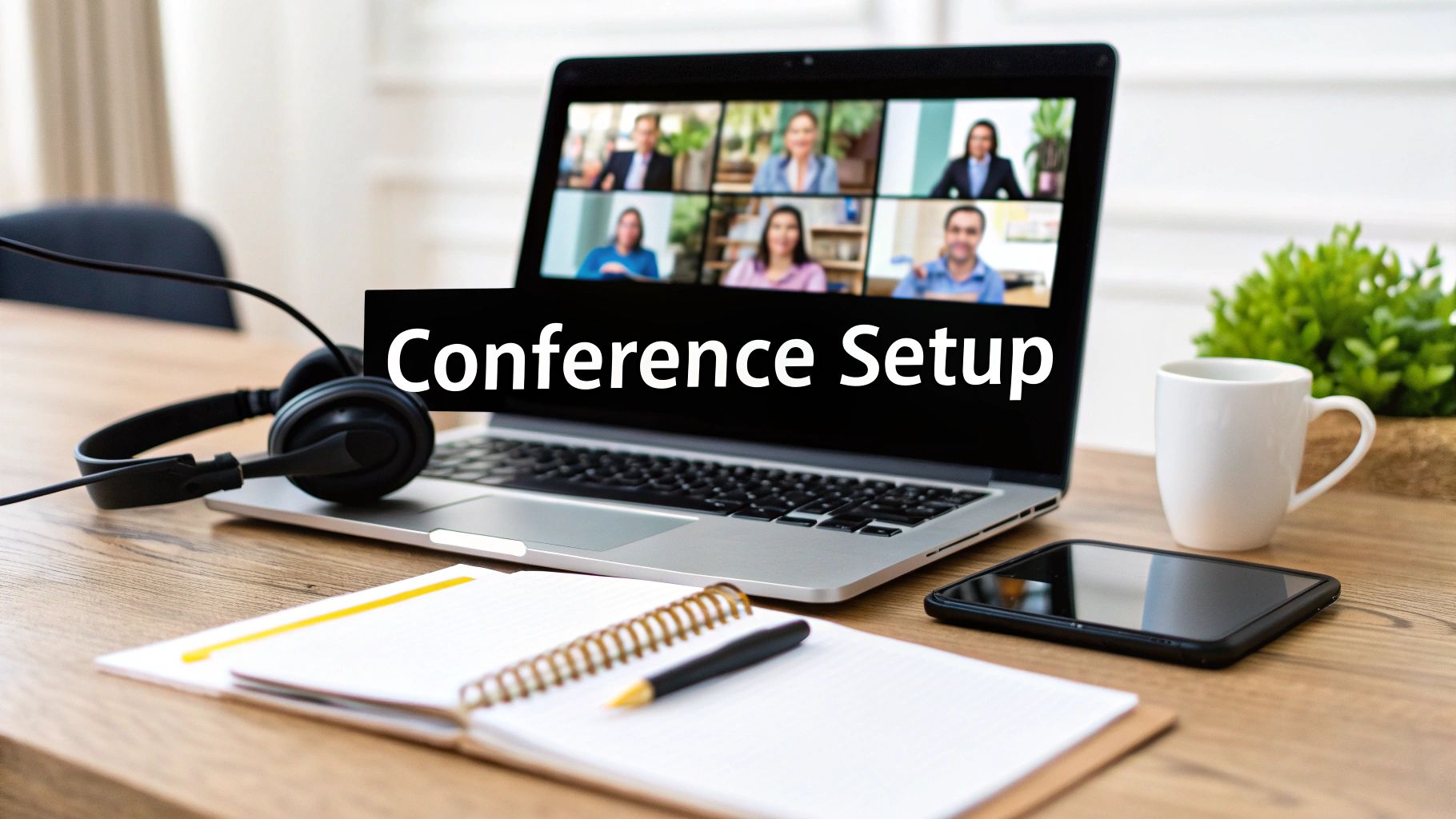
We’ve all been there. That sinking feeling when a crucial conference call starts, and someone’s audio is a mess of static, or their video keeps freezing. It's frustrating, and it kills momentum. A productive call doesn't just happen; it starts with the prep work you do before anyone even dials in.
Preparing For a Flawless Conference Call

With remote work cementing its place in the business world, virtual meetings are everything. The market reflects this shift, with global video conferencing revenue expected to climb to nearly $10 billion by 2025, a solid increase from $7 billion in 2022.
Given how much we rely on this technology, a poorly run call isn't just an inconvenience—it can disrupt entire workflows and even ding your professional credibility. A little bit of prep goes a long way.
Fine-Tuning Your Hardware and Environment
First things first, let's look at your physical setup. Grainy video and muffled audio are major distractions, making it hard for people to stay engaged. A good quality webcam (1080p is a solid baseline) and a dedicated microphone aren't just nice-to-haves; they're essential for coming across clearly.
Your space matters, too. Find a quiet spot with as little background noise as possible. Good lighting is also key. If you can, face a window for natural light. If not, a simple ring light can be a game-changer, making sure you’re seen clearly and professionally.
A professional meeting environment isn't about having a fancy office; it's about minimizing distractions. A clean, neutral background and clear audio will always outperform a chaotic setting, regardless of your location.
Optimizing Your Audio and Connection
If I had to pick one thing that makes or breaks a call, it's audio quality. Echoes, static, or voices that sound like they're coming from the bottom of a well can grind a meeting to a halt. The easiest fix? Always use a headset with a built-in microphone. It isolates your voice and cuts down on the background chatter.
Before any important call, do a quick audio check. We have a handy guide on how to test your microphone that walks you through it. Your internet connection is the other half of the puzzle. The quality of your underlying telephony and data connectivity solutions is what enables clear audio and smooth video. Whenever possible, plug directly into your router with an Ethernet cable—it’s almost always more stable than Wi-Fi.
Ensuring Software and Account Readiness
Finally, a quick software and access check can save you a world of hurt. AONMeetings makes this part easy since it’s browser-based, so nobody needs to download anything. Still, you’ll want to make sure every participant has the meeting link and any login info they might need well ahead of time.
This one simple step helps you skip the awkward "Can you hear me now?" dance that plagues the start of so many calls. By getting these details sorted out beforehand, you ensure the meeting kicks off right on time, respecting everyone's schedule.
Getting Your AONMeetings Account Dialed In
With your physical space and hardware ready to go, it’s time to jump into the digital side of things: setting up your AONMeetings account. This isn’t just about plugging in your email and password. Think of it as tailoring the platform to fit how you do business right from the start.
First up, you’ll need to pick a subscription plan. A small startup just needing quick team huddles can probably get by just fine with a basic tier. But if you're a larger company, you'll likely want the more advanced features like custom branding and in-depth analytics. Be realistic about the number of people you’ll typically have on a call and which features you'll actually use—no need to pay for bells and whistles you won't touch.
Once you’ve landed on a plan, the registration itself is refreshingly simple. This initial setup is one of the areas where AONMeetings really shines, especially compared to platforms that feel like they require an IT degree. For a closer look at this, you can check out how AONMeetings streamlines user onboarding and avoids the usual setup headaches.
Personalizing Your Meeting Space
After you’re registered, one of the quickest and most impactful things you can do is create a personalized meeting room URL. Instead of sending out a long, random string of characters, you can claim a link that’s clean and memorable, like aonmeetings.com/your-company-name. It’s a small detail that adds a huge layer of professionalism.
Imagine a law firm using a link like aonmeetings.com/smith-jones-legal. When a client sees that, it’s instantly recognizable and feels trustworthy. It’s a far cry from a generic, auto-generated link that could easily be flagged as spam or ignored.
Key Takeaway: A custom URL is more than just a vanity link. It’s a branding tool that builds trust with clients and partners before they even click "Join." It's a simple, high-impact step you shouldn't skip.
Integrating Your Calendar for Flawless Scheduling
The final piece of this setup puzzle is connecting your calendar. AONMeetings plays nicely with popular apps like Google Calendar and Outlook, and linking your account is a game-changer for scheduling efficiency.
Once integrated, you can book meetings directly from your calendar, and it will automatically generate and embed a unique AONMeetings link right into the event invite. This completely gets rid of the clumsy process of creating a meeting, then copying and pasting the link into an invite. It saves time and, more importantly, prevents those "oops, wrong link" emails.
Here's what this simple integration unlocks:
- One-Click Scheduling: Forget toggling between apps. You can create and schedule AONMeetings calls right from your calendar.
- Automatic Invites: The meeting link gets dropped into the calendar invitation automatically for all participants. No manual work needed.
- Fewer Mistakes: You can finally stop worrying about sending mismatched links or incorrect meeting details.
With these core settings configured, your platform is officially personalized and ready for action. You’re now set up to schedule that first call with total confidence.
Scheduling Your First Call Like an Expert
Alright, you've got your account dialed in. Now for the main event: scheduling your first call. This is where all that prep work really shines, turning what can be a clunky process into a smooth, professional workflow. AONMeetings is built to be flexible, letting you launch calls that perfectly match the situation.
You've got two main ways to kick things off. You can fire up an instant meeting for those "let's talk now" moments—think a quick sync-up with a colleague. Or, you can schedule a call for a future date, which is your best bet for more formal events like a client presentation or a planned team workshop.
Choosing Your Meeting Type
Deciding between an instant or scheduled meeting is all about context. An instant call is your go-to for quick, internal collaboration. Say you and a designer are hammering out a new mockup; you can spin up a call in seconds to share screens and get that real-time feedback. No fuss.
Scheduled meetings, on the other hand, are essential for anything that requires attendees to come prepared. A quarterly review with stakeholders or a big sales demo for a new client absolutely needs to be on the calendar. Scheduling it gives everyone the heads-up they need to be ready, making the call productive from the very first minute.
This image really brings it all together, showing how the pieces you've configured—your plan, custom URL, and calendar integration—are the foundation for everything you schedule.

Each of these elements plays a direct role in how efficiently and professionally you can manage your calls from here on out.
Customizing Your Call Settings for Maximum Impact
Beyond just picking a time, AONMeetings lets you really tailor the call's environment. This is more important than it sounds, because a client-facing demo and an internal brainstorm should operate under very different rules.
Here's how I typically set up a formal client presentation to keep things tight and professional:
- Enable the Waiting Room: This is non-negotiable. It lets you bring people in only when you're 100% ready, giving your team a moment to sync up beforehand.
- Mute Participants on Entry: A simple click that saves a world of headache. It kills distracting background noise as people trickle in, keeping the focus squarely on the presenter.
- Restrict Screen Sharing: I always set this so only the host and designated co-hosts can share. It prevents any accidental (and often embarrassing) screen-sharing mishaps.
An internal team brainstorm is the total opposite. For that, you'd throw the doors open—let everyone share their screen and unmute themselves at will to keep the ideas flowing.
The most effective meetings are tailored to their purpose. Don't stick with default settings. A few intentional clicks to configure permissions, enable a waiting room, or set recording preferences can dramatically improve the call's outcome and security.
Now, let's talk about configuring those settings based on who you're meeting with.
AONMeetings Feature Configuration for Different Call Types
Not every call is the same, so your settings shouldn't be either. A quick internal check-in has very different needs than a high-stakes client pitch. Below is a quick guide I use to configure AONMeetings features based on the type of call I'm hosting. It helps ensure the right balance of security, collaboration, and control every time.
| Feature | Internal Team Update | Client Presentation | Interactive Workshop |
|---|---|---|---|
| Waiting Room | Disabled | Enabled | Enabled |
| Password | Optional | Required | Required |
| Mute on Entry | Optional | Enabled | Enabled |
| Screen Sharing | All Participants | Host & Co-Hosts Only | All Participants |
| Recording | Optional (for absentees) | Enabled (for follow-up) | Enabled (for reference) |
| Chat | Unrestricted | Moderated or Host Only | Unrestricted |
Using this as a starting point will save you from common meeting headaches and make sure your setup aligns perfectly with your goals.
Bolstering Security for Sensitive Conversations
Let's be clear: security isn't just a "nice-to-have." It's an absolute must, especially if you're discussing anything confidential. AONMeetings gives you a few simple but powerful layers of protection.
One of the easiest and most effective tools is the meeting password. By requiring a password to get in, you're putting up a strong barrier against uninvited guests. I always use this for calls involving financials, legal topics, or any kind of proprietary company info.
Combine a password with the waiting room feature, and you've created a solid, two-factor checkpoint for your meeting. You get to see who is trying to join and decide exactly who gets in and when. It provides total peace of mind, freeing up your team to speak openly and securely.
Running Meetings That People Actually Enjoy

Getting the technical side of a conference call right is one thing. But the real art is creating an experience where people feel engaged, heard, and respected. A great meeting can rocket a project forward, while a bad one is just a frustrating time suck for everyone.
Let's face it, the modern workweek is drowning in virtual meetings. Employees are now spending over 11 hours per week in them, a figure that's tripled since 2020. What's worse? A jaw-dropping 35% of those meetings are considered a complete waste of time. You can check out more powerful statistics about meeting productivity to see just how big the problem is.
This is a massive opportunity. If you can run meetings that actually achieve something, you'll immediately stand out.
Crafting a Purposeful Agenda
The single most powerful tool for a better meeting is a clear agenda, shared ahead of time. I'm not talking about a vague list of topics; this is your roadmap. It sets expectations, clarifies the purpose, and gives everyone a chance to come prepared.
A killer agenda needs to nail down three things:
- The Primary Goal: What's the one thing we absolutely must decide or accomplish by the time this call ends? Be specific.
- Key Discussion Points: List 3-5 concrete topics, and—this is key—assign a time estimate to each one. This keeps the conversation from drifting.
- Required Prep Work: Do people need to read a document or think about a specific question beforehand? Spell it out.
Getting this into everyone's hands at least 24 hours in advance is a game-changer. It turns a passive audience into a group of active participants.
Fostering Genuine Interaction
That awkward virtual silence? It's the worst. You have to be intentional about building interaction directly into the flow of your meeting. AONMeetings has some great tools for this.
For instance, instead of asking a vague, open-ended question like, "Any thoughts?" try launching a quick poll. It gives everyone—especially the quieter folks on your team—a low-pressure way to weigh in on a decision.
An engaging meeting is an interactive one. Use the tools at your disposal—polls, breakout rooms, and chat—to break up monologues and create a dialogue. This small shift in facilitation makes a world of difference.
If you're dealing with a larger group, breakout rooms are your secret weapon. Splitting a 20-person call into small groups of 4-5 for a quick brainstorm can generate way more ideas and honest feedback. The chat function also works wonders as a "backchannel" for questions that don't need to interrupt the main speaker.
Mastering Virtual Meeting Etiquette
Finally, getting the unwritten rules of virtual etiquette right makes your meetings more efficient and respectful. Some of these are non-negotiable, like muting your mic when you're not talking. It’s the simplest way to eliminate distracting background noise.
Making an effort to look into the camera when you speak creates a much stronger sense of connection. Think of it as the digital version of making eye contact.
And perhaps the most important skill of all is knowing when a meeting is even necessary. Understanding which conversations are essential meetings for effective collaboration versus what could have been an email will do wonders for your team's focus and morale.
Troubleshooting Common Conference Call Issues
Even with the best preparation, technology can throw you a curveball. When a technical glitch hits mid-call, it has the potential to derail the entire conversation. The key is to know how to calmly and quickly fix the most common issues to keep your meeting on track.
Most problems fall into just a few categories: choppy audio, freezing video, or someone being unable to connect at all. Instead of panicking, always start with the simplest solution first. More often than not, a quick browser refresh or checking that the right microphone is selected in the computer settings does the trick.
Diagnosing Audio and Video Problems
Poor audio quality is the number one meeting killer. If someone sounds robotic or their voice keeps cutting in and out, that’s almost always a sign of a weak internet connection. The quickest fix? Ask them to turn off their video. This immediately frees up bandwidth and dedicates it all to the audio stream, which usually clears up the problem right away.
If that doesn't work, the issue might be with their hardware. Suggest they check if AONMeetings has permission to access their microphone in their browser’s settings. An outdated audio driver can also be the culprit, so a quick check for any pending system updates is a good next step.
Pro Tip: Before a big call, it's a smart move to run an internet speed test. For stable HD video, you'll want at least 5 Mbps for both upload and download speeds. If your connection is lagging, try moving closer to your Wi-Fi router or plugging directly in with an Ethernet cable. It can make a world of difference.
Solving Connection and Screen Sharing Failures
When someone can't join the call, the problem is usually one of two things: a browser hiccup or a network firewall. Since AONMeetings is browser-based, the simplest first step is to have them clear their browser's cache. If that fails, ask them to try joining from a different browser, like Chrome or Firefox.
Screen sharing failures often come down to system permissions. On both Windows and macOS, you have to explicitly grant your browser permission to record your screen. If someone’s screen share isn’t working, walk them through their system's "Security & Privacy" settings to make sure that permission is enabled for their browser. It's a one-time fix that solves the problem for good.
For a deeper dive into common snags, you can learn more about how to resolve frustrating video call problems in our detailed guide.
Answering Your Top Questions About AONMeetings Conference Calls
Even the most straightforward tools can spark a few questions. When it comes to setting up your conference calls, you want everything to go off without a hitch. Let's tackle some of the most common questions we hear about AONMeetings and give you the clear, practical answers you need.
Virtual meetings are here to stay, and for good reason. A SurveyMonkey poll found that 56% of attendees walk away from virtual meetings with clear action items. With hybrid calls being the format of choice for 64% of remote workers, getting comfortable with your platform’s features is more important than ever. You can dig into more of the data in this report on modern meeting statistics.
How Do I Record My Conference Calls?
Recording a meeting in AONMeetings couldn't be simpler. Once you’re in the call, just look for the "Record" button on the bottom toolbar and click it. A small red dot will pop up, which is a clear signal to you and everyone else that the session is being recorded.
When the meeting wraps up, the recording starts processing automatically. You don't have to do a thing. In just a little while, an email will land in your inbox with a link to the video, which is kept safe and sound in your AONMeetings cloud account. From there, you can download the file or just share the link with anyone who missed the live call.
Key Insight: Think of your recordings as a growing library of company knowledge. They’re perfect for training new team members, documenting major decisions, or sending a quick recap to stakeholders. A simple recording transforms a one-off conversation into a valuable, reusable asset.
Understanding Participant Limits on AONMeetings
"How many people can I invite?" This is a big one, and the answer is tied directly to your AONMeetings subscription plan. We've designed different tiers to fit businesses of all shapes and sizes.
Here’s a general idea of what to expect:
- Starter Plan: Perfect for small teams and quick huddles, this plan typically allows up to 25 participants.
- Pro Plan: As your business grows, this plan scales with you, often supporting up to 100 participants and unlocking more advanced features.
- Business Pro & Enterprise Plans: When you’re hosting large-scale webinars or all-hands meetings, these top-tier plans can welcome several hundred attendees.
Before scheduling a major event, it's always a good idea to pop into your account dashboard and confirm your specific participant limit. A quick check beforehand can save you from any last-minute surprises.
Can Guests Join Without an AONMeetings Account?
Yes, they absolutely can! This is one of the features our users love most, especially when working with people outside their own company. Guests do not need an AONMeetings account to jump on a call.
When you send out an invitation, your guest just needs to click the link. That's it. The meeting opens right in their web browser, creating a smooth, professional experience for clients, partners, or job candidates. Removing those little technical roadblocks is key to making a great first impression.
Ready to see what seamless, browser-based video conferencing feels like? With AONMeetings, you get secure, high-quality meetings with no downloads and no fuss. Find the right plan for your business and start collaborating better today.