
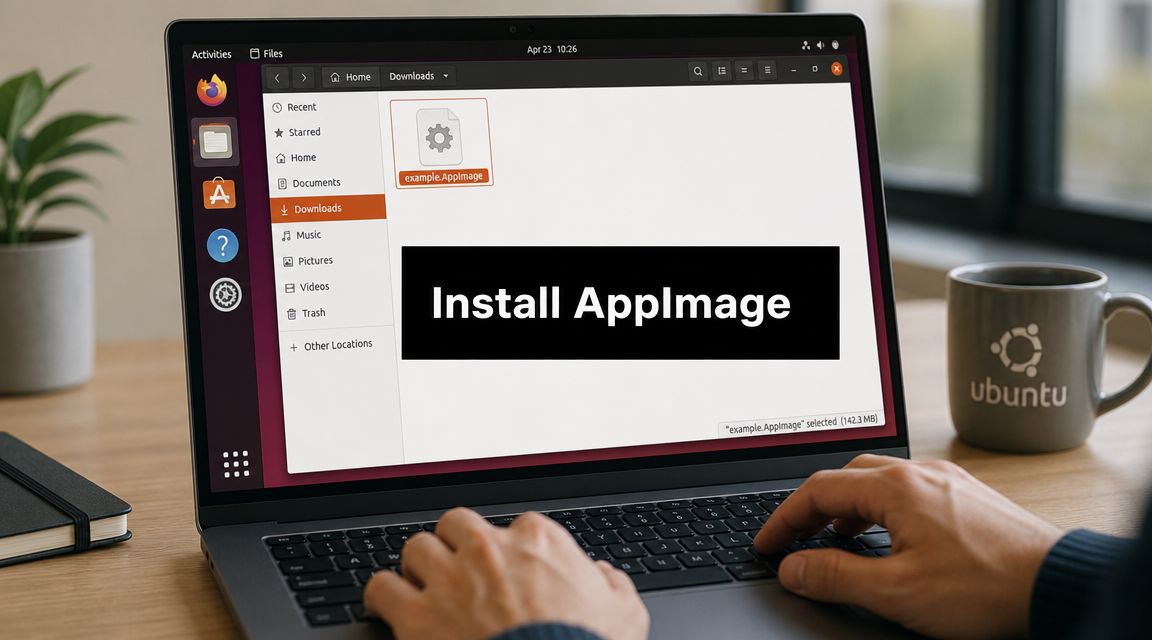
You're probably here because you downloaded a Linux app, expected a .deb, and got a file ending in .AppImage instead. Then Ubuntu did what Ubuntu often does with unfamiliar executables. It showed no obvious install flow, no menu entry, and maybe no launch at all.
That confusion is normal. AppImages don't behave like packages from apt, and they don't fit the usual “install, update, remove” rhythm most Ubuntu users expect. But once you understand the model, they're straightforward to use and, in some cases, a better fit than a traditional package.
The trick is to stop thinking about AppImages as something you install into Ubuntu in the usual sense. Think of them as self-contained apps you run directly, then optionally integrate and manage properly if you plan to keep them around.
What Is an AppImage and Why Use It on Ubuntu
A common Ubuntu scenario goes like this. You need one desktop app from a vendor site, but there is no .deb, nothing useful in apt, and you do not want to add another third-party repository just to test one tool. AppImage exists for that job.
An AppImage is a single executable file that bundles an application with the libraries it needs to run on many Linux distributions. On Ubuntu, that usually means you can launch the app without installing system packages, without using root, and without dropping files across /usr or other package-managed locations.

The practical benefit is portability. Developers can ship one build that works across Ubuntu, Debian, Fedora, and other distributions often enough to avoid maintaining separate native packages for each one. For users, that cuts setup time, especially for niche apps, beta releases, proprietary tools, and projects that are not packaged cleanly for Ubuntu's repositories.
Why people choose AppImage
On real Ubuntu systems, AppImage is useful for a few specific reasons:
- No root access needed: You can run many AppImages entirely as a regular user.
- Low impact on the base system: The app usually stays self-contained instead of spreading files into system directories.
- Fast evaluation: You can test software quickly without adding a repository or installing a stack of dependencies.
- Version flexibility: Keeping two releases side by side is usually straightforward because each one is just a separate file.
That makes AppImage a good fit for controlled testing and for user-level software that does not need tight integration with the operating system.
Where it fits well and where it doesn't
AppImage is strong for desktop applications. It is less convenient if you expect Ubuntu to manage the full lifecycle for you. apt upgrade does not update AppImages. Desktop launchers and icons may need manual integration. Some apps still depend on host features such as FUSE, which is where many first-time Ubuntu users get stuck.
That trade-off is the part many short guides skip. Running the file is easy. Keeping AppImages organized, updated, trusted, and properly integrated into the desktop takes a bit more discipline. If you plan to use AppImages regularly, treat them as user-managed applications rather than native Ubuntu packages.
Getting and Running Your First AppImage
The official workflow is simple. Download the file, make it executable, then run it directly. AppImage's own quickstart states that no separate installation is required, and the standard Ubuntu command flow is documented in the AppImage Quickstart documentation.
If you only need to launch one app one time, this is enough.

The terminal method
This is the most reliable path because it makes each step explicit.
- Download the
.AppImagefile to a folder you control, such asDownloadsor~/Applications. - Open a terminal in that folder.
- Make the file executable:
chmod +x my.AppImage - Run it:
./my.AppImage
If the filename includes spaces, either quote it or press Tab for shell completion. For example:
chmod +x "My App.AppImage"./"My App.AppImage"
The key detail is the +x. That grants execute permission. If you forget it, Ubuntu will usually respond with a permission error or treat the file like inert data.
The graphical method
If you don't want to use the terminal, Ubuntu's file manager can do the same job.
Use this sequence:
- Locate the file: Open Files and browse to the downloaded AppImage.
- Open Properties: Right-click the file and choose Properties.
- Enable execution: In the Permissions tab, turn on Allow executing file as program.
- Launch it: Double-click the AppImage.
That GUI checkbox is the visual equivalent of chmod +x.
A lot of “AppImage doesn't work on Ubuntu” reports come down to one thing. The file was downloaded, but it was never marked executable.
A clean first-run workflow
New users often leave AppImages in ~/Downloads, launch them once, then lose track of which version they ran. That gets messy quickly. A better pattern is:
- Create a home for them: Use
~/Applicationsfor AppImages you intend to keep. - Keep names intact: Don't rename files so aggressively that you lose version context.
- Launch from terminal first: The first run is easier to debug from a shell than by double-clicking.
Here's a sensible sequence:
- Move the file from Downloads into
~/Applications chmod +x- Run it from terminal
- Confirm it opens cleanly
- Decide whether to integrate it into the menu
What not to do
A few mistakes waste time:
| Mistake | What happens | Better approach |
|---|---|---|
| Double-clicking before setting execute permission | Ubuntu won't treat it as a runnable app | Set the executable bit first |
| Leaving every AppImage in Downloads | You lose track of versions and locations | Use ~/Applications |
Expecting apt install to handle it |
AppImage isn't meant to be installed that way | Download, mark executable, run |
| Assuming silent failure means nothing is wrong | Important error output gets hidden | Launch from terminal and read the output |
If your goal is only to install AppImage on Ubuntu and run it once, stop here. If you plan to use the app regularly, the next step is what makes AppImage feel less temporary.
Integrating AppImages into Your Ubuntu Desktop
You notice the problem the second week you use AppImages on a real workstation. The app runs, but it does not show up cleanly in search, the icon may be missing, and the original file is still sitting in ~/Downloads or on the desktop. That is fine for a one-off test. It is a poor setup for a tool you open every day.
Desktop integration is what turns an AppImage from a loose executable into something users can find, launch, and maintain without guesswork.

Start with a stable location
Put AppImages you plan to keep in ~/Applications. That gives menu entries a fixed path, makes version cleanup easier, and avoids the common mistake of integrating a launcher that later breaks because the file was moved or deleted.
On a team, standardization helps even more. If every user stores AppImages in a different folder, support becomes slower than it needs to be. A single convention keeps documentation short and troubleshooting predictable.
Use AppImageLauncher if you want normal desktop behavior
For daily-use desktop apps, AppImageLauncher is usually the practical choice. It prompts you to move the file into a managed location and creates the launcher entry Ubuntu users expect. That saves time, especially for people who do not want to hand-edit .desktop files.
What it improves:
- Consistent storage: AppImages stop living in temporary folders.
- Menu integration: The app appears in the launcher like other desktop software.
- Cleaner user experience: You launch the app by name instead of hunting for a file.
- Easier lifecycle management: Replacing an old AppImage is less error-prone when everything lives in one place.
I recommend this route for personal workstations and small teams unless there is a clear reason to keep tighter manual control.
For teams reviewing broader software standards, it also helps to compare where AppImages fit against other deployment choices, especially for recurring desktop tools and small business app choices.
Manual integration gives you more control
If you do not want another helper tool, manual integration works. It just asks more of you.
A common manual path is to place the AppImage in a fixed location, then create a .desktop launcher that points to it. Some admins go further and extract the AppImage payload with --appimage-extract for controlled environments. That can make sense on shared systems, kiosks, or locked-down desktops where you want exact icon paths, launcher behavior, or wrapper scripts.
The trade-off is maintenance. Once you create launchers by hand, you also own every path change, icon update, and version swap.
Use manual integration when you need control. Use AppImageLauncher when you need consistency with less effort.
Pick the integration style that matches the workload
A simple rule works well:
- Occasional app: Keep it in
~/Applicationsand run it directly. - Daily desktop app: Integrate it with AppImageLauncher or a proper
.desktopfile. - Shared or managed Ubuntu system: Use controlled placement and manual launchers.
The more important question is not only how to install AppImage on Ubuntu. It is how you want that app to behave after the first launch. Good integration reduces friction now and makes updates, cleanup, and troubleshooting much easier later.
Managing AppImage Updates and Security
The easy part is the first launch. The work starts a month later, when the vendor ships a new build, the old file is still sitting in Downloads, and nobody remembers which copy is the one users run.
That is the AppImage lifecycle on Ubuntu. You get portability and independence from apt, but you also take responsibility for version tracking, file placement, and trust. If you want AppImages to stay useful instead of turning into unmanaged desktop clutter, set a process early.
Updates need a defined owner
Ubuntu will not update an AppImage through the normal package workflow. The app may include its own updater, it may rely on AppImageLauncher, or it may require you to replace the file manually. All three patterns exist in the wild, so the safe assumption is simple. Check how that specific vendor handles updates before you roll the app out.
A workable setup usually includes:
- One fixed storage location:
~/Applicationsworks well for single-user systems. - Clear filenames: Keep the app name and version visible if the vendor does not handle replacement cleanly.
- A review schedule: Check the vendor release page, built-in updater, or integration tool on a regular cadence.
- Planned cleanup: Remove old versions once you no longer need rollback or comparison testing.
Keeping two versions side by side can be useful for testing. It is also how stale binaries hang around for months. If you retain old builds, do it on purpose and label them clearly.
Security starts before you run the file
An AppImage is an executable downloaded from outside the Ubuntu repositories. Treat it with the same caution you would give any third-party binary.
Start with provenance. Download from the project's official site or release page. Avoid random mirrors unless you have a reason to trust them. If the vendor publishes checksums or signatures, verify them before first launch. That step gets skipped often, but it is one of the few practical ways to catch a corrupted or tampered download before it runs.
Then decide how much access the app really needs. For a trusted editor or IDE you use every day, normal execution may be fine. For a lesser-known utility, a beta build, or anything that wants broad filesystem access, use a sandbox such as Firejail and limit what it can read or write. Teams that already follow documented secure development and security coding practices should apply the same thinking here. Unknown binaries do not get a free pass because they are convenient.
One more habit helps a lot. Launch a new AppImage from terminal the first time, even if you plan to use it from the desktop later. If it requests unexpected access, throws odd library errors, or writes files in strange places, you will see that sooner.
AppImage is a packaging format, not a trust model. Your process still decides whether it is safe to use.
A policy that works on real Ubuntu systems
For a small team, keep the rule set boring and consistent. Allow AppImages only from approved vendors. Store them in a standard folder. Decide whether updates are manual, app-managed, or handled through your integration tool. Sandbox higher-risk apps. Remove abandoned versions.
That gives you the main benefit of AppImages, fast access to desktop software without repository packaging, without letting every user build a private software pile in ~/Downloads.
Troubleshooting Common AppImage Problems on Ubuntu
You download an AppImage, double-click it, and nothing happens. On Ubuntu, that usually comes down to four things: the file is not executable, the system is missing the right FUSE library, the download is incomplete, or the launcher points to a file that no longer exists.
The first real check is simple. Run the AppImage from terminal once, even if the end goal is a desktop launcher. GUI failures often hide the one line that tells you exactly what broke.

Fix the FUSE dependency first
FUSE is the issue that trips up many new Ubuntu users because the AppImage looks fine, has execute permission, and still will not launch. On current Ubuntu releases, the package name differs by version:
Ubuntu 22.04
sudo apt install libfuse2Ubuntu 24.04
sudo apt install libfuse2t64
If you are not sure which release you are on, check with:
lsb_release -a
Then install the matching package and try again. In practice, this is the first fix to test on a clean Ubuntu desktop that has never run AppImages before.
Permission denied and silent failures
A plain Permission denied error usually means the executable bit is missing:
chmod +x my.AppImage
Then start it from the same directory:
./my.AppImage
That command does two jobs. It launches the app, and it shows the specific error if the desktop shell fails unannounced. If the terminal reports a truncated file, mount error, or missing library, you can work from the actual symptom instead of guessing.
Launchers that break after you move the file
This one shows up after the first successful run. The AppImage worked from ~/Downloads, you moved it into ~/Applications, and now the menu entry does nothing.
The problem is usually the .desktop launcher still pointing to the old path. Either recreate the launcher or edit the Exec= and Icon= lines so they match the new location. This is why I recommend storing AppImages in a permanent folder before integrating them into the menu. It saves cleanup later.
Corrupted downloads and trust problems
An AppImage that fails immediately can also be a bad download. Re-download it from the vendor's official site and compare checksums if the publisher provides them. For software you plan to trust with sensitive files, it also helps to know the basics of GNU Privacy Guard for signature verification.
AppImage makes distribution easy. It does not prove the file is legitimate.
Quick diagnosis table
| Problem | Likely cause | What to do |
|---|---|---|
| Nothing happens on double-click | Missing execute permission or missing FUSE library | Run chmod +x my.AppImage, then test from terminal |
| Error mentions FUSE or mount failure | Ubuntu is missing the compatibility package | Install libfuse2 on 22.04 or libfuse2t64 on 24.04 |
| It worked once, then stopped after moving it | Desktop launcher still points to the old path | Update or recreate the .desktop file |
| App fails right after download | Incomplete or corrupted file | Download it again from the official source |
| App opens but behaves strangely | Bundled runtime conflict or app-specific bug | Launch from terminal, read the output, and check the vendor's release notes |
These are the problems I see most often on Ubuntu desktops. Once you fix permission, FUSE, file location, and download integrity, most AppImages either run normally or at least give a clear error you can act on.
Conclusion AppImages in Your Ubuntu Workflow
AppImages are best treated as a complementary tool in Ubuntu, not a replacement for every other package format. They shine when you need a self-contained desktop app, a vendor-shipped binary, or a version that isn't neatly available through Ubuntu's normal repositories.
The practical workflow is simple. Keep AppImages in a dedicated folder, make them executable, test first from terminal, and integrate them properly if they'll become part of your daily setup. For regular use, menu integration and organization matter as much as the first launch. For business use, update discipline and sandboxing matter even more.
If you came here trying to install AppImage on Ubuntu, the core answer is short. Download it, mark it executable, and run it. The useful answer is broader. Store it well, integrate it cleanly, update it deliberately, and treat every downloaded executable with the caution it deserves.
That's when AppImage stops feeling like a workaround and starts feeling like a dependable part of your Linux toolkit.
If your team values software that works without complicated installs, AONMeetings is worth a look. It's a browser-based video conferencing platform built for organizations that want predictable deployment, strong security controls, and less desktop friction. That same operational mindset applies well to Ubuntu environments. Keep the user workflow simple, keep management centralized, and avoid unnecessary client-side complexity.