
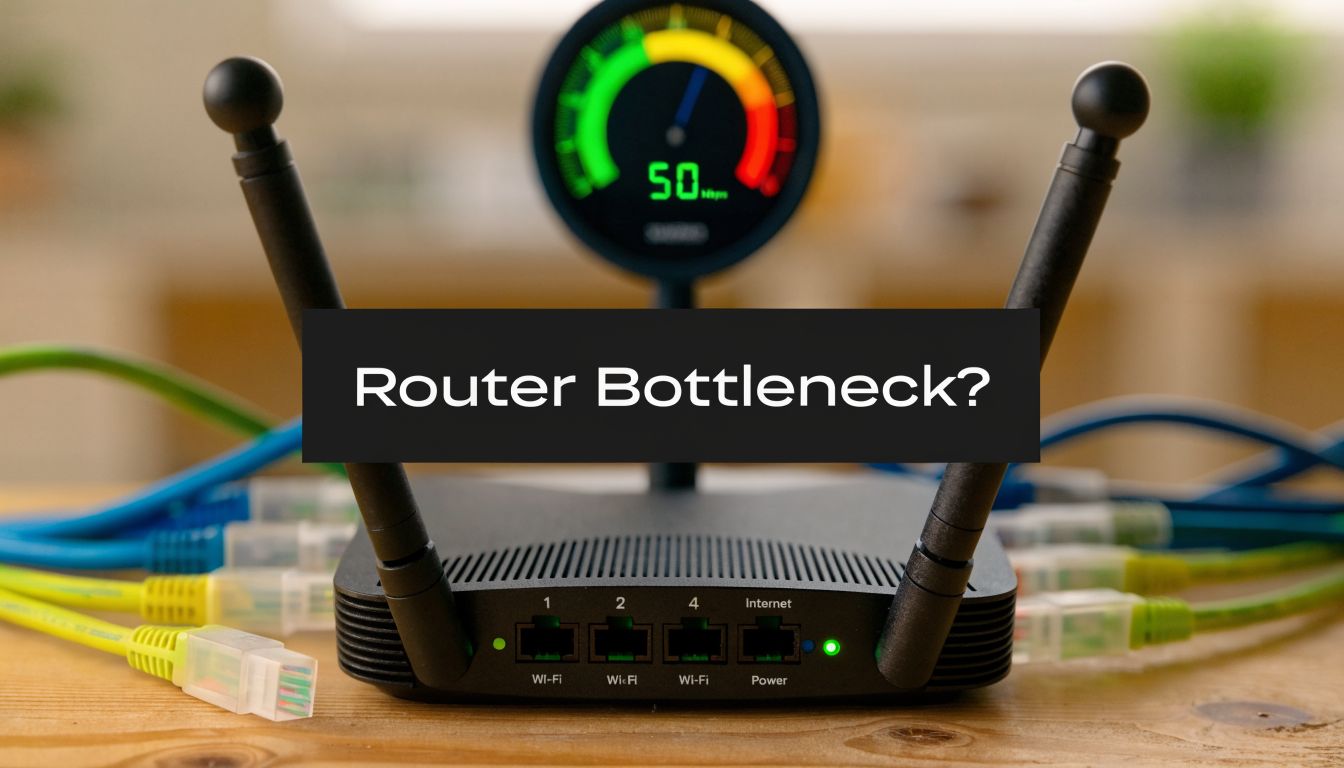
Yes, routers significantly affect internet speed. A router can't make your connection faster than your ISP plan, but an outdated one can absolutely make it slower. For example, WiFi 4 tops out at 600 Mbps, WiFi 5 reaches 3.5 Gbps, WiFi 6 reaches 9.6 Gbps, and WiFi 7 reaches 46 Gbps, so an older router can become a hard bottleneck if your internet plan is faster than what the router can handle.
If you're paying for fast internet but your team still sees frozen video, laggy calls, and sluggish file uploads, the router is one of the first places to look. This catches a lot of business managers off guard because the monthly internet bill feels like the main performance lever. In practice, the router often decides whether your staff experiences the speed you're paying for.
The easiest way to think about it is this. Your internet plan is the size of the pipe coming into the building. Your router is the traffic cop inside the building, directing that capacity to laptops, phones, TVs, conference room systems, and every cloud app your team uses. If that traffic cop is slow, overwhelmed, or working with outdated rules, the whole office feels slow even when the ISP connection is fine.
That matters most during real-time work. Email can wait a few seconds. Video conferencing can't. When a router becomes the bottleneck, people don't describe the problem as "throughput constraints." They say, "Why does my camera keep freezing?" or "Why does the audio keep cutting out in client calls?"
Your Router Is the Hidden Bottleneck in Your Internet Speed
Monday at 9:00 a.m., your team joins a client video call. One person freezes mid-sentence. Another sounds robotic. Screen sharing lags. The instinct is to blame the internet provider, but the bottleneck is often inside the office. It is the router deciding how well your purchased bandwidth reaches the devices and apps your team depends on.
A router cannot raise your internet plan above what your provider sells you. It can, however, limit how much of that speed your staff feels. That matters most in real-time work. Video conferencing, voice calls, and screen sharing need steady delivery, not just a good number on a speed test.
A common mistake is to troubleshoot internet problems in the wrong order. Businesses call the ISP, restart the modem, rerun a test, and only then look at the router. That is like checking the water company before noticing the narrow valve inside your own building.
Why the bottleneck idea matters
The bottleneck concept keeps the problem simple. Your internet plan is the total capacity coming into the office. Your router is the traffic cop assigning that capacity across laptops, phones, conference room systems, cloud backups, and guest devices. If the traffic cop is slow, overloaded, or using outdated hardware, the whole office feels the delay.
For a business, that shows up in ways people notice right away:
- Video calls break up: Meetings need stable, uninterrupted delivery, especially for audio and screen sharing.
- Slowdowns hit during busy periods: Performance drops when several employees are on calls, uploading files, and using cloud apps at the same time.
- A faster ISP plan changes very little: If the router is the narrow point, extra bandwidth never reaches the people using it.
Practical rule: If you upgraded your internet service and calls still freeze or audio still cuts out, check the router before assuming the provider is at fault.
Why business users feel this first
A streaming delay at home is annoying. In a business, the cost is higher. A choppy sales call can derail trust. A pixelated board meeting can make your team look unprepared. A laggy interview can interrupt the conversation at the worst possible moment.
That is why this topic is really about operations, not just hardware. The router sits between the bandwidth you buy and the business applications that need it to work well. If you are also comparing WiFi and other short-range technologies, this guide to understanding wireless connectivity helps clarify where router performance matters most.
An old, overloaded, or poorly placed router becomes the hidden bottleneck. Until you remove that bottleneck, faster internet on paper may still feel slow in practice.
How Routers Direct Your Internet Traffic
A router's job is to receive each request from your devices, decide where that request should go, and return the response to the right person without creating a pileup. That decision-making happens all day, across every laptop, phone, printer, camera, and conference room screen on the network.

The router controls the flow, not just the signal
The easiest way to understand this is to focus on traffic flow. Your internet connection is the road coming into the building. The router decides which car goes to which office, which ones need to wait a moment, and which ones should never enter at all.
That matters because business traffic is mixed. A video meeting sends a steady stream of audio and video. Email sync happens in short bursts. File backups can flood the connection for minutes at a time. If the router handles that mix poorly, the first thing people notice is instability. Voices cut out. Screens freeze. Calls become unreliable even though the internet plan looked fast enough on paper.
If you are planning around meetings, these video conferencing bandwidth requirements help explain why steady delivery matters as much as raw speed.
What NAT means in plain English
One router task that sounds technical but is easy to grasp is NAT, or Network Address Translation. NAT lets many devices inside your office share one public internet connection while keeping each conversation separate.
Here is the practical version. Your finance laptop requests a cloud report. At the same time, the conference room display joins a meeting, and a phone checks email. NAT keeps track of which reply belongs to which device, so the meeting data goes back to the conference room and not to someone's phone by mistake. Without that sorting, shared internet access would quickly become unmanageable.
If you want a broader primer on understanding wireless connectivity, that comparison helps clarify what WiFi does well and where it differs from other short-range wireless technologies.
Why the router can become a bottleneck
Routers are also small computers, with processors and memory that handle all this sorting in real time. As the workload rises, the router has to inspect more traffic, maintain more active sessions, and make more decisions every second.
When the hardware cannot keep up, the symptoms look scattered. A cloud app feels slow. Uploads stall. Meeting audio turns robotic. Web pages open, but with odd delays. To the business, it feels like random internet trouble. In reality, one overloaded device may be creating the bottleneck for everyone behind it.
That is the key point for a business manager. The router is not just the box that gives people WiFi. It is the control point between the bandwidth you buy and the applications your team depends on. If that control point struggles, video conferencing, file sharing, and cloud software all feel less reliable.
Key Router Factors That Limit Your Connection Speed
A router bottleneck usually shows up in four places: the WiFi standard, the radio band, the port speed, and the hardware inside the unit. If any one of those is weaker than the internet service you pay for, the router becomes the narrow point in the pipe.

WiFi standard sets the ceiling
The WiFi generation is the speed limit sign for the wireless side of your network. Older standards can cap performance before your internet plan ever has a chance to help.
As noted earlier, older WiFi generations top out far below newer ones. In practical business terms, that means an aging router can hold back a faster service tier, especially when several people are online at once.
A simple example makes the bottleneck easier to see. If your office buys a 1 Gbps fiber plan but still relies on an older WiFi 4 router, the router may become the choke point for laptops and meeting room devices. The internet service is fast. The path through the router is not.
WAN port speed creates hard limits
The WAN port is the front door where internet service enters the router. If that door is only one gigabit wide, traffic cannot pass through any faster, even if your ISP delivers more to the building.
Optimum's discussion of router throughput and hardware limits explains the issue clearly. A router with a 1 Gbps WAN port cannot pass more than 1,000 Mbps, and using that router on a 5 Gbps fiber connection limits throughput to 1 Gbps, which cuts available speed by 80%.
If you're checking wiring at the same time, this guide to choose the best Ethernet cable can help. Cabling can become a second bottleneck on an otherwise capable router.
Processor and memory affect consistency
Port speed and WiFi generation get the attention because they are easy to put on a box. Processor and memory matter just as much for real work.
The router's processor works like a traffic cop at a busy intersection. Every video call, file upload, browser tab, phone, printer, and security camera adds more cars to manage. If the router's hardware is underpowered, it may still connect everyone, but it starts making slower decisions under load.
That is why a network can look fine at 7 a.m. and struggle at 10 a.m. when the office is in meetings. For business use, this often shows up as unstable video quality, delayed screen sharing, choppy audio, or cloud apps that feel inconsistent instead of fully down.
Band selection changes real-world performance
The band a device uses affects whether the connection feels stable or fragile.
Here is a simple comparison:
| Band | What it tends to do well | What usually goes wrong |
|---|---|---|
| 2.4 GHz | Better range through space and obstacles | More interference and slower practical performance |
| 5 GHz | Faster speeds at shorter distances | More signal loss through walls |
| 6 GHz | Cleaner spectrum and high capacity on newer gear | Requires compatible devices and shorter, cleaner paths |
This matters most in conference rooms and shared office areas. A laptop on 5 GHz near the router may perform well, while the meeting room at the end of the hall drops frames because walls weaken the signal. A router can look fast on paper and still be the bottleneck where the business needs reliability.
For teams that rely on browser meetings and cloud collaboration, the video conferencing bandwidth requirements for common call quality levels help connect router limits to the user experience people notice first.
Evaluate the whole path: incoming service, WAN port, WiFi standard, radio band, and the number of active devices competing for the router's attention.
How to Diagnose Your Router Bottleneck
You don't need a networking certification to isolate whether the router is the problem. You need a controlled test.

Start with a wired baseline
The cleanest test is to connect a laptop directly to the modem or internet handoff with Ethernet and run a speed test. This gives you the baseline for what the incoming connection can deliver without the router's WiFi adding interference, distance loss, or congestion.
Then reconnect through the router and test again in the same room. If the wired direct result is strong but the router-connected result is much worse, you've isolated the bottleneck to the router or its wireless setup.
Compare near and far performance
Next, test over WiFi close to the router and then from the place where people usually work. A conference room behind several walls may tell a very different story than a desk next to the router.
According to Hey Broadband's explanation of router interference and signal loss, the 2.4 GHz band often suffers 30% to 50% practical throughput reduction from interference, while walls can reduce signal by about -3 to -5 dB for drywall and -10 to -15 dB for brick. The same source notes that a router placed behind walls at 30+ meters on 2.4 GHz could deliver only 40 to 60 Mbps of aggregate capacity.
That kind of drop explains why one corner office may seem fine while the conference room struggles during group meetings.
Check for congestion and device load
If performance changes during the day, look for competition inside your network. Open the router's admin panel and check how many devices are connected. Smart TVs, guest phones, tablets, doorbells, and backup services all add demand.
You can also use software that helps analyze network activity on a workstation to see whether file sync, cloud backup, or another application is eating bandwidth during calls.
Try this checklist:
- Run one direct wired test: This shows what the ISP connection can deliver on its own.
- Run one WiFi test near the router: This reveals whether the router itself is limiting speed even at close range.
- Run one WiFi test where meetings happen: This exposes distance and wall-related loss.
- Review connected devices: A crowded network can stress the router even if no single device seems problematic.
- Repeat during busy hours: Some problems only appear when the office is fully active.
If the internet is fast at the handoff and slow on WiFi, the ISP isn't your first suspect anymore.
Practical Fixes for a Faster Router and Better Internet
A common office pattern looks like this: the internet plan seems fast on paper, but the conference room call still freezes when three people join video with cameras on. In that situation, the router is often the choke point between available bandwidth and usable bandwidth.

Improve placement before you replace anything
Start with placement because it changes the size of the bottleneck quickly and at no cost. A router works like a traffic cop at a busy intersection. If you place that cop in a closet at the far end of the building, traffic control gets worse where it matters most.
Put the router in a central, open location. Avoid cabinets, storage rooms, metal shelving, and corners behind dense walls. Raising it onto a shelf or mounting it higher often helps because the signal has a clearer path to desks and meeting rooms.
For a business, this is less about getting the highest speed-test number and more about getting steadier performance where work happens. A slightly better signal in the conference room can mean fewer frozen faces, fewer dropped words, and less time wasted repeating yourself on client calls.
Match the connection to the job
Different devices need different paths. A laptop across the office may stay connected more reliably on 2.4 GHz. A laptop near the router usually gets better performance on 5 GHz. If your equipment supports 6 GHz, use it for short-range, low-interference situations.
The key is to stop treating every device the same. Devices used for video conferencing should get the cleanest, most stable path you can provide, even if that means assigning bands manually instead of leaving everything on automatic.
Update firmware and review traffic controls
Old firmware can turn a manageable bottleneck into a recurring business problem. Routers, like laptops and phones, need updates to fix bugs, improve compatibility, and handle modern traffic more reliably.
Check for Quality of Service, or QoS, in the router settings too. QoS lets you tell the router which traffic should go first when the network gets busy. That matters during video conferencing because calls are sensitive to delay and jitter in a way that email and file downloads are not. If you want the user-side habits that support router tuning, this guide on how to optimize your internet connection for smooth virtual meetings is a useful companion.
Use wired connections for your highest-value endpoints
WiFi is convenient. Ethernet is predictable.
For conference rooms, executive offices, front-desk stations, and any desk that regularly hosts customer or partner calls, a wired link removes one major source of instability. That does not make the internet plan faster by itself. It reduces packet loss, interference, and random swings in call quality.
A browser-based platform such as AONMeetings can run without software installation, which simplifies user access. But meeting software cannot fix a weak local path. If the router is overloaded or the WiFi signal is marginal, the call still suffers.
A practical action list:
- Move the router to where work happens: Central and open usually beats hidden and enclosed.
- Assign devices with intent: Put conferencing devices on the most reliable band for their location.
- Install firmware updates: Stability problems often start with neglected maintenance.
- Turn on QoS if available: Give real-time meeting traffic priority over less time-sensitive activity.
- Wire the rooms that matter most: Conference spaces should not rely on borderline WiFi.
Advanced Router Setups for Business and Video Conferencing
Sometimes optimization isn't enough. If your office has outgrown a single consumer router, the fix is architectural.
Single high-performance router or mesh system
A single powerful router works well in a smaller office with a relatively open floor plan. It keeps management simple and often delivers strong performance when most users are within a reasonable range.
A mesh system fits better when the office has multiple rooms, thick walls, awkward corners, or dead zones. Instead of forcing one router to reach everywhere, mesh spreads coverage across multiple nodes. That usually improves consistency across the space, which matters more than peak speed for meetings.
The tradeoff is control and complexity. Some mesh systems are easy to deploy but offer fewer advanced controls than business-focused gear. For a small office, that's often acceptable. For a larger environment, it may not be.
When business-grade hardware makes sense
Business-grade routers and access points usually justify their cost when you have many simultaneous users, heavy conferencing, guest networks, or compliance requirements. They tend to offer stronger management tools, more advanced traffic controls, and hardware built for sustained load.
That matters because real-time communication punishes weak infrastructure quickly. If your team relies on video calls for sales, care delivery, legal consultations, training, or internal operations, reliability has a direct business value. The decision isn't just about speed. It's about avoiding failed meetings, repeated explanations, and lost confidence.
For planning, use practical meeting needs instead of marketing claims. This reference on internet speed for video calls helps translate calling requirements into infrastructure decisions.
Buy networking gear for your busiest hour, not your quietest one.
A simple way to decide
If a few placement and settings changes solve the issue, keep the current router. If problems return whenever the office is busy, stop treating it like a tuning problem.
At that point, you're likely dealing with a capacity problem. A better router, a mesh deployment, or a business-grade wireless setup is usually cheaper than the ongoing cost of interrupted meetings and frustrated staff.
Frequently Asked Questions About Router Speed
Does my ISP's free router slow down my internet
It can. ISP-provided routers are often built to serve the average customer, not the busiest office in the building. That doesn't mean they're always bad. It means they're often a compromise on wireless range, processing headroom, or management features.
How often should I upgrade my router
There's no single schedule that fits every business. A better rule is to upgrade when your router no longer matches your internet plan, device count, office layout, or daily workload. If your team has added more video meetings, more cloud apps, and more connected devices since the router was installed, it's worth reevaluating.
Will a new router fix slow internet if my ISP plan is bad
Not by itself. A router can't exceed the speed your provider delivers. What it can do is make sure you receive and distribute the speed you're already paying for. If the ISP plan is too small, the router won't create extra bandwidth. If the plan is fine but the router is weak, a better router can remove that internal bottleneck.
If your business depends on reliable browser-based meetings, webinars, or virtual client sessions, AONMeetings is worth a look. It provides HD video meetings, webinars, recording, screen sharing, and related collaboration features in the browser, which makes it a practical option for teams that want fewer installation hurdles while they also improve the network foundation underneath.